User roles and permissions
Understand the Creative Strategist, AI Creator, and Video Editor roles, what each can do, and how permissions shape the app.
Roles decide what each teammate can see and do in AdFactory, and they map directly to the stages of creative production. Assigning the right role to each person keeps work flowing from brief to approved creative without confusion over who owns what.
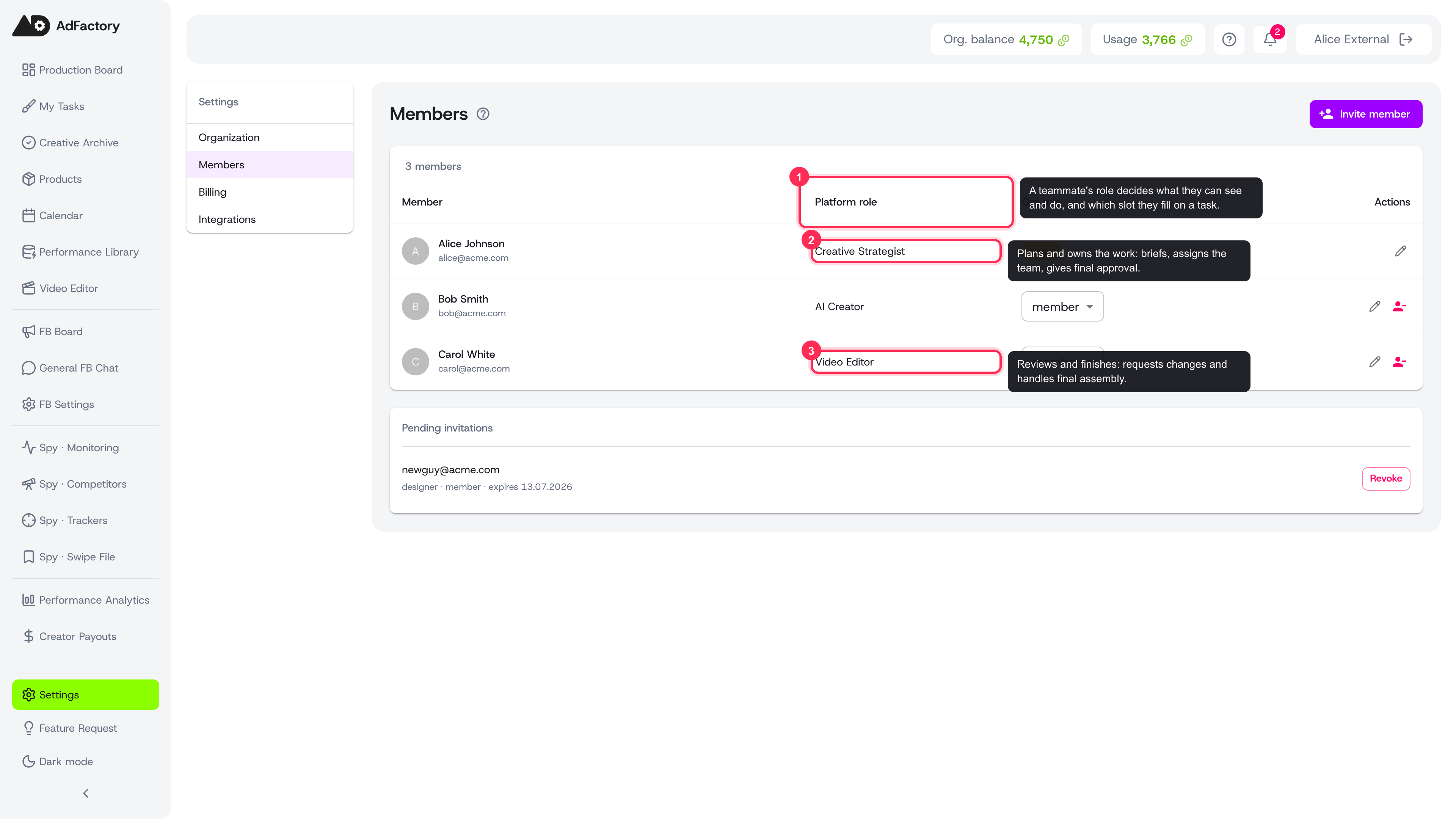 The Members page lists every teammate's platform role, mapped to the three production roles
The three roles
AdFactory has three roles for your team. Each one lines up with a stage of the production flow and a slot you fill when assigning your team to a task.
Creative Strategist
The Creative Strategist plans and owns the work. They typically:
- Create tasks and write the brief — product, hypothesis, budget, deadline, and creative formats.
- Assign the team and set direction.
- Research the competition with the Spy Agent and turn findings into tasks.
- Give final approval on finished creatives.
This is the right role for marketers and growth leads who decide what gets produced and sign off on the result.
AI Creator
The AI Creator produces the raw materials of a creative. They typically:
- Generate images, video, audio, and other media with AI generation.
- Build and iterate on creatives in the early stages of the review pipeline.
- Upload or import source materials and prepare them for review.
This is the right role for designers and AI creators doing hands-on production.
Video Editor
The Video Editor reviews and finishes the work. They typically:
- Review the materials an AI Creator produced and request changes when needed.
- Handle motion and final assembly to turn raw materials into a polished creative.
- Pass finished work to final review.
This is the right role for editors and motion designers who assemble and quality-check the final deliverable.
How roles shape the app
Your role tailors AdFactory to what you actually do:
- It controls which actions and screens you can access, so the interface stays focused.
- It defines the slot you can be assigned to on a task — Creative Strategist, AI Creator, or Video Editor.
- It powers the My Tasks view, which shows only the work assigned to you.
A single person can hold any role, and roles can be changed at any time as your team grows.
Setting and changing roles
You assign a role when you invite someone and can update it later. Manage everyone from one place under members and roles, and see setting up your account for inviting your first teammates.
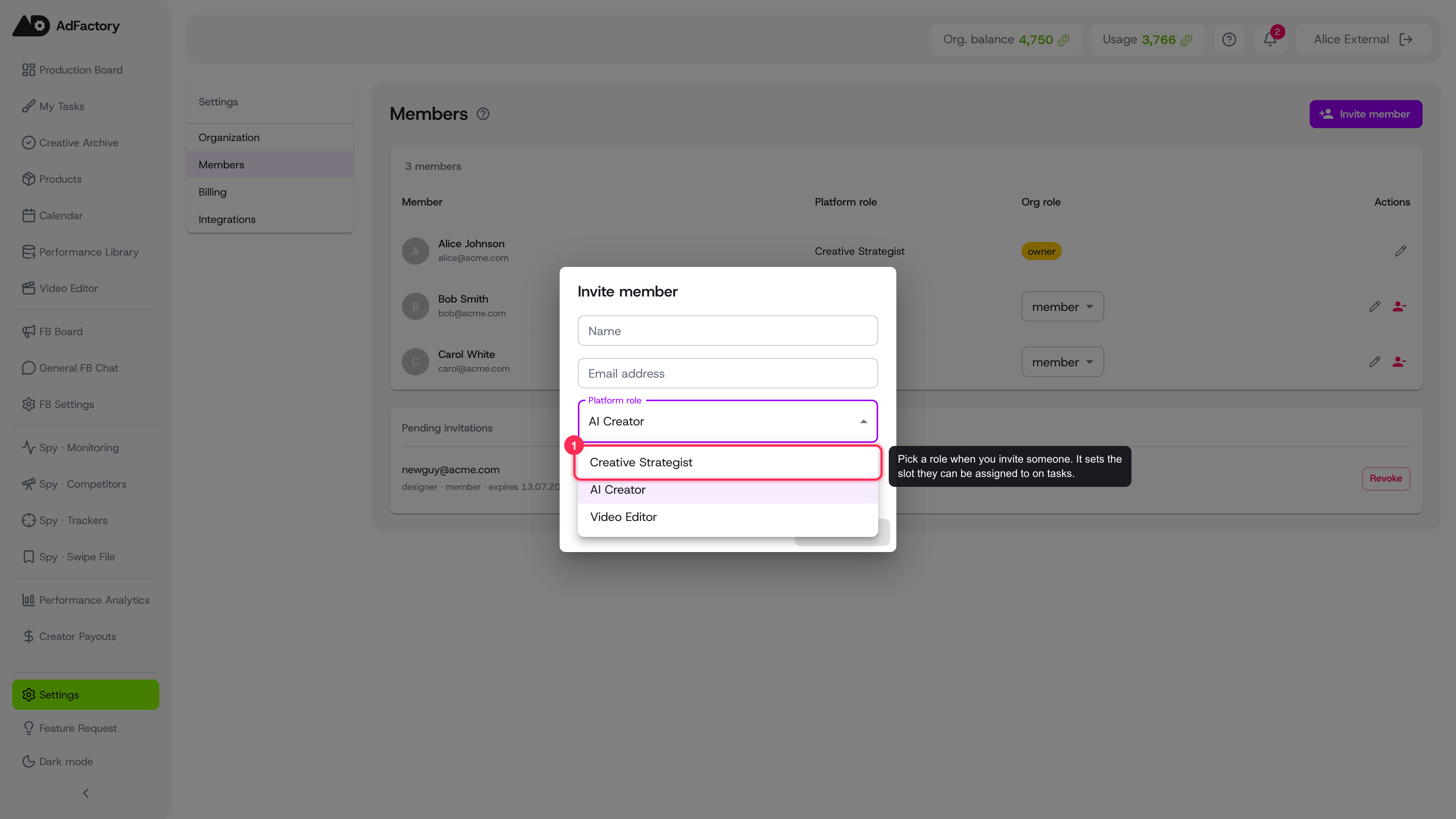 Choosing a platform role in the Invite member dialog
You can change a teammate's role at any time from the same page — open the pencil icon on their row and pick a new platform role.
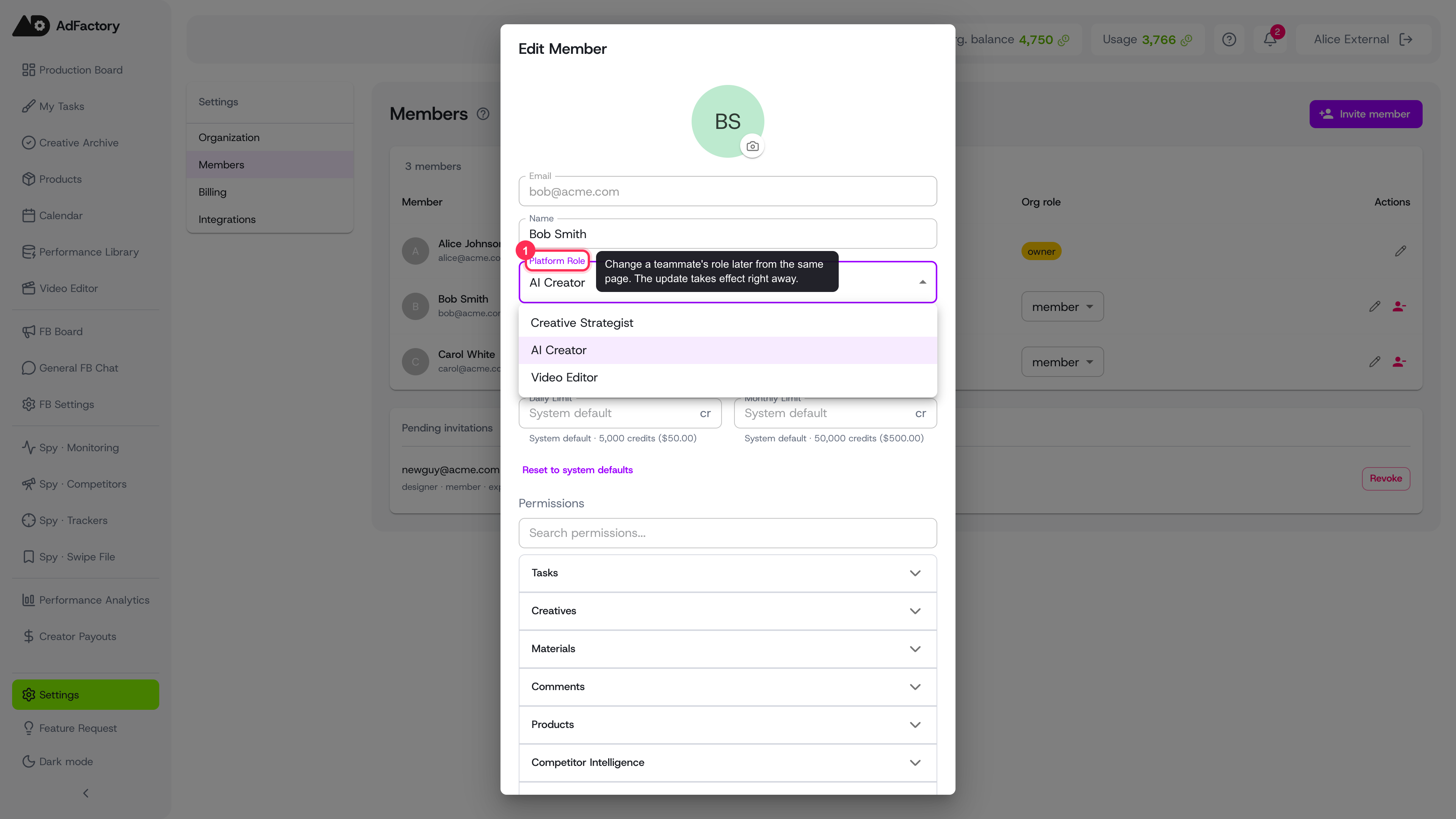 Changing a teammate's role from the Edit member dialog
Once roles are set, head to the task board and start assigning people to tasks.