Generating audio and music
Produce music and text-to-speech voiceovers with a voice catalog and advanced voice settings.
Audio generation lets you build the sound layer of your ads right inside the creative you're working on — spoken voiceovers from text and original background music. It's part of the platform's AI generation toolset, and the results become materials on your creative alongside your visuals.
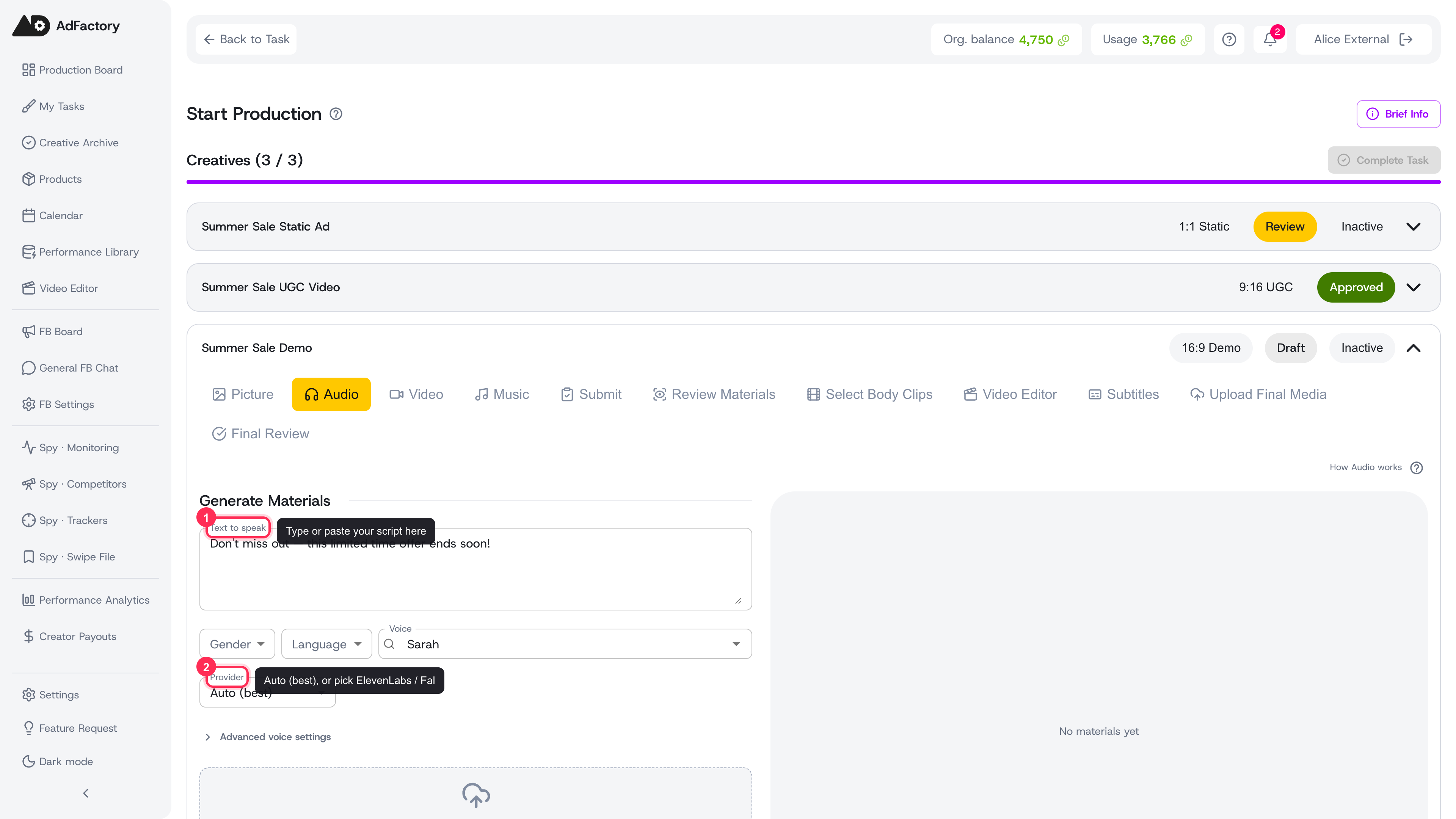 The Audio step in the creative editor, with a script in the Text to speak box and a chosen voice and provider
Two ways to make sound
AdFactory has a separate step for each kind of audio:
- Audio — turns a script into a natural-sounding voiceover (text-to-speech).
- Music — generates an original track from a short description.
Both run as background jobs. While a job runs you'll see a progress bar, and when it finishes you can preview the result with a built-in player. A cost chip shows what the generation used, and an "Attached to creative" badge confirms it was saved.
Generating a voiceover
- In the Audio step, type or paste your script into the Text to speak box.
- Pick a voice from the catalog. You can preview any voice before choosing, and the catalog can be filtered to narrow the list.
- Choose a Provider: Auto (best) lets AdFactory pick for you, or select ElevenLabs or Fal directly.
- Optionally fine-tune the voice settings (see below).
- Click the generate button and wait for the job to complete.
Fine-tuning the voice
When you use ElevenLabs, three extra controls let you shape how a line is read:
- Speed — how fast the voice speaks.
- Stability — lower is more expressive and variable, higher is steadier and more consistent.
- Similarity — how closely the output matches the original voice's character.
These are optional — leave them as they are for a balanced default and only adjust when you want a specific delivery. They aren't available with the Fal provider.
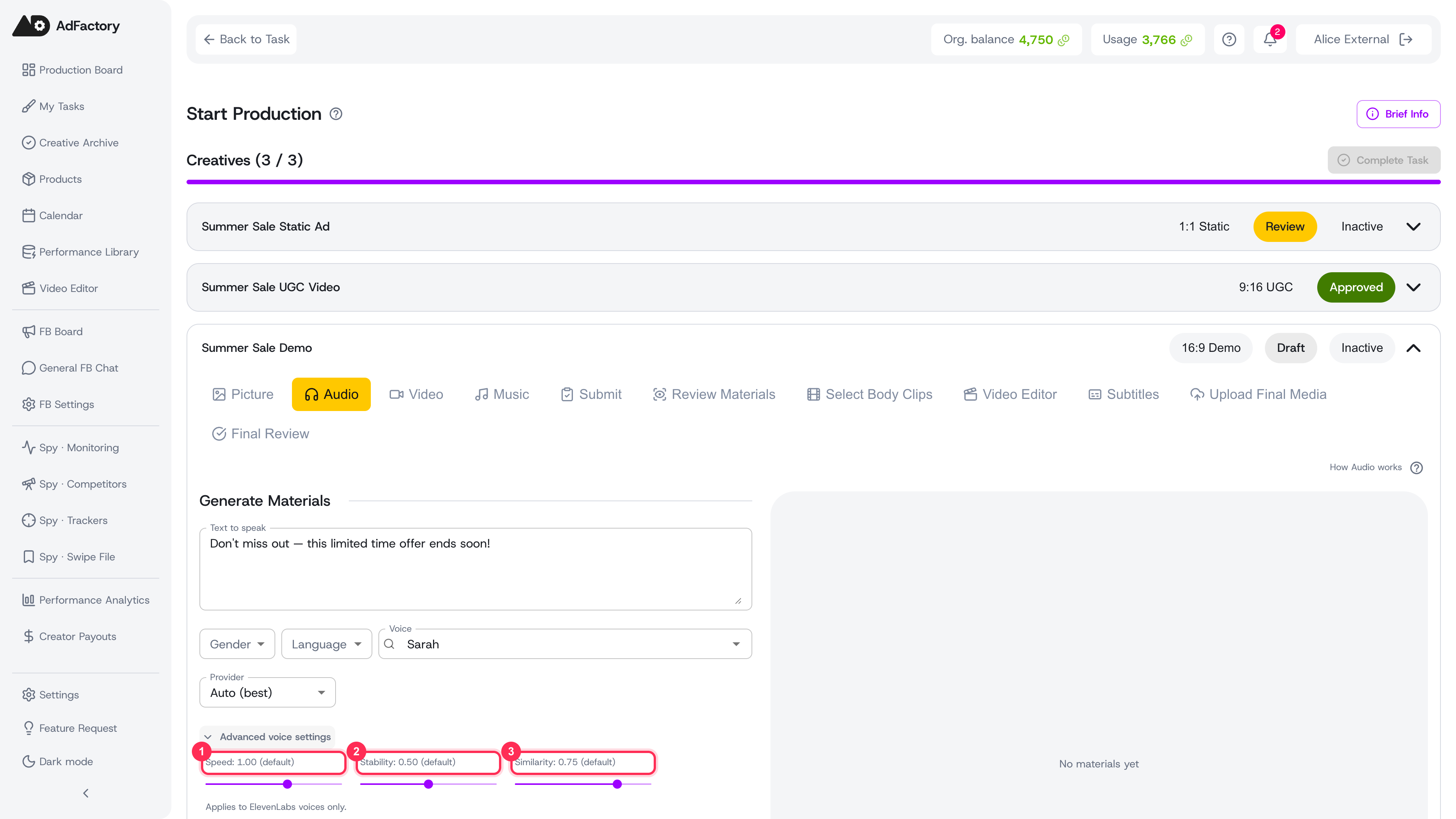 Advanced voice settings expanded, showing the Speed, Stability, and Similarity sliders
Generating music
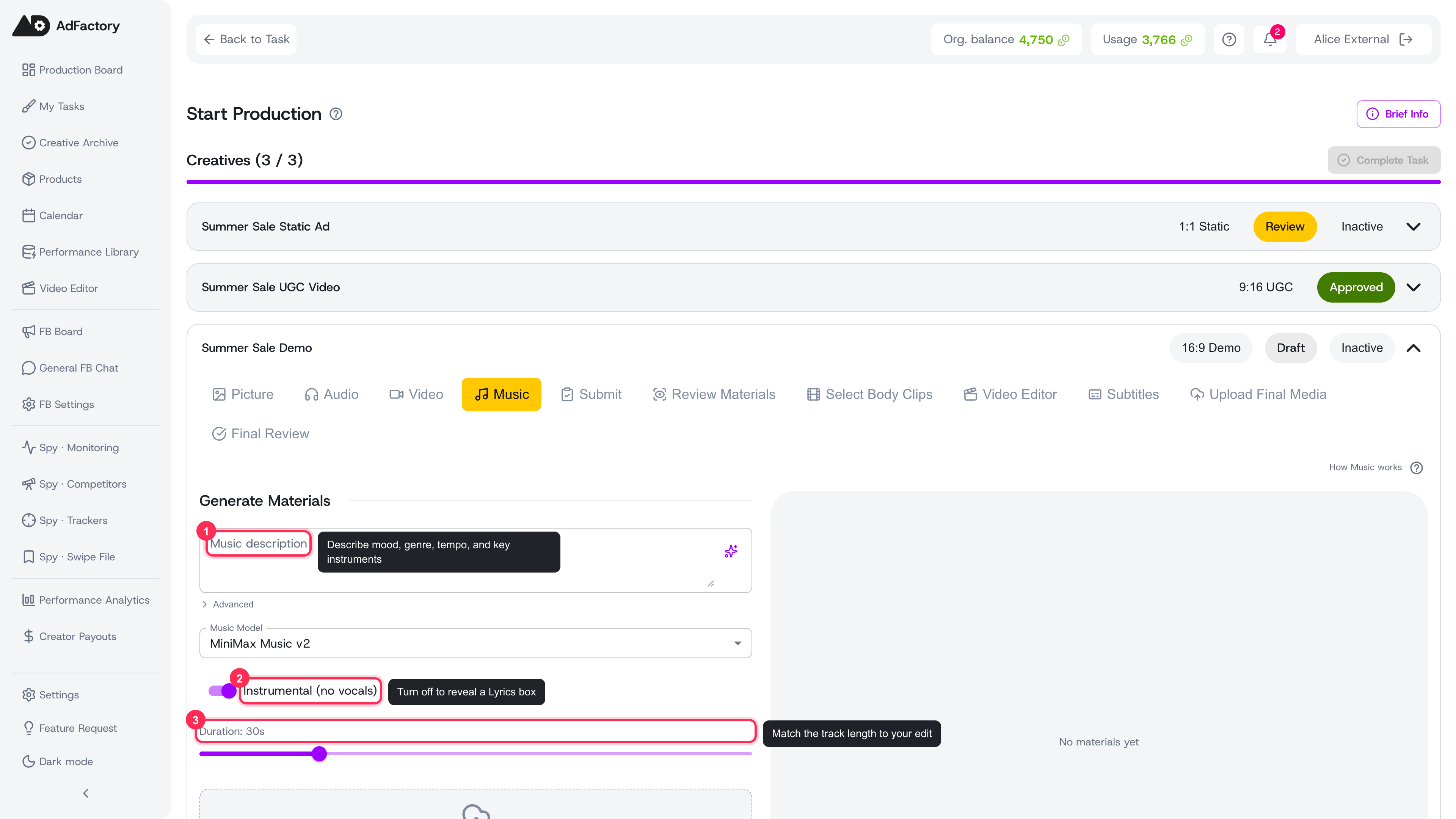 The Music step, showing the Music description box, model picker, Instrumental toggle, and Duration slider
- In the Music step, describe the track you want in the Music description box — mood, genre, tempo, and key instruments all help.
- Choose a model to generate with.
- Use the Instrumental (no vocals) toggle to decide whether the track has vocals. Turn it off to reveal a Lyrics box where you can write the words to sing.
- Set the Duration with the slider to match the length of your edit.
- Click the generate button to start the job.
Keep music prompts concrete — a clear description of feeling, energy, and instrumentation produces the most usable results. For help shaping any text field, see prompt optimization.
Using your own audio
You don't have to generate everything. Both steps include an upload area, so you can drop in your own voiceover or music file and attach it to the creative the same way. See uploading files for the details, or pull in media you've already gathered from materials.
Where audio goes next
A finished voiceover or track is saved as a material on the creative, ready for the rest of production:
- Pair narration with a talking-head shot using lipsync.
- Add the voiceover or music to a clip made with video generation.
- Generate matching on-screen text with subtitles and captions.
Tips
- Write scripts the way they should sound — punctuation and short sentences guide pacing and natural pauses.
- Preview a few voices before generating; listening in the catalog helps you commit to the right one.
- You can regenerate from an earlier result to reuse its settings, then tweak and run again.
- Each generation uses credits from your plan. See credits, top-ups, and payments to track usage.