AI generation overview
Generate images, video, audio, music, lipsync, and subtitles with AI inside your creatives, with cost and job tracking.
AI generation is how you produce media inside AdFactory — turning a prompt or a reference into images, video, voiceovers, music, lipsync, and captions. It all happens in the creative editor, and every result becomes a material you can refine and ship.
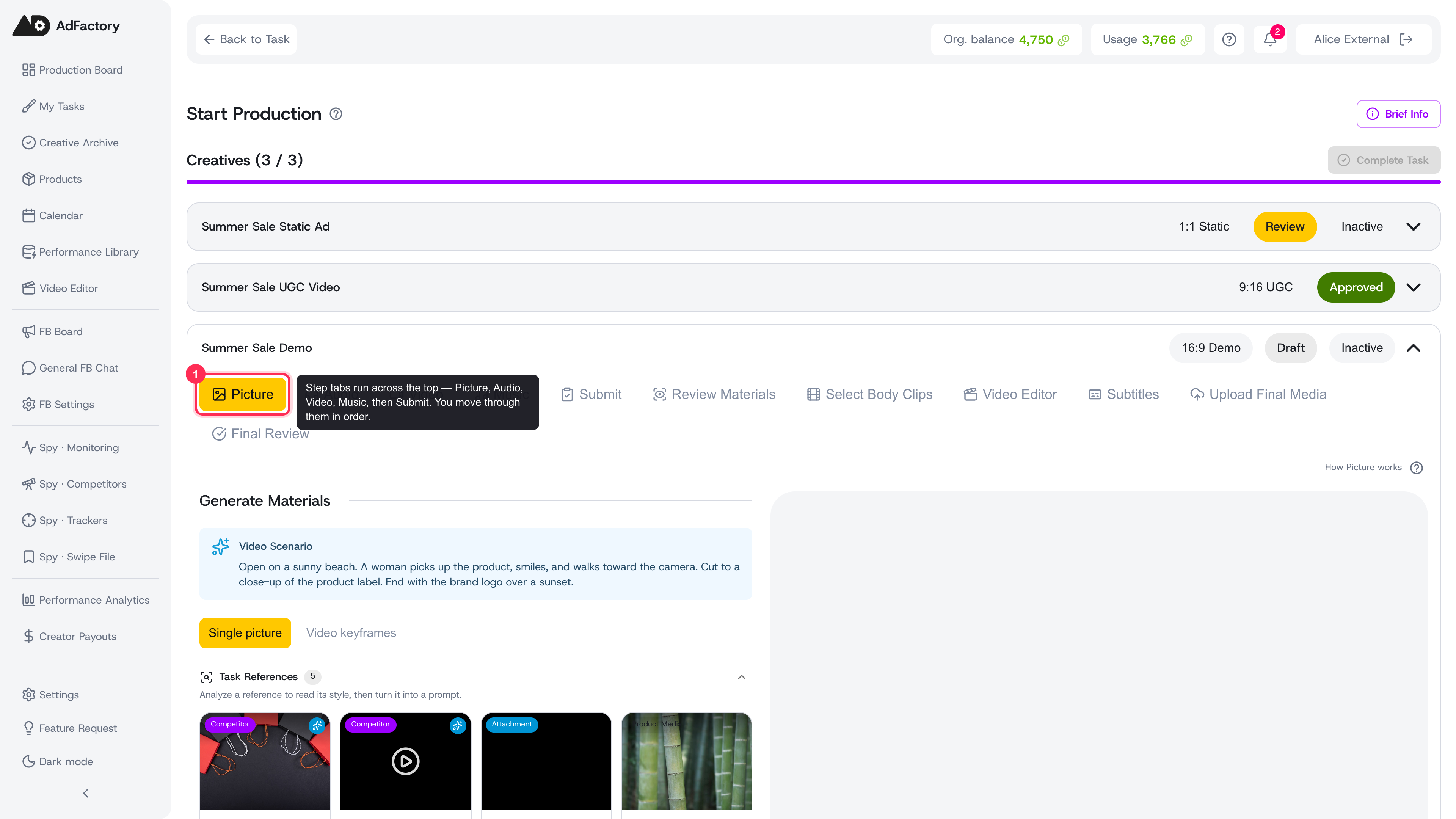 The creative editor is a step-by-step flow, with each kind of media as a tab across the top
Where generation happens
You generate inside a creative, which you open from a task. The editor is a step-by-step flow, and each step is a tab across the top.
If you're producing the creative, your media steps are, in order:
- Picture — generate images.
- Audio — generate voiceovers.
- Video — turn images and frames into motion, and upscale clips.
- Music — generate background tracks.
- Submit — send your work for review.
Reviewers see additional steps after these — Review Materials, Select Body Clips, Subtitles, Upload Final Media, and Final Review — for finishing and approving the creative.
On each media step you'll see a form on the left and a live panel on the right showing everything you've generated of that type so far. New results appear in that panel as they finish.
The typical chain to a finished video
The steps are designed to build on each other. A common path from nothing to a polished video looks like this:
- Start in Picture. Generate one or more images as your base.
- Bring it to life in Video. Use Image to Video to animate a single image, or generate two keyframes and stitch them together with Frames to Video. You can also generate motion straight from a prompt with Text to Video, and sharpen any clip with Upscale. See generating and upscaling video.
- Add sound. Generate a voiceover in Audio, and create a track in Music (including instrumental-only options).
- Sync the face. Use Lipsync to match a talking-head clip to your voiceover so the mouth movements line up.
- Caption it. Add subtitles so the message lands even with the sound off.
- Submit the creative for review.
You won't always need every step — a static image ad might stop after Picture — but this ordering is the backbone of most video creatives.
How each generation works
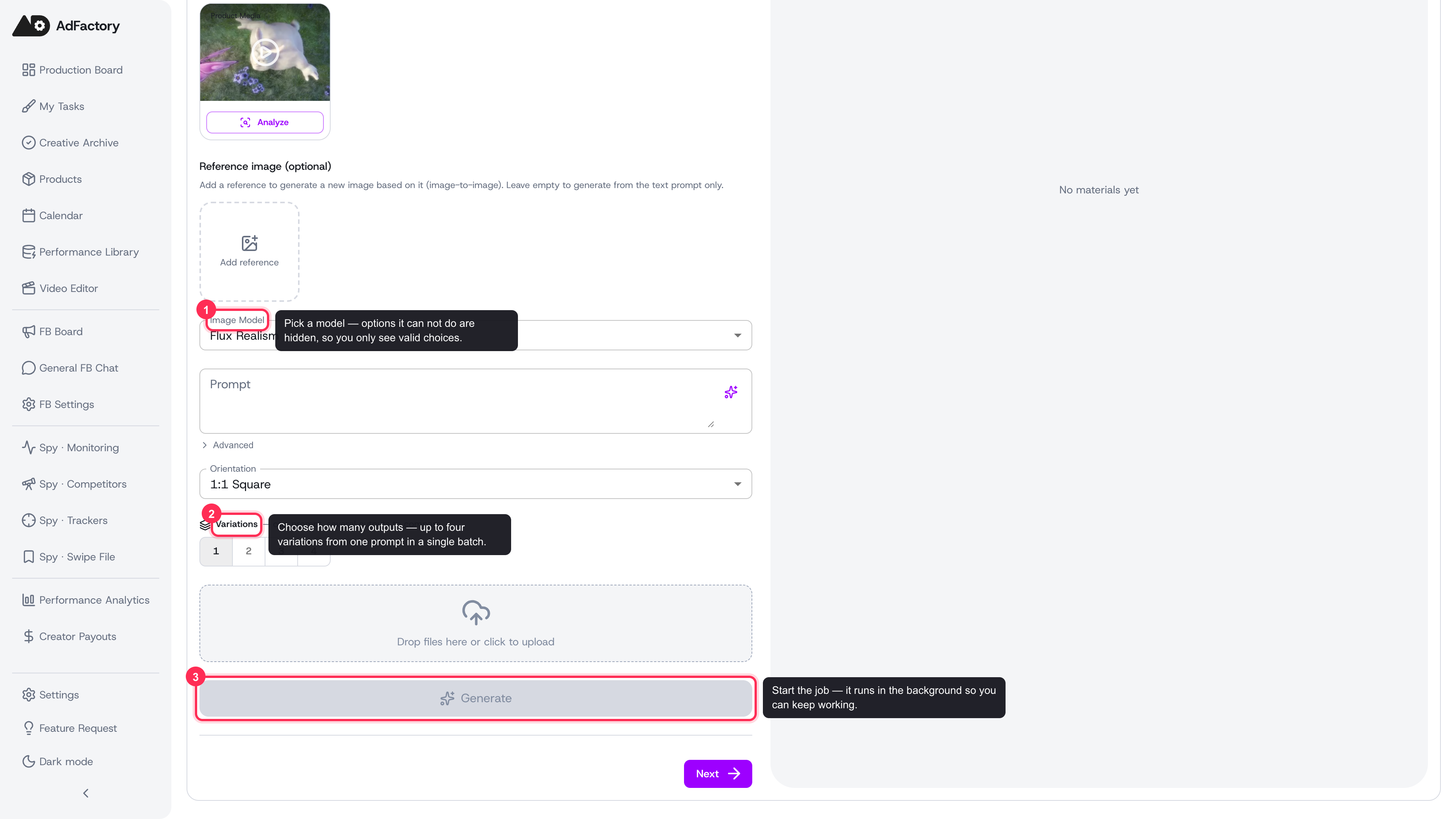 On every media step, pick a model, write a prompt, choose how many outputs, then start the job
The pattern is the same everywhere:
- Pick a model for that generation. The available modes and options depend on what the model supports — anything it can't do is simply hidden or grayed out, so you only ever see valid choices. Use the ⓘ icon next to the model to open its details — a short description of what it's best at, plus model-specific prompt tips to help you get a better result.
- Write your prompt and set the controls — things like aspect ratio, reference media, or quality. A clear prompt is the biggest driver of a good result, and prompt optimization can tighten it for you.
- Choose how many outputs you want — up to four variations from a single prompt in one batch.
- Start the job. Every generation runs in the background, so you can keep working while it processes.
Jobs, results, and cost
Each generation runs as a background job. Results show up in the live panel as a grid of thumbnails — from there you can keep the ones you like and discard the rest. To explore a different look, request more variations without rewriting your prompt.
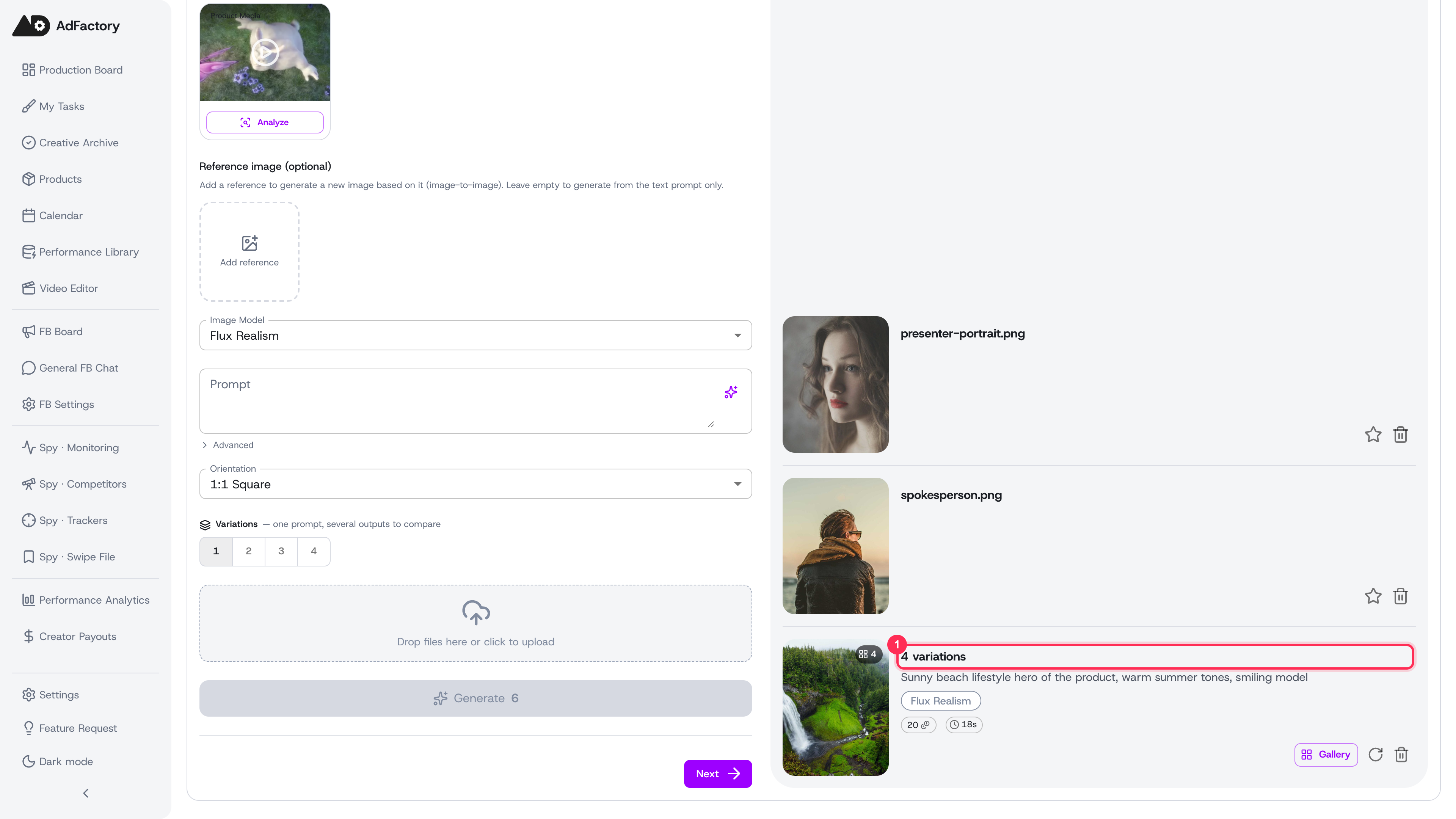 Finished results land in the right-hand panel — this batch card holds all four variations from one prompt, with the prompt and model shown beneath
Before you start, AdFactory shows an estimated cost in credits; once the job finishes, you see the actual cost. Roughly 100 credits equals about $1. For how usage is metered and how to top up, see credits, top-ups, and payments.
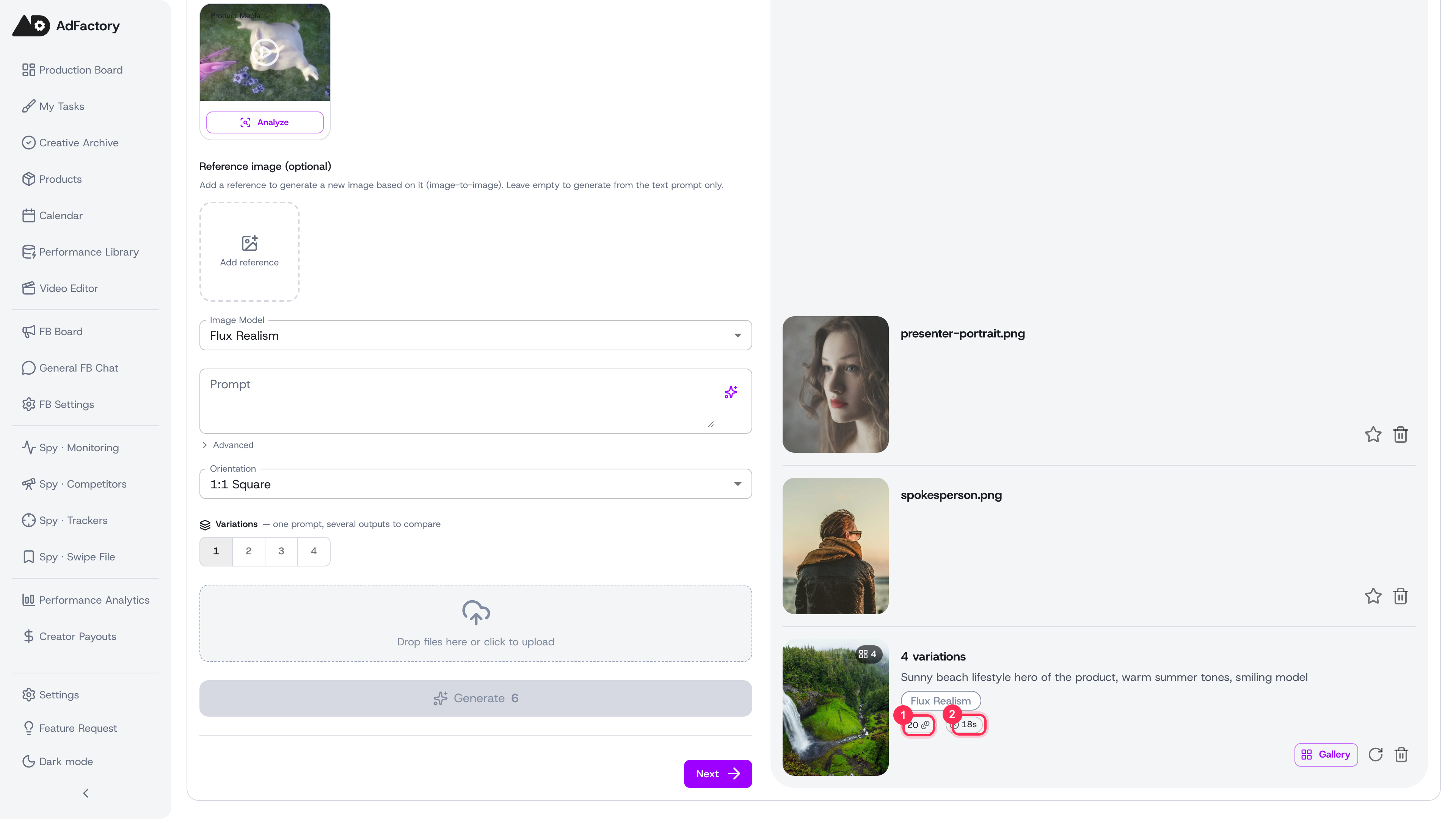 Every finished batch card shows what it cost — the credits spent and how long the job took
Tips
- Generate a small batch first to dial in your prompt, then scale up once you like the direction.
- Combine generated media with uploaded files when you already have assets to work from.
- When the creative is ready, Submit moves it into review for approval.