My Tasks view
See only the tasks assigned to you in a focused list, so you always know what to work on next.
Open in appMy Tasks is your personal queue inside AdFactory. Instead of scanning the whole task board, it shows only the tasks assigned to you, so you always know what to work on next.
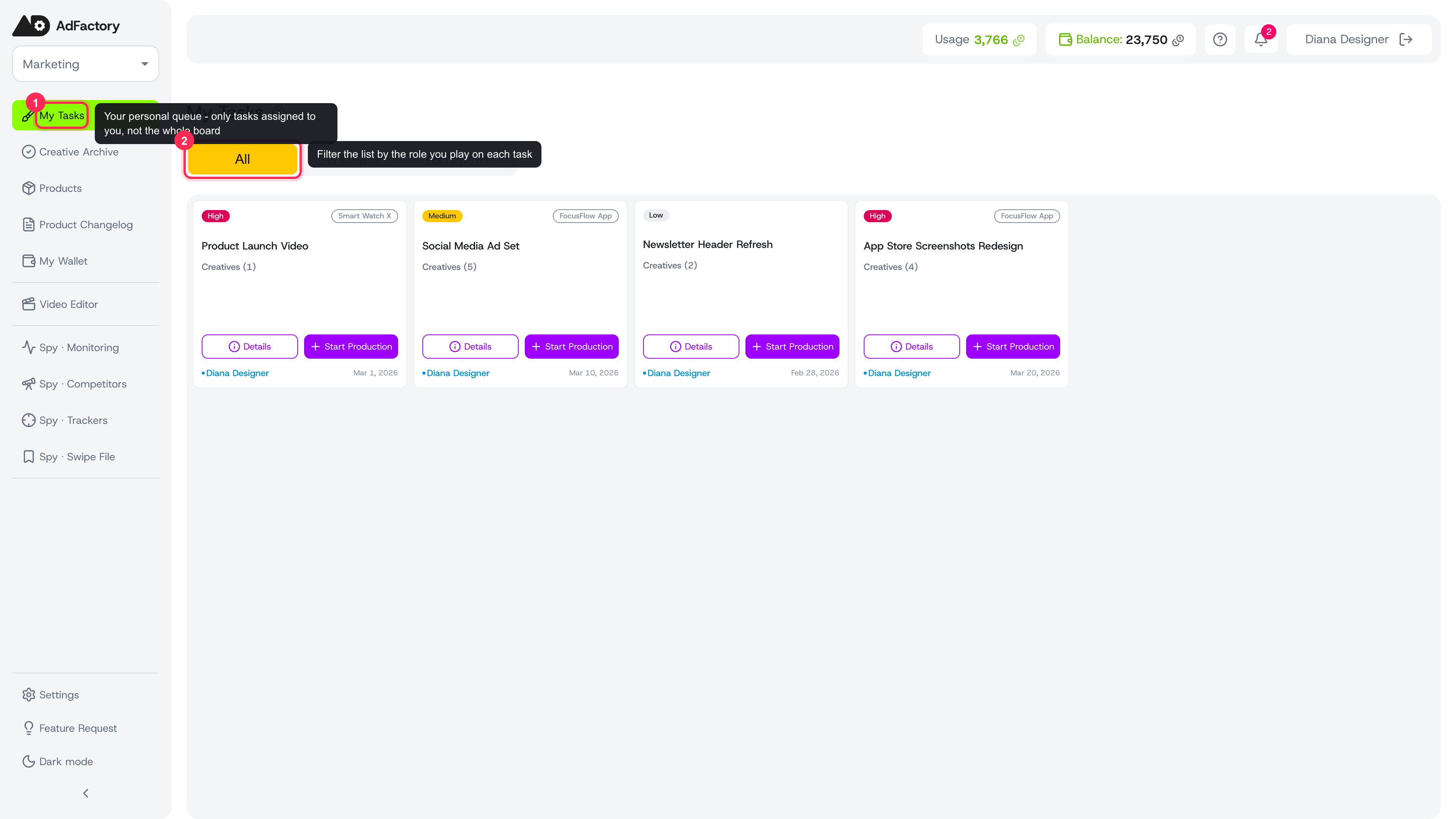 The My Tasks view listing every task card assigned to you
What you'll see
My Tasks displays a card for every task where you're on the team — as the creator, the reviewer, or both. Each card gives you the essentials at a glance:
- Priority and the product the task is for.
- The task title and how many creatives it already contains.
- Who the creator is and the task's deadline.
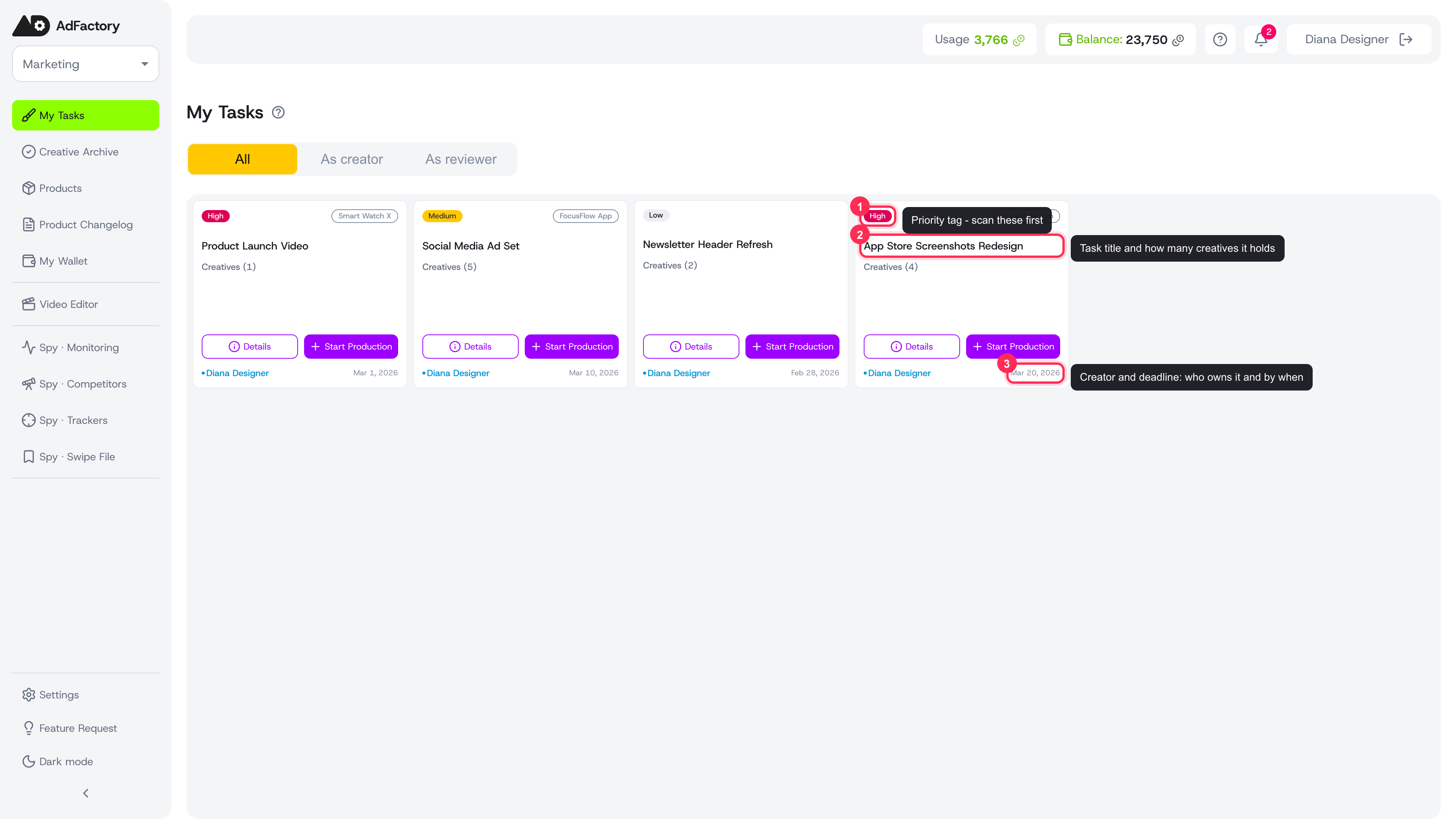 A single task card showing its priority tag, title and creatives count, and deadline
If nothing is assigned to you yet, you'll see an empty state — that simply means you're not on any task team right now. See assigning your team to understand how people get added to a task.
Filter by your role
A segmented control at the top lets you narrow the list by the role you play on each task:
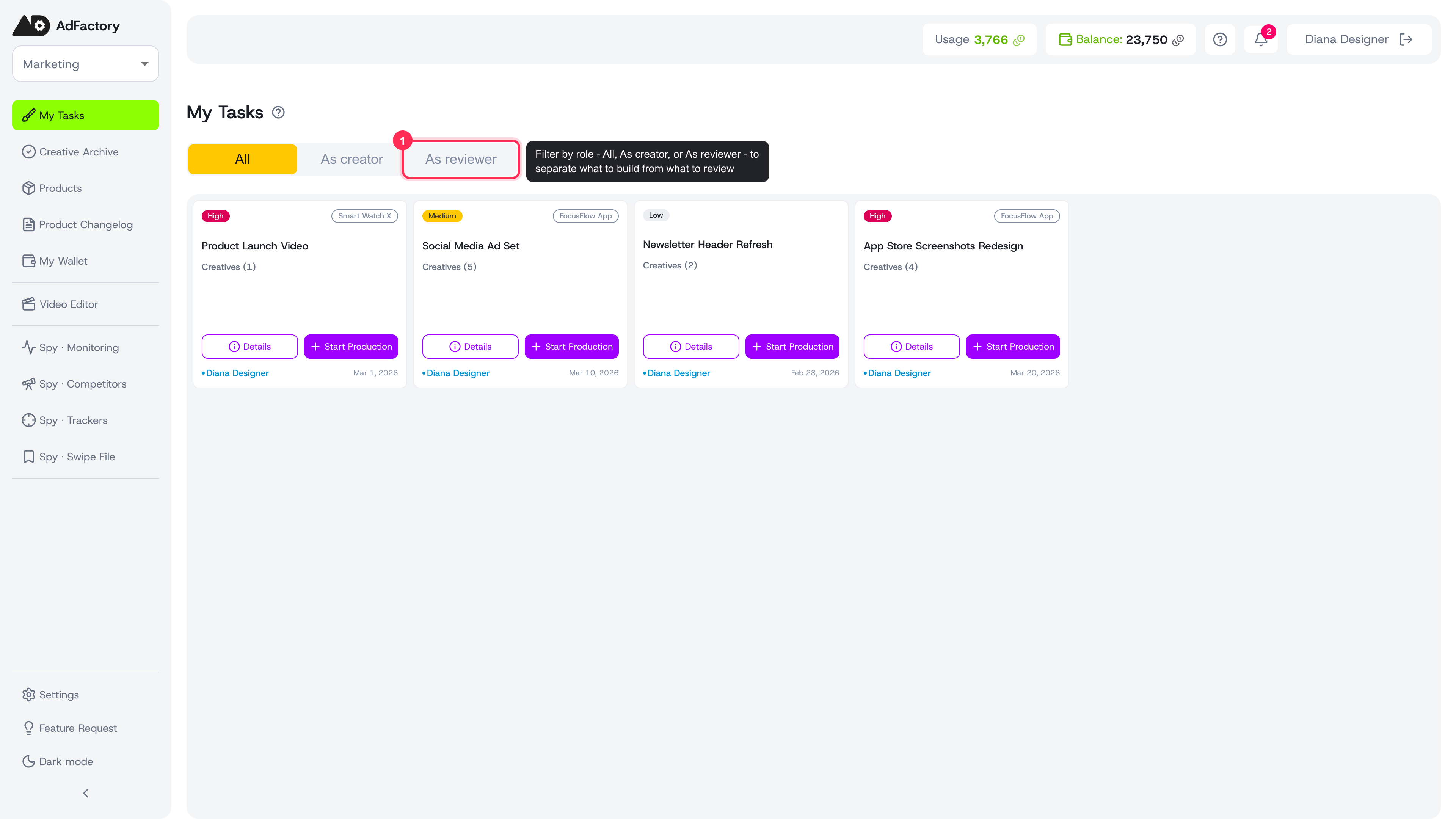 The All, As creator, and As reviewer segmented control at the top of My Tasks
- All — every task you're part of.
- As creator — tasks where you're responsible for producing the work.
- As reviewer — tasks where you're responsible for checking and approving it.
Tasks where you're both creator and reviewer always show up, no matter which filter is active. Roles map to the stages of production, so this is a quick way to separate "things I need to build" from "things I need to review." Learn more about who owns what in user roles and permissions.
Quick actions on each card
Every card has two buttons so you can jump straight into the work:
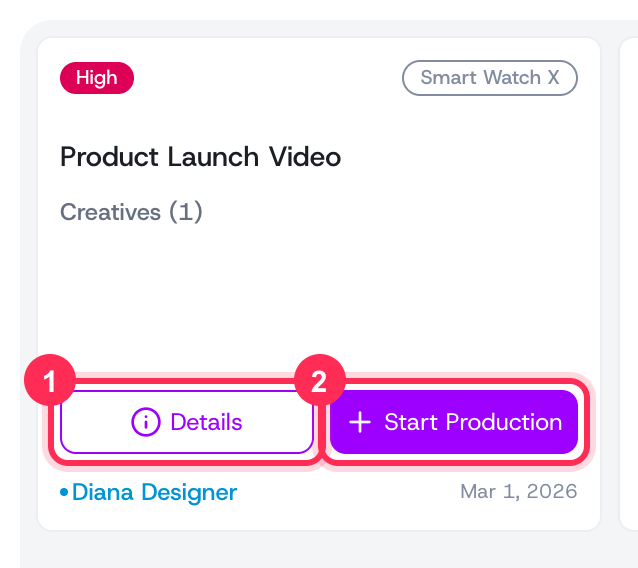 The Details and Start Production buttons on a task card
- Details — open the full task, where you'll find the brief, team, creatives, and discussion.
- Start Production — begin a new creative for that task right away. See creating a creative.
How tasks flow to you
A task lands in your queue when a marketer creates it and assigns you. From there it moves through the production statuses — TODO, in progress, review, and on to done. Watching My Tasks alongside your notifications keeps you on top of work that needs your attention.
Tips
- Use As reviewer to clear your review backlog before it blocks the team in the creative review pipeline.
- Sort priorities in your head by the colored priority tag and the deadline date on each card.
- Need the bigger picture, or want to create or filter tasks across the whole team? Switch back to the task board.