Members and roles
Invite teammates, assign roles and permissions, and manage members and cost limits.
Open in appThe Members page is where you build your team in AdFactory. From one place you invite teammates, assign each person a role, fine-tune their permissions, and set per-member spending limits — so everyone has exactly the access they need and nothing they don't.
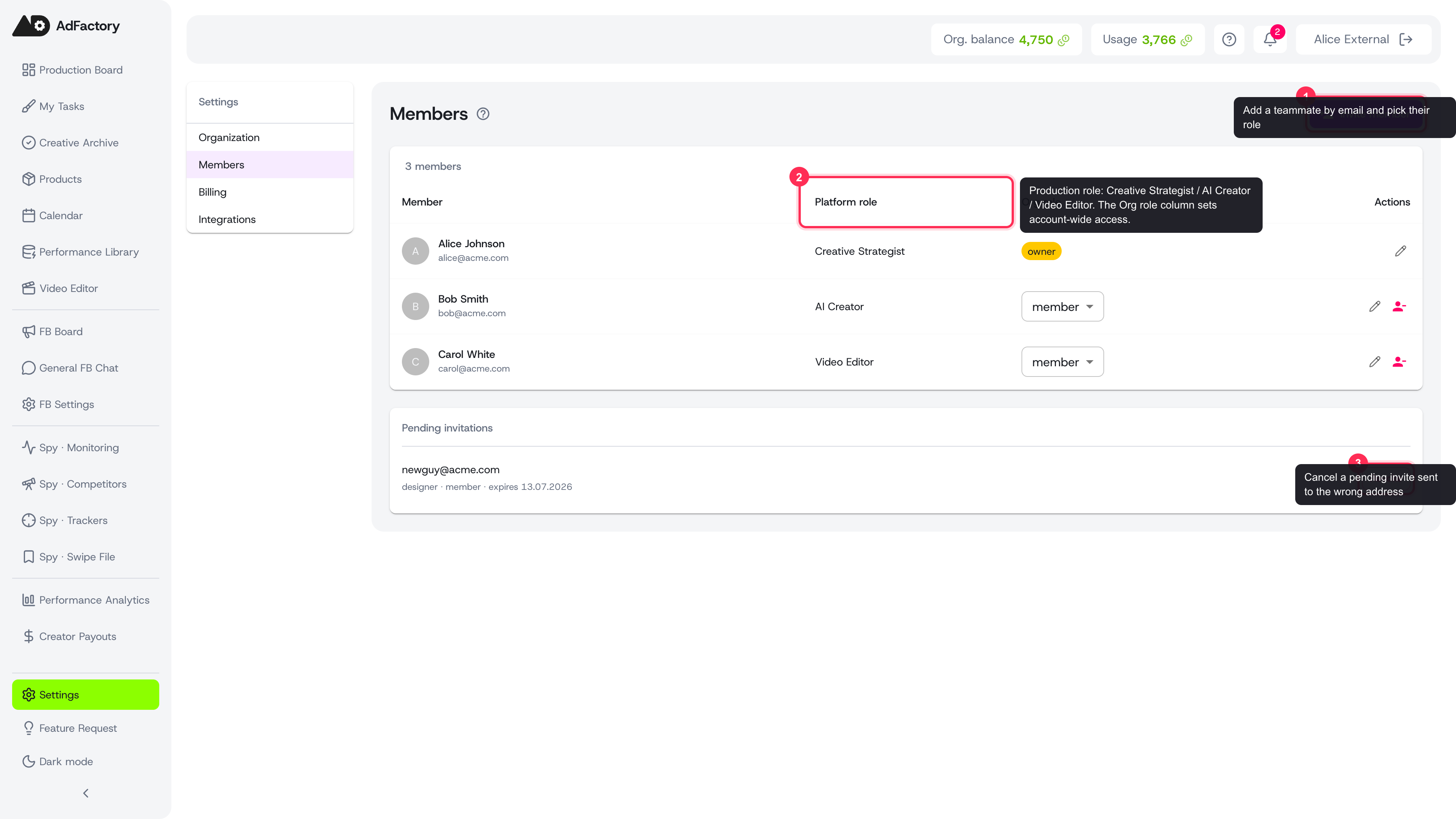 The Members page: invite teammates, set their platform and org roles, and manage pending invitations from one place
Inviting a teammate
Open your organization settings and go to Members to manage who's on your team.
- Click Invite member and enter their email and name.
- Choose the role they'll have when they join.
- Send the invite. They'll get an email link to set up their account.
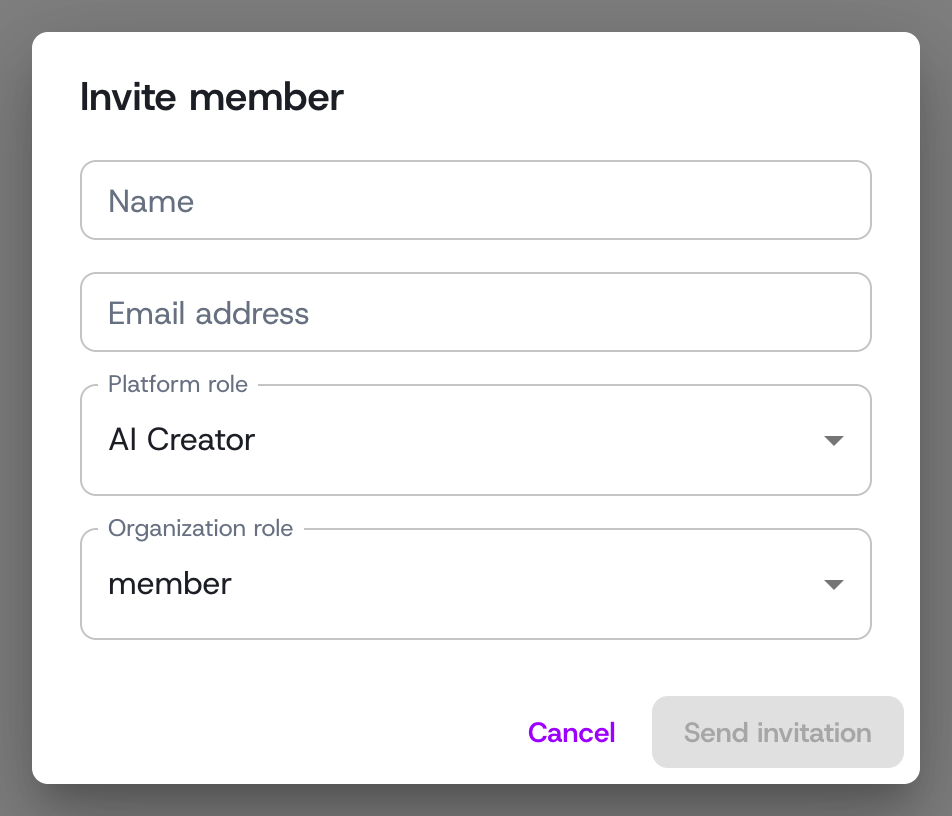 The Invite member dialog: enter a name and email, then pick the platform and organization roles
Invitations expire after a set period and can be revoked before they're accepted. If an invite lapses or you sent it to the wrong address, just send a new one.
Organization roles
Every member has an organization-level role that controls account-wide access:
- Owner — full control of the organization, including billing and plans and member management. There is one owner.
- Admin — can manage members, roles, and settings, but the account itself stays with the owner.
- Member — works in the platform without access to org administration.
Platform roles
Alongside the org role, each person gets a platform role that reflects what they do in the production workflow:
- Creative Strategist — plans and briefs work, assigns the team, and gives final approval.
- AI Creator — produces materials and iterates on creatives in the early stages.
- Video Editor — handles motion, assembly, and final review.
These roles map onto how a task moves through production — see user roles and permissions for the full picture, and assigning your team for putting the right people on each task.
Fine-tuning permissions
A role sets sensible defaults, but you can adjust an individual member's permissions from the Edit member dialog. Permissions are grouped by area (such as tasks, creatives, and AI generation), and you can search to find a specific one. Check or uncheck to grant or remove access without changing the person's role.
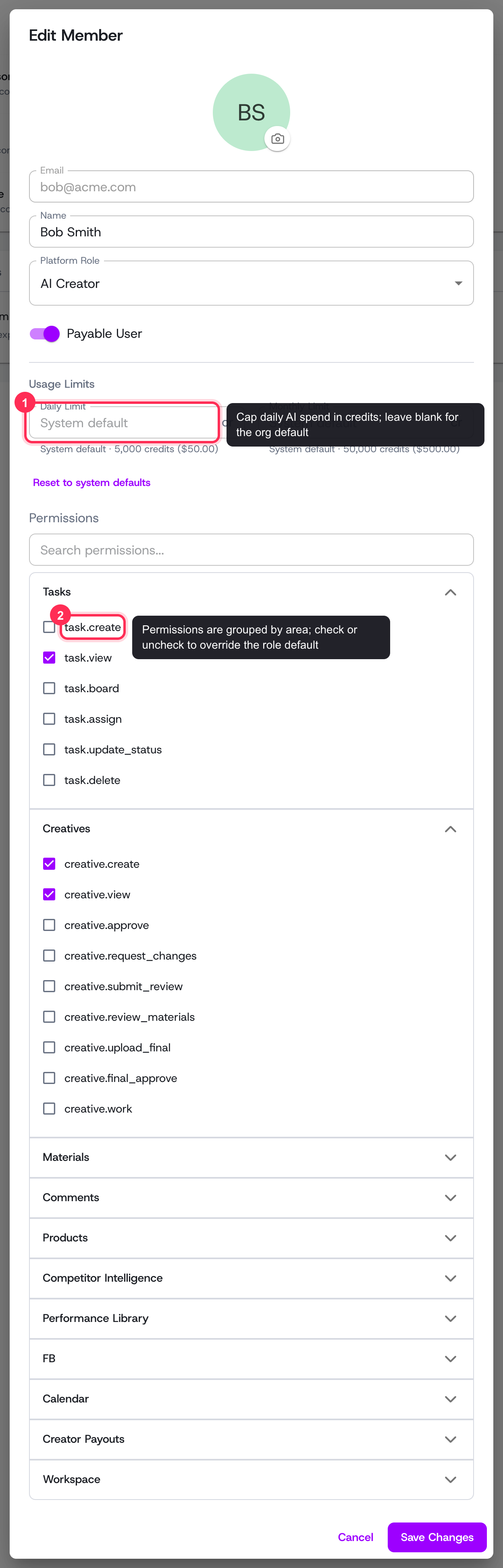 The Edit member dialog: set per-member usage limits and fine-tune grouped, searchable permissions
Setting cost limits
To keep AI spending predictable, you can set daily and monthly usage limits per member, measured in credits. Leave a field blank to fall back to your organization's default, or use Reset to system defaults to clear an override. Limits cap how much a member can spend on generation — learn more in credits, top-ups, and payments.
Tips
- Give most people the member org role; reserve admin for those who manage the team or settings.
- Start with the role defaults and only adjust permissions for genuine exceptions.
- Set per-member limits before handing out access to AI generation, so spend stays in check from day one.