The task board
Plan creative production on a Kanban board with configurable statuses, plus a table view with filters and server-side sorting.
Open in appThe task board is where your team plans and tracks creative production. Every piece of work lives here as a task that moves across columns as it progresses — giving everyone a shared, real-time picture of what's in flight.
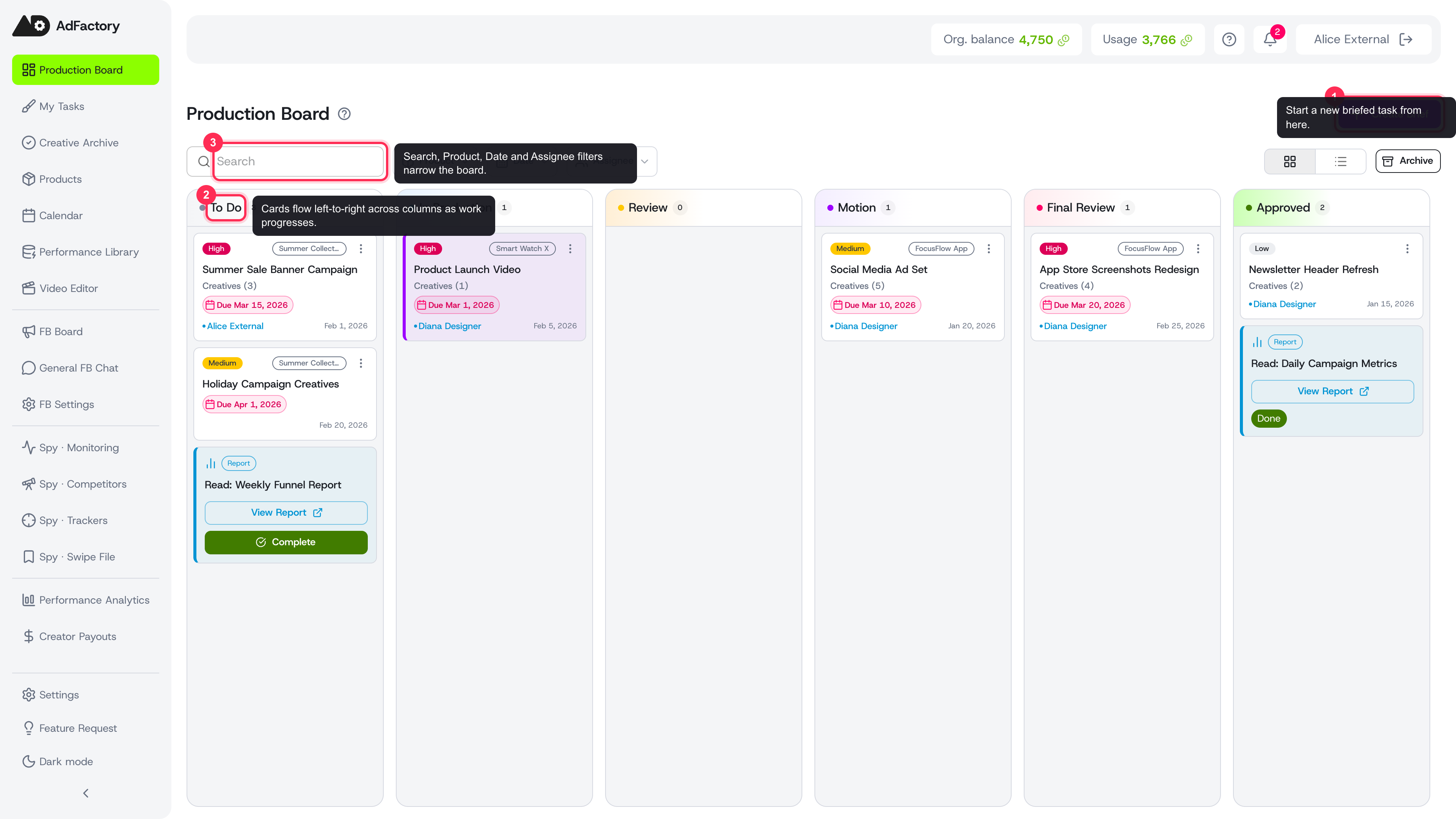 The Production Board: every task lives here and moves across status columns from To Do to Approved, with Create Brief, search, and filters up top.
Board view and table view
The board offers two ways to look at your work:
- Kanban board — cards arranged in columns by status, ideal for seeing flow at a glance and dragging work forward.
- Table view — a paginated list with filters (by product, title, and created date) and server-side sorting, ideal for scanning large numbers of tasks.
Your choice of view is remembered, so the board opens the way you left it.
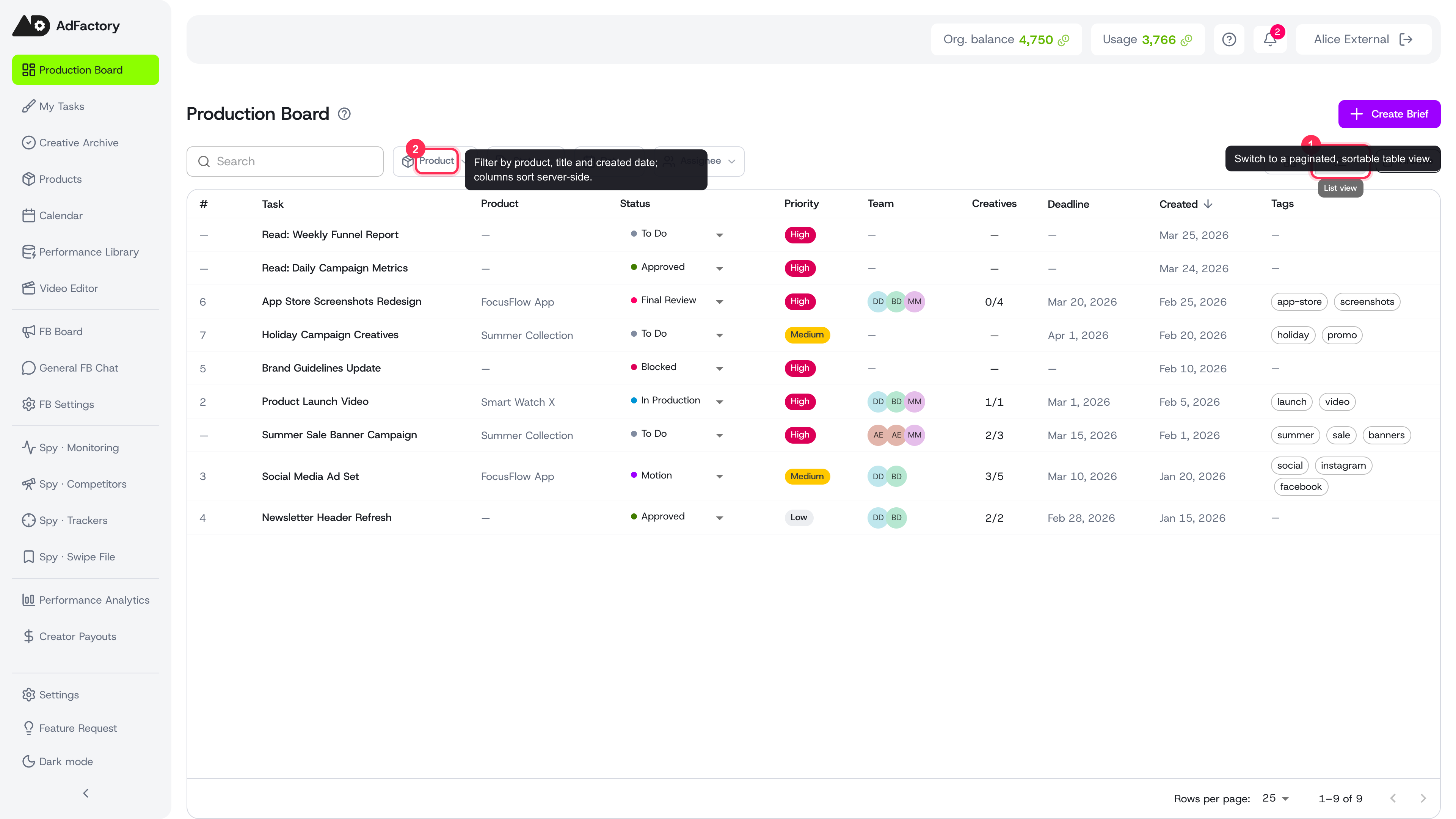 Table view: a paginated, filterable, sortable list of every task — best for scanning many at once.
Statuses
Tasks move through a configurable set of statuses:
TODO → IN_PROGRESS → REVIEW → MOTION → FINAL_REVIEW → DONE
Each status represents a stage of production and signals who should act next. For a deeper explanation of each stage, see task statuses and the production flow.
Reorder tasks within a column
Drag a card up or down inside its column to set the order manually. The new order is saved and visible to your whole team — use it to float the most important task to the top of a column so a teammate knows what to pick up first. This order is a shared priority signal, not a personal sort. Dragging a card into a different column still changes its status as usual.
Working with tasks
- Create a task with a full brief — product, hypothesis, budget, deadline, and creative formats. See creating a task.
- Assign your team so a marketer, creator, and reviewer each own their part. See assigning your team.
- Filter and sort in table view to focus on a product or a date range.
- Archive or duplicate tasks from the card menu to keep the board clean or reuse a setup. See archiving and duplicating tasks.
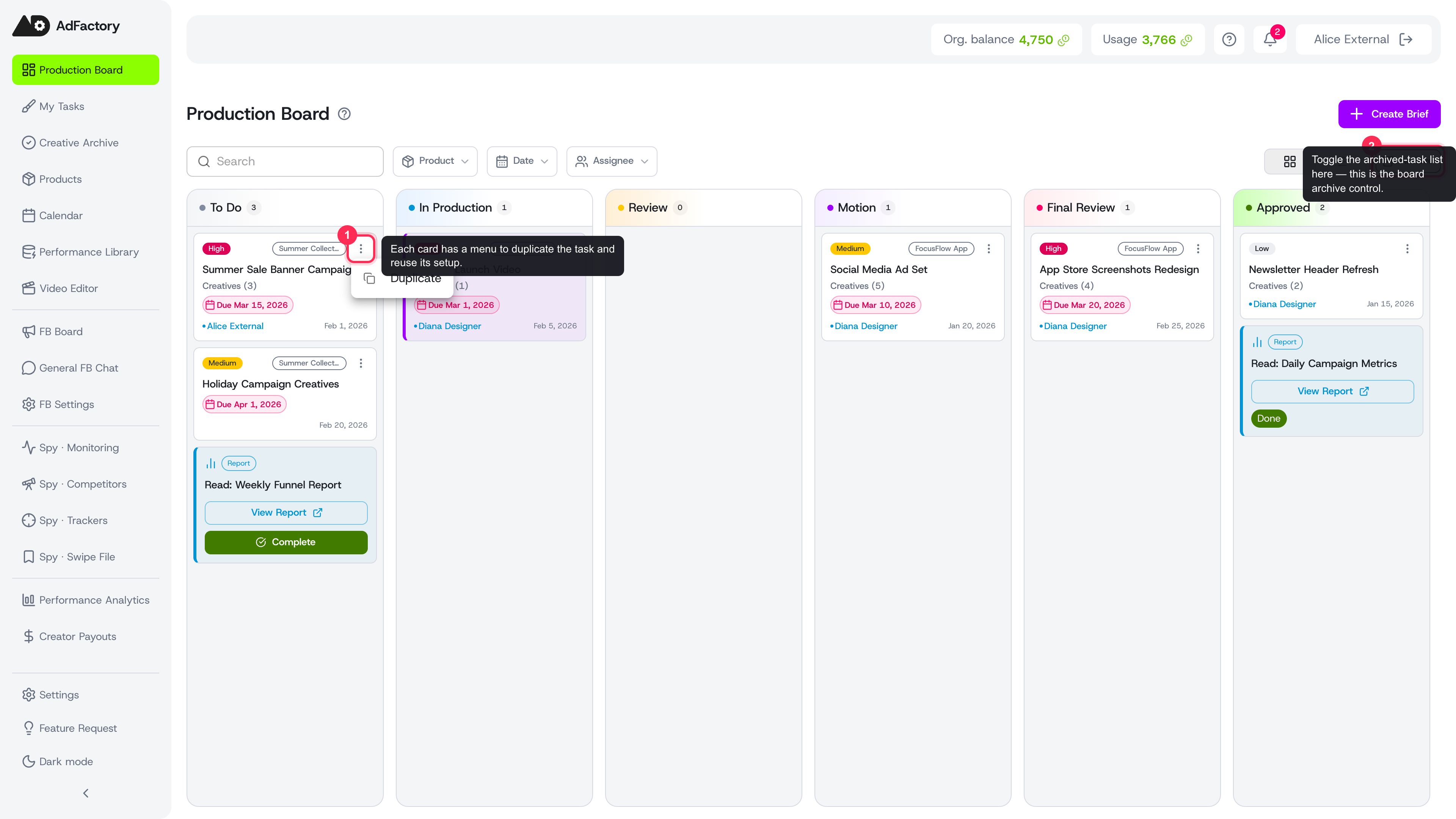 Each card has a menu to duplicate a task, while the top-right Archive button toggles the archived-task list.
Focus on your own work
If you only want to see what's assigned to you, switch to the My Tasks view for a focused personal queue.