Materials: media in a creative
Manage the video, photo, audio, text, and document files in a creative, categorized as source or final.
Materials are the media files that make up a creative — the videos, photos, audio, text, and documents your team produces and assembles into a finished ad. Every creative has its own gallery of materials, so all the raw and final pieces stay together in one place.
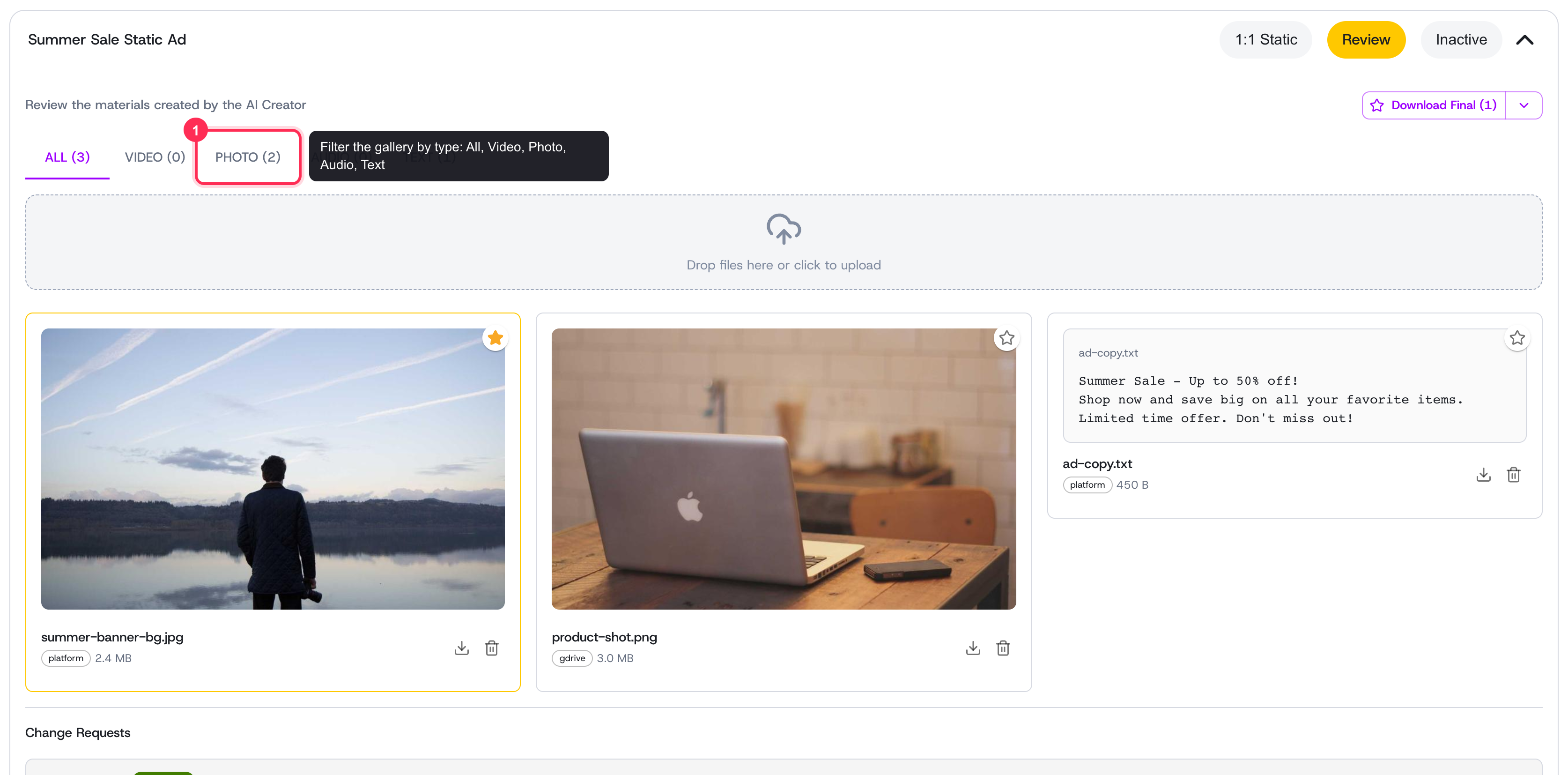 A creative's materials gallery with type filter tabs, previews, and batch download
What counts as a material
A material is any file attached to a creative. Each one has a type:
- Video — clips, b-roll, and rendered cuts
- Photo — images and stills
- Audio — voiceovers, music, and sound
- Text — scripts, hook copy, and notes
- Document — supporting files for the team
Audio, video, and photo materials preview right in the gallery, so you can play or open any file without downloading it first.
Where materials come from
You can add materials to a creative three ways:
- Upload from your device — drag and drop, or pick files. See uploading files.
- Import from Google Drive — pull in existing assets from your connected drive. See the Google Drive integration.
- Generate with AI — create images, video, audio, lipsync, and more directly inside the creative. See AI generation overview.
AI-generated materials keep a link to the job that made them, so you can see the prompt and model used and regenerate a new variant when you want to iterate.
Source vs. final
Every material is categorized by role:
- Source — raw inputs and works in progress (uploaded footage, generated drafts, scripts).
- Final — the polished pieces that belong in the finished creative.
Use the star icon on a material to flip it between source and final. Marking the right files as final keeps your finished deliverable clear and makes the review pipeline easy for reviewers to follow.
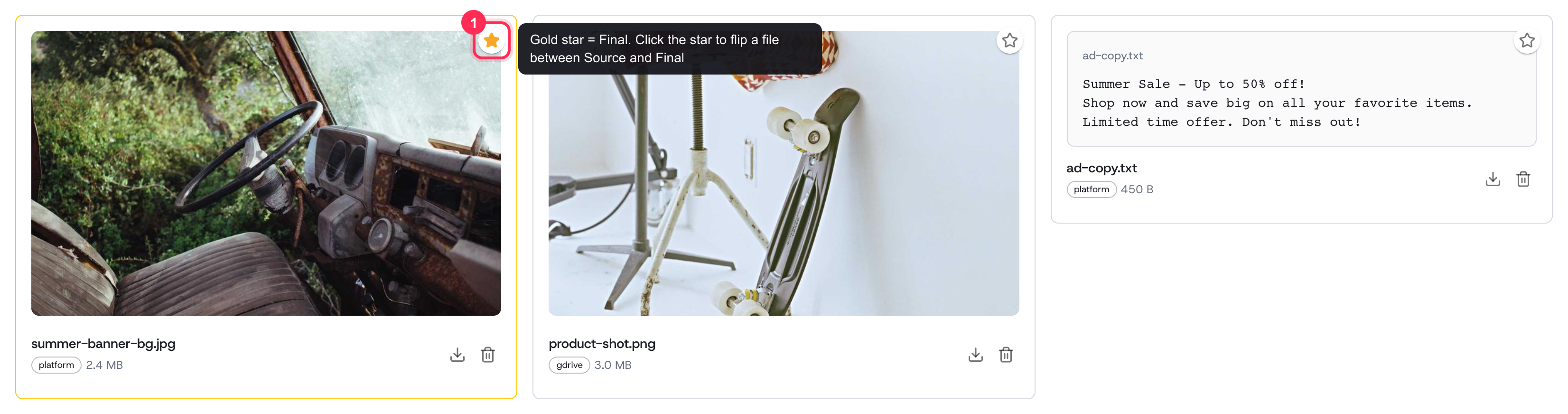 A gold star marks a material as final; an empty star means source
Managing your materials
In the materials gallery you can:
- Filter by type using the tabs (All, Video, Photo, Audio, Text) to find what you need fast.
- Preview any playable file in a full-size viewer.
- Download a single file, or batch-download several at once.
- Delete materials you no longer need.
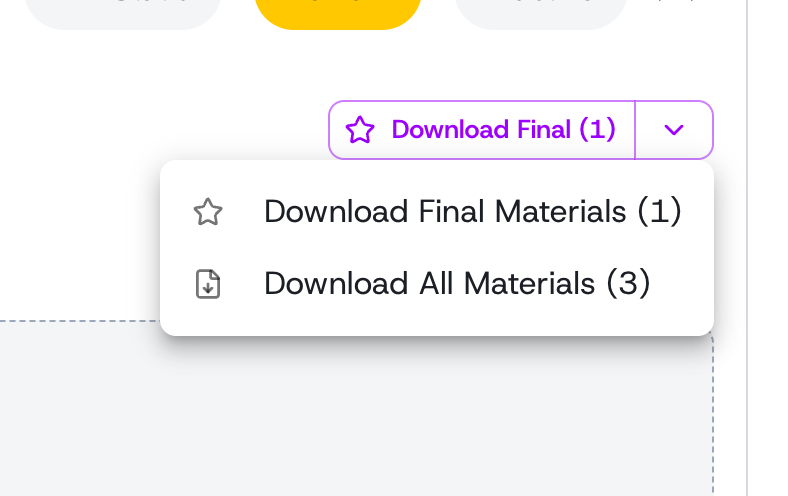 The download menu can grab just the final files or every material at once
Tips
- Keep source and final cleanly separated — it speeds up change requests and final approval.
- Name files descriptively so teammates can scan the gallery at a glance.
- Reuse approved footage across creatives with the body clips library instead of re-uploading the same clips.