Generating images
Create images from a prompt, do image-to-image edits with one or several reference images, use negative prompts, and produce multiple variations at once.
Generate still images for your creatives without leaving AdFactory — from a text description, from a reference image, or as a matched pair of frames for video. The Picture step sits alongside the other AI tools on every creative, so you can produce polished visuals right where they'll be used.
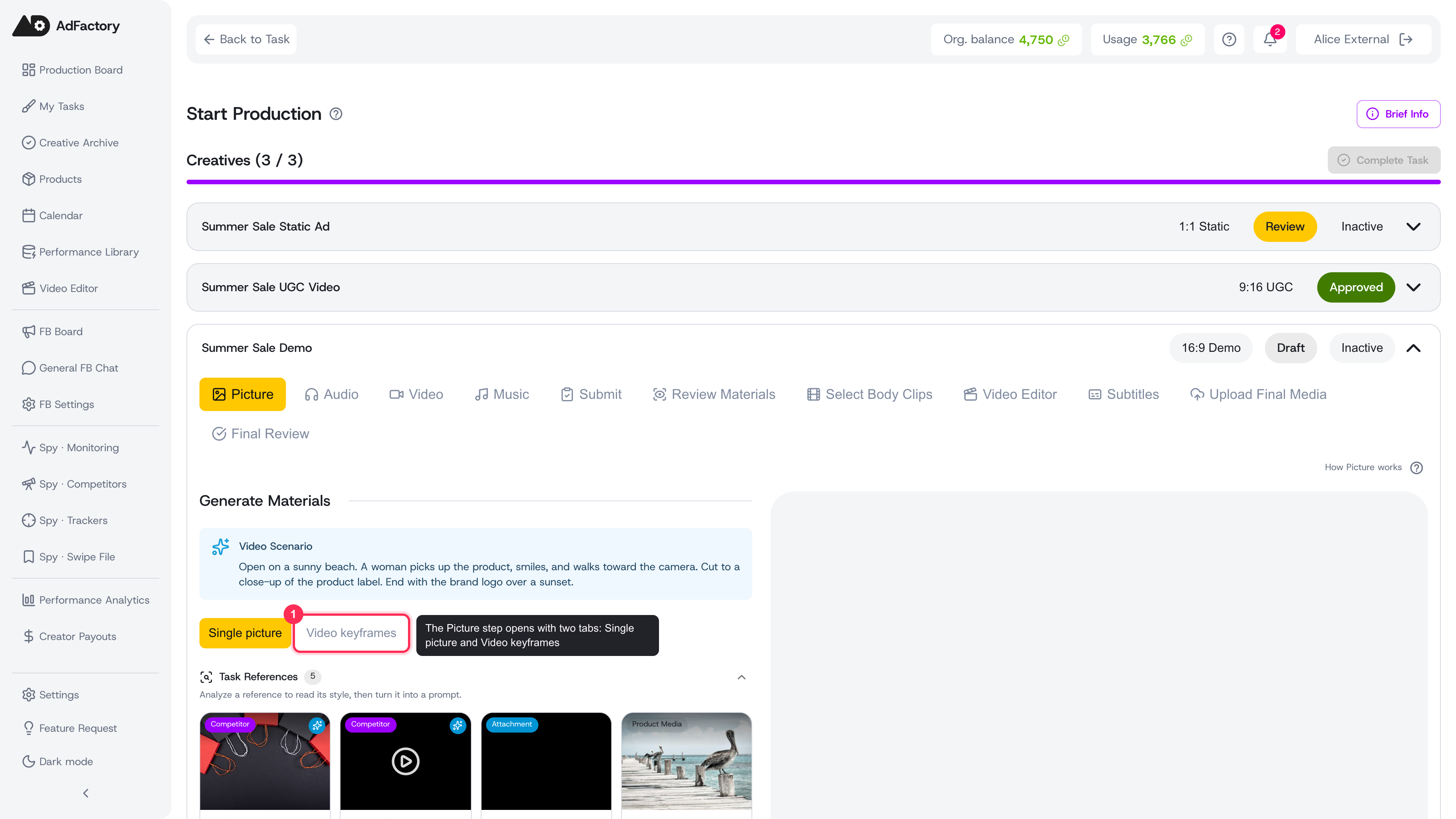 The Picture step in the creative editor stepper, opening on the Single picture and Video keyframes tabs
The two tabs
The Picture step opens with two tabs:
- Single picture — create one image (or a small batch) from a prompt.
- Video keyframes — create a matched start frame and end frame to drive a video transition.
Pick the tab that fits what you need, then fill in the form below it.
Single picture
This is the fastest way to a new image. Describe what you want and generate.
- Choose an image model. Different models have different strengths, so it's worth trying a couple for the same idea.
- Write your prompt — a concrete description of the subject, style, lighting, and mood.
- Add a negative prompt (optional) to list what you don't want, for example
blurry, low quality, distorted faces. Keep it short and specific. - Set the orientation (portrait, square, or landscape) to match your creative format so you don't have to crop later.
- Choose how many variations to produce — 1 to 4 — then generate.
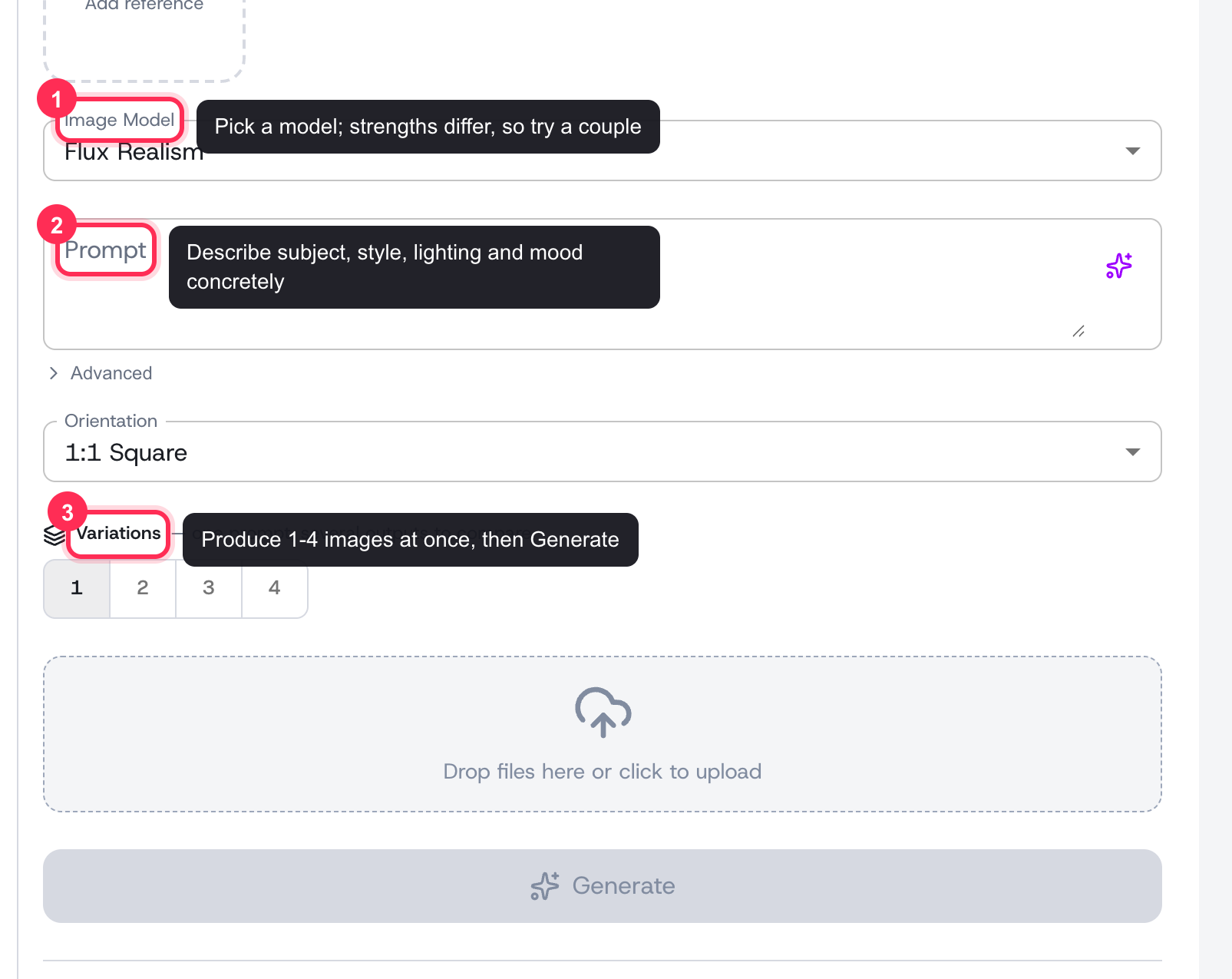 The Single picture form: image model, prompt, orientation, and variations, ending in Generate
The results appear as a grid you can pick from. See variations and batch generation for how batches work and which models support them.
Start from a reference image
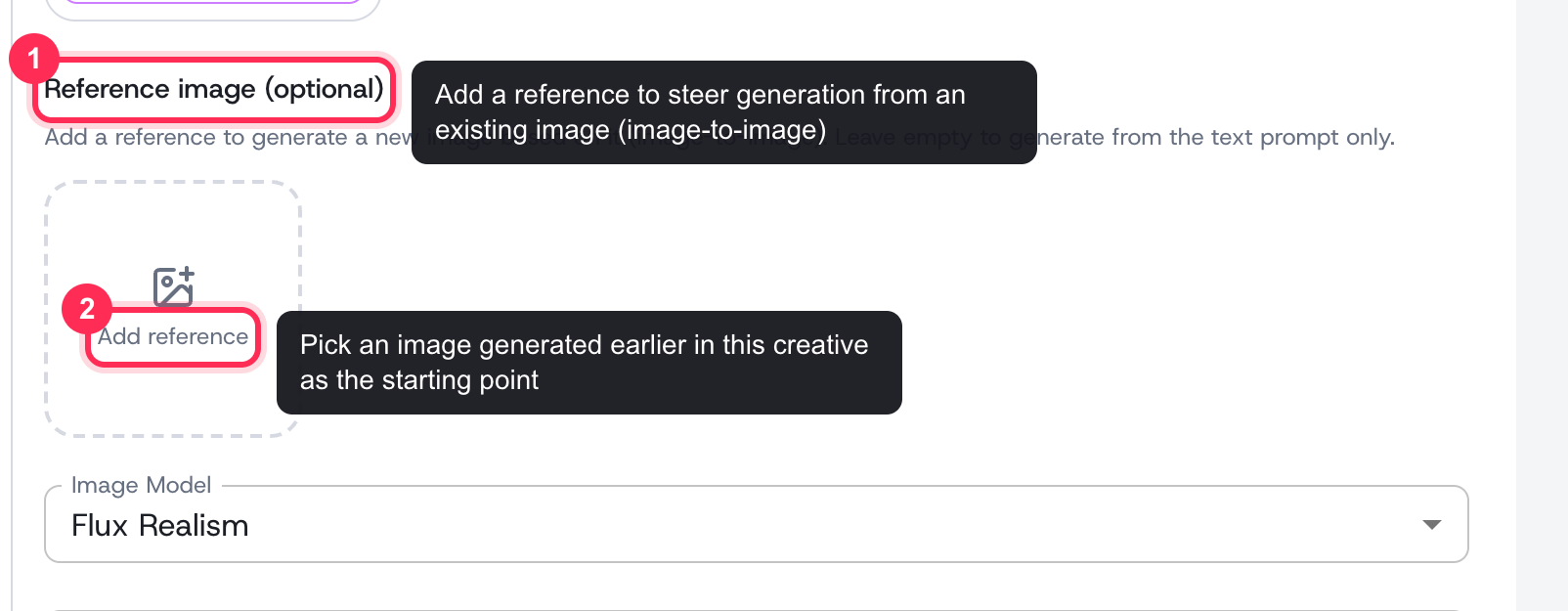 The Reference image (optional) section with Add reference, feeding the chosen image model
Under Reference image (optional), choose Add reference to pick one of the images you generated earlier in this creative. AdFactory then generates a new image based on it (image-to-image), keeping the reference as a starting point while your prompt steers the changes. You can Replace or Remove the reference at any time. Leave it empty to generate from your text prompt alone.
If your current model can't work from a reference, AdFactory switches you to one that can and tells you it did.
Combine several reference images
Some image models accept more than one reference in a single generation — useful for keeping the same person, product, or style while pulling elements from different shots. When you pick such a model, the section becomes Reference images and shows a counter with the model's limit.
- The first image is the primary reference — the one the model preserves most faithfully. It's marked with a label in the tray.
- Every further image is a supporting reference. Use Make primary on any of them to move it to the front; order matters, so tell the model in your prompt what to take from each image (for example, "the person from the first image, the kitchen from the second").
- Each model has its own limit, shown next to the section title. If you switch to a model that accepts fewer images, the extras stay in the tray but are dimmed and won't be sent — switch back or remove them.
Video keyframes
This tab produces the two images that Frames to Video needs to create motion: a First Frame and a Last Frame, plus a description of how one becomes the other. Use it when you want controlled, predictable movement between two specific shots.
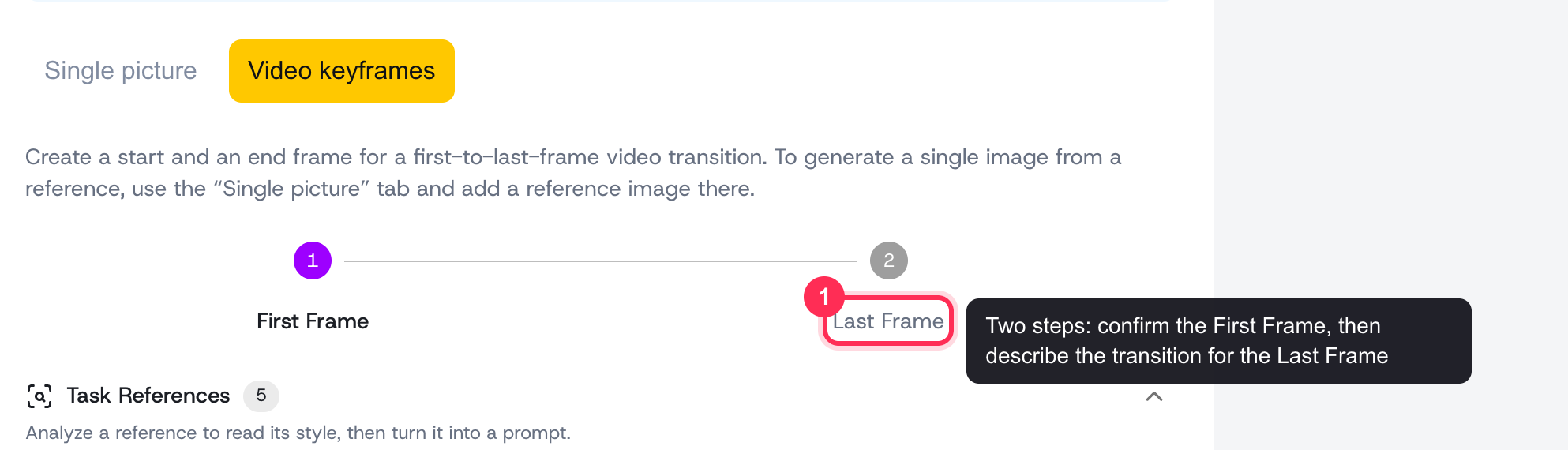 The Video keyframes tab with the First Frame then Last Frame two-step flow
You'll work through two steps in order:
- First Frame — generate it from a prompt, or select an existing photo from the creative, or upload your own. When you have the one you want, confirm it.
- Last Frame — with the first frame locked in, describe the Desired Transition (for example, "She smiles and shows the product label to camera, slight zoom in"). Choose Generate end-frame prompt from transition to have AdFactory draft a matching last-frame prompt for you, then generate the end frame. It builds on the first frame so lighting, background, character, and clothing stay consistent.
Once both frames exist, take them into Frames to Video to animate the transition between them.
Bring your own photos
You don't have to generate everything. Every form includes an upload area — drop in your own photos and they join the creative's materials right alongside generated images, ready to use as references or keyframes.
Tweak and try again
Not quite right? Use Regenerate on any result to drop its prompt and settings back into the form, edit them, and run it again. This is the quickest way to iterate without retyping everything.
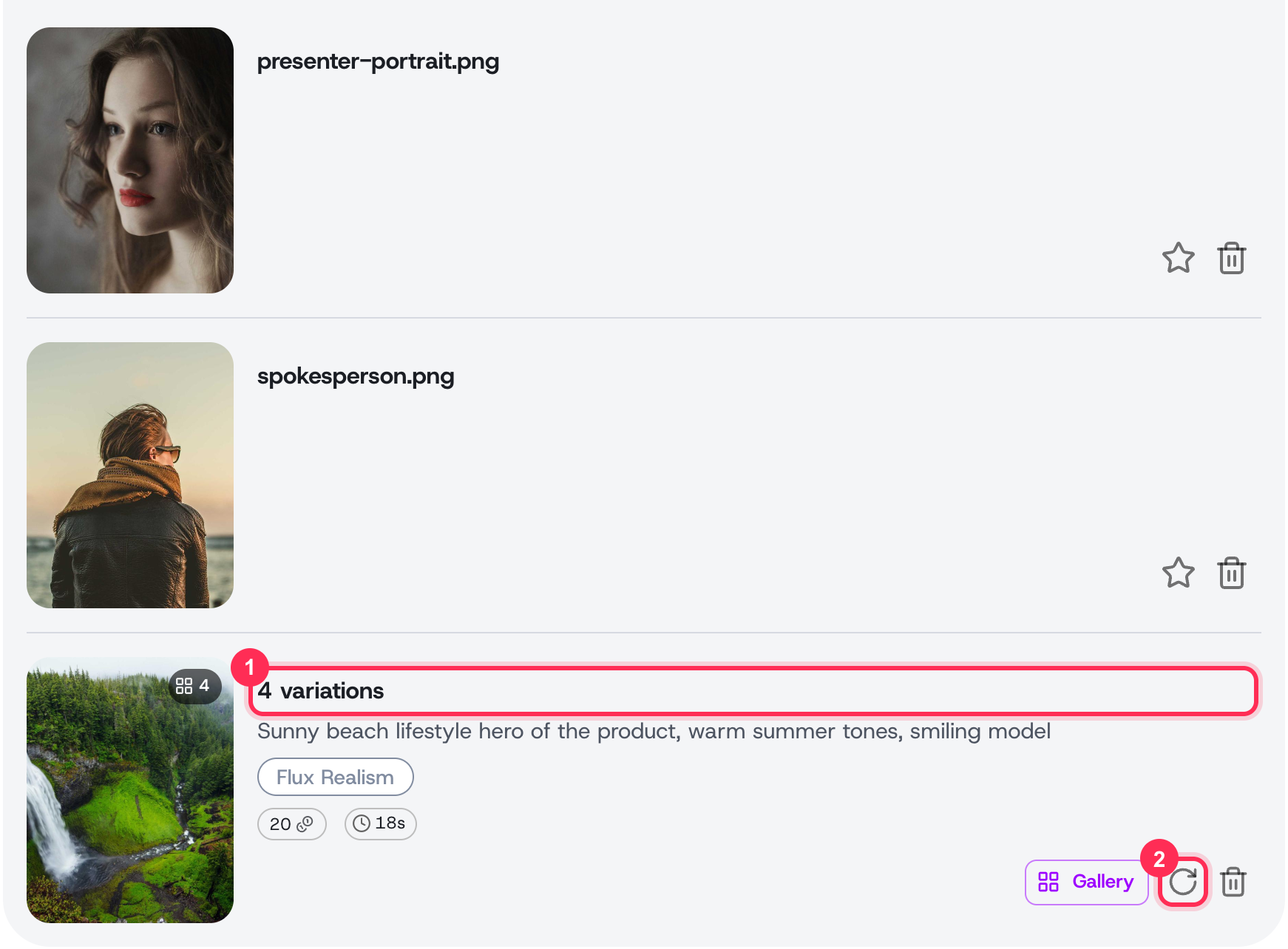 A results batch card showing a 4-variations set with its prompt, model, and cost, alongside the Gallery and Regenerate actions
Each result lands in the right-hand panel as a card. A batch shows a 4 variations cover with a grid badge, the prompt, the model, and what it cost — open Gallery to compare all four side by side, or hit Regenerate (the circular arrow) to reload its settings and run it again.
Tips
- Be concrete — vague prompts produce vague images. Name the subject, style, lighting, and mood.
- If you're stuck on wording, prompt optimization can rewrite and score a prompt before you spend a generation on it.
- Match the orientation to the placement up front.
- Generations draw on your credits, so refine a prompt before producing a large batch.
- For a tour of every AI tool on a creative, see the AI generation overview.