Assigning your team
Assign a marketer, creator, and reviewer to a task so the right people own each stage of production.
Every task can have a small, focused team — so the right person owns each stage of production and always knows what to do next. Assigning a creator, a reviewer, and a creative strategist turns a brief into work that actually moves through the board.
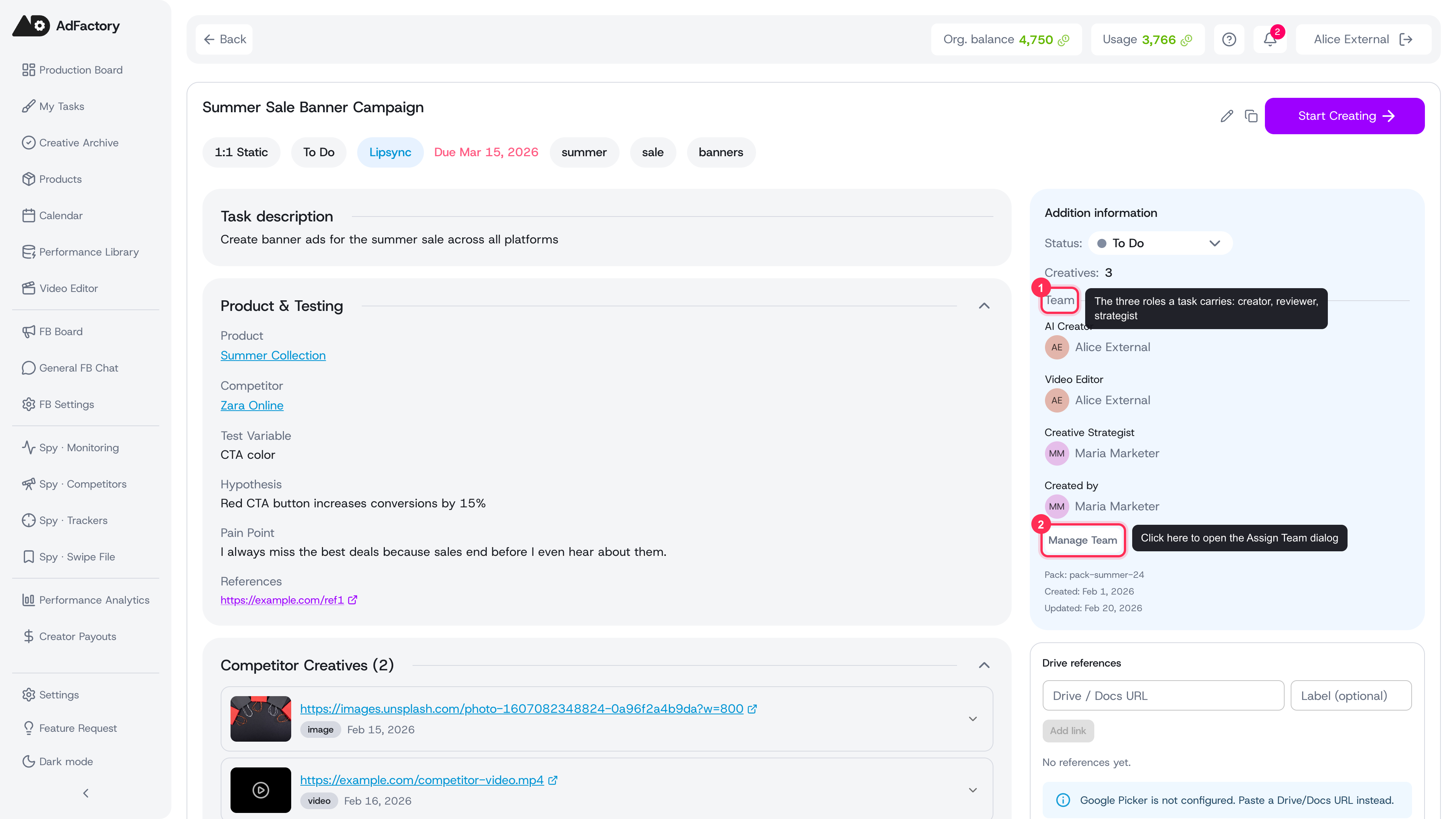 A task's Team panel on the right, with the Manage Team button that opens the assignment dialog
The three roles on a task
A task carries up to three assignments, each tied to a stage of the production flow:
- Creator (AI Creator) — produces the materials, using the AI generation tools to make images, video, audio, and more.
- Reviewer (Video Editor) — reviews the creator's materials, assembles the final video, and approves or rejects the work.
- Creative Strategist — owns the brief from a creative-strategy perspective and gives final sign-off.
Each role maps to a different point in the creative review pipeline, so the task naturally passes from the right person to the next as its status changes.
How to assign your team
- Open a task from the task board or while creating a task.
- Open the Assign Team dialog from the task.
- Pick a person for each role from the dropdowns. Any role can be left as Not assigned and filled in later.
- Click Save.
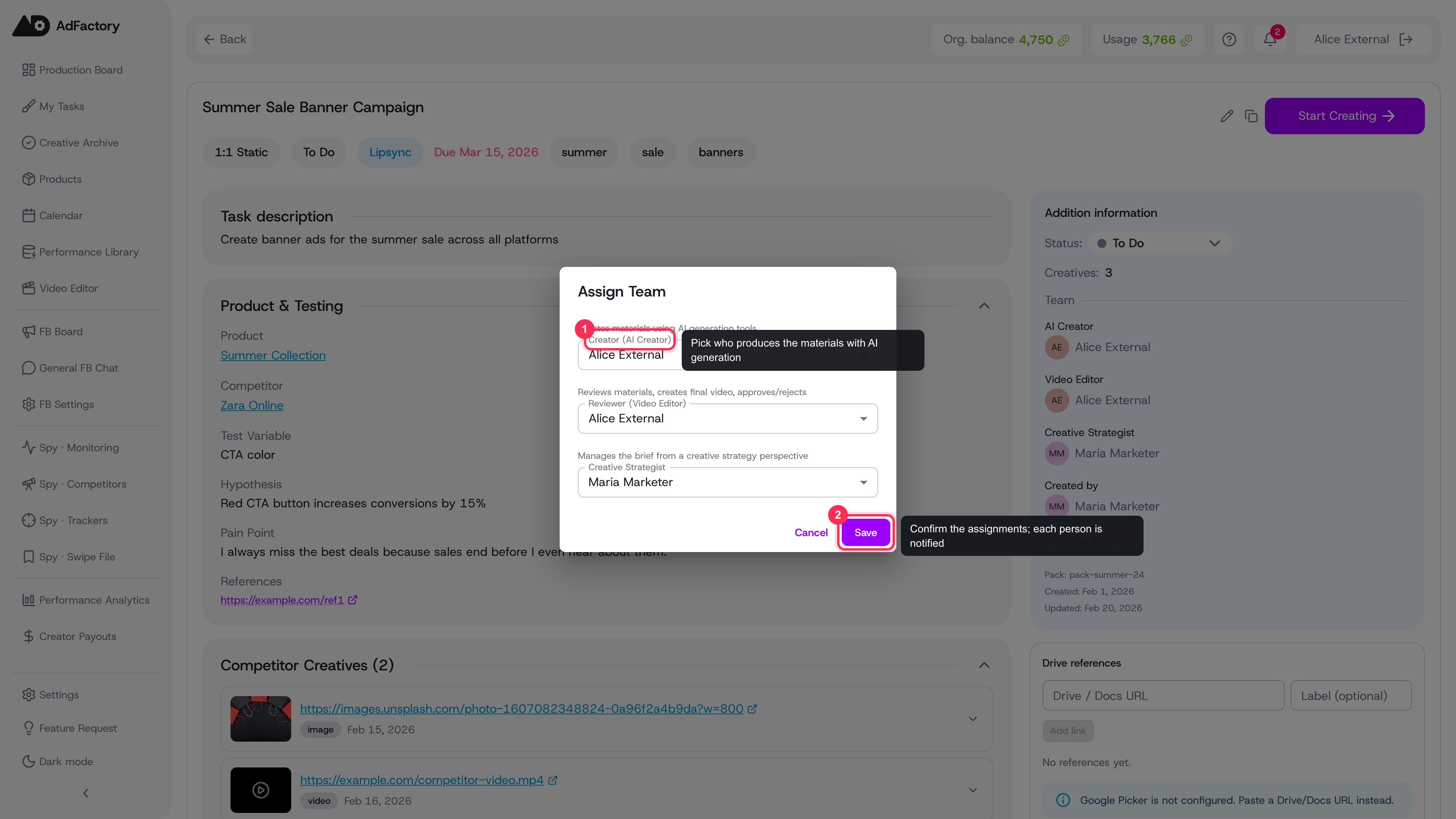 The Assign Team dialog with a dropdown for each role and a Save button
You can reopen the dialog at any time to swap people in or out — assignments aren't locked once a task starts.
See who has capacity
Each dropdown shows every team member's current workload, so you don't pile everything onto one person. Next to each name you'll see how many active tasks they hold, broken down by role (as a creator, as a reviewer, as a strategist) plus a running total. The least-busy people are sorted to the top, making it easy to spread work evenly.
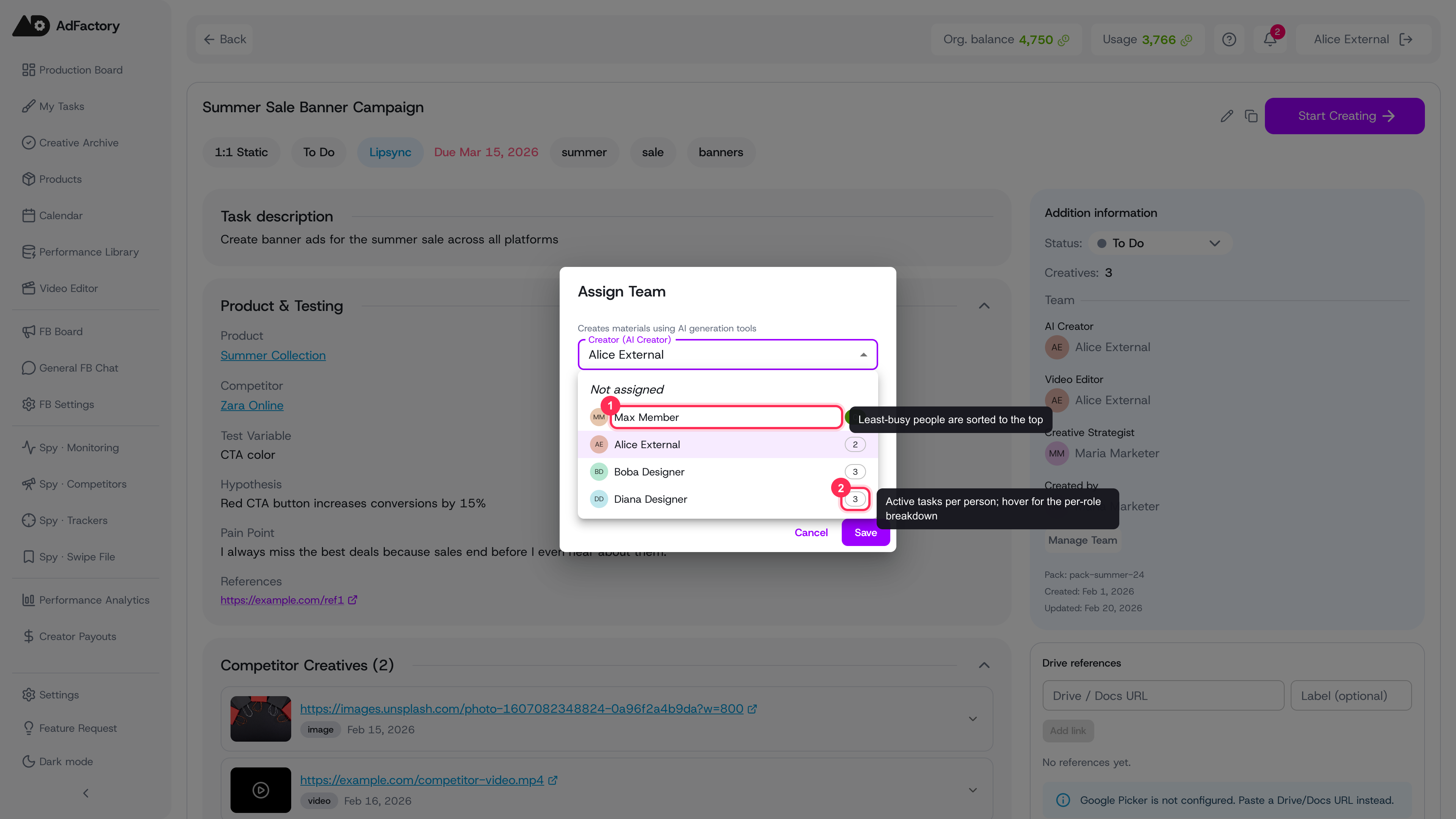 Opening a role dropdown shows each member's active-task count, with the least-busy people at the top
Tips for a smooth handoff
- Assign early. Filling in the team when you create the task means no one has to chase down who's responsible.
- Match the brief to the people. A sharp brief paired with the right creator and reviewer is the fastest path to an on-target creative.
- Watch the workload counts before assigning a rush task — pick someone with room rather than someone already at capacity.
- Keep feedback attached. Use comments on the task so decisions and direction stay with the work as it moves between roles.
Once a person is assigned, the task shows up in their My Tasks view and they're notified, so the handoff is immediate. Who can fill each role depends on their user role and permissions.