Subtitles and captions
Generate subtitles from media, style them with presets and safe zones, and burn them in with animations.
Subtitles make your video creatives easier to follow — especially on sound-off feeds where most people scroll. AdFactory can transcribe a video automatically, let you style the captions, and burn them straight into a new file, all inside the creative you're working on.
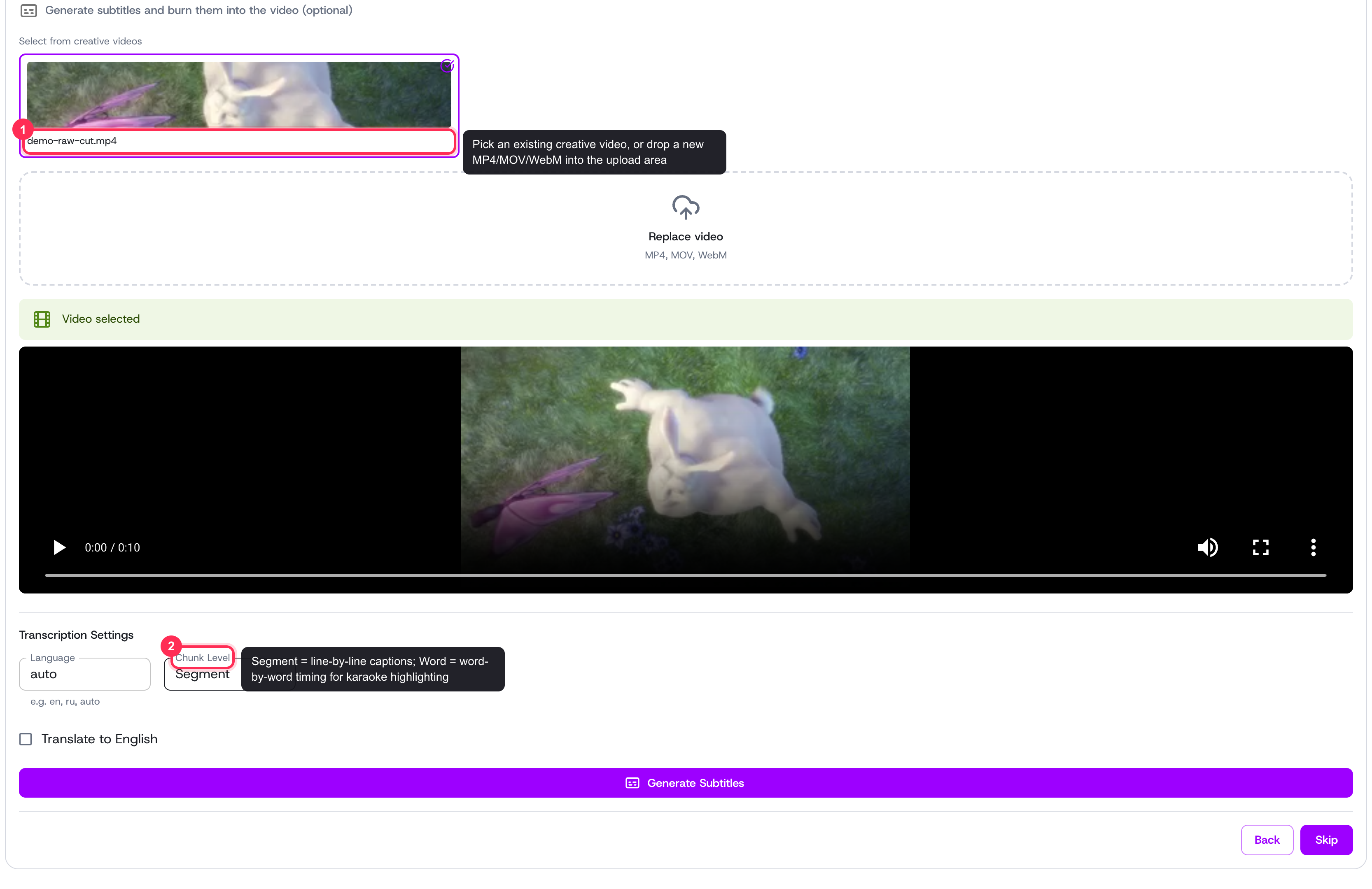 Step 1: pick a source video, then set language, chunk level, and translation before generating.
How it works
The Subtitles step runs in two stages:
- Generate — pick a video and produce a timed, editable transcript.
- Style and burn in — choose how the captions look, then render a fresh video with them baked into the picture.
This step is optional. You can subtitle clips you uploaded or footage you produced with video generation, and the whole flow runs as a background job like the rest of AI generation.
Generating subtitles
First, choose a source. Pick one of the creative's existing videos, or drop a new file into the upload area (MP4, MOV, or WebM). The selected video shows in a preview player.
Then set your transcription options:
- Language — leave it on automatic detection, or type a specific language (for example "en" or "ru") for cleaner results.
- Translate to English — turn this on to translate the captions while keeping the original timing.
- Chunk Level — choose Segment for line-by-line captions, or Word for word-by-word timing that drives karaoke-style highlighting.
Click Generate Subtitles to start. A progress bar shows the transcription as it runs.
The transcript
When the job finishes, you get an editable transcript. Each line shows its start and end timestamp next to the text, so you can fix any misheard words or tighten the wording before burning in. If the source produced downloadable caption files, Download SRT and Download VTT buttons appear, along with any detected languages.
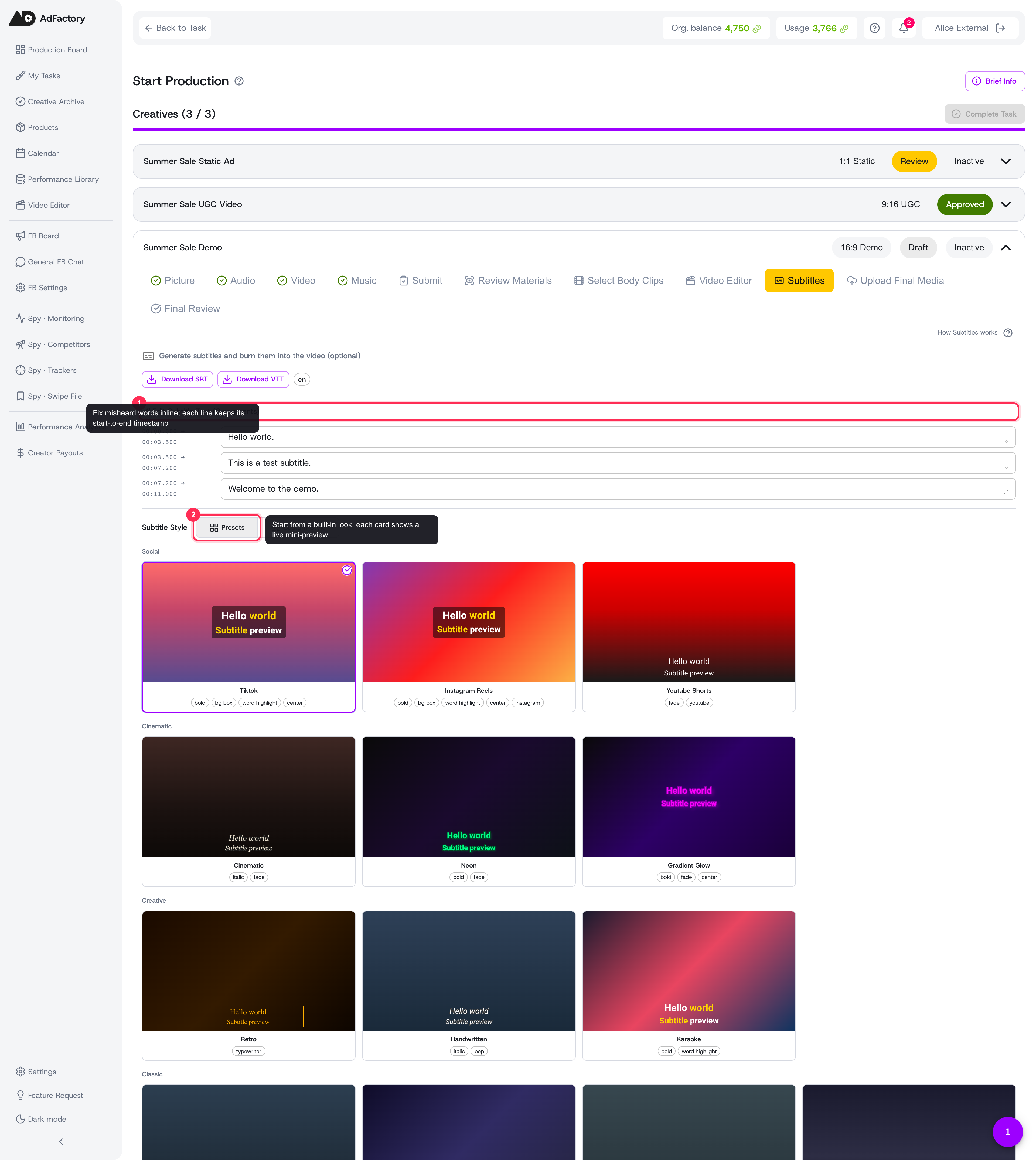 The editable transcript with per-line timestamps, above the preset gallery where each card previews a look.
Styling your captions
Switch between Presets and Custom Style at the top of the style section.
Start from a built-in preset — grouped into Social (TikTok, Instagram Reels, YouTube Shorts), Cinematic (Cinematic, Neon, Gradient Glow), Creative (Retro, Handwritten, Karaoke), and Classic (Classic, Bold Shadow, Minimal, News Ticker). Each preset card shows a live mini-preview so you can see the look before you pick it.
Choose Custom Style to fine-tune every detail, grouped into:
- Font — family, size, bold, and italic.
- Colors — primary text color, outline, shadow, background box, and the word-highlight color.
- Layout — outline width, shadow depth, and an optional background box behind the text.
- Position — top, center, or bottom placement, alignment, vertical and side margins, and a safe zone.
- Effects — an animation such as fade, word highlight, typewriter, bounce, scale in, or pop.
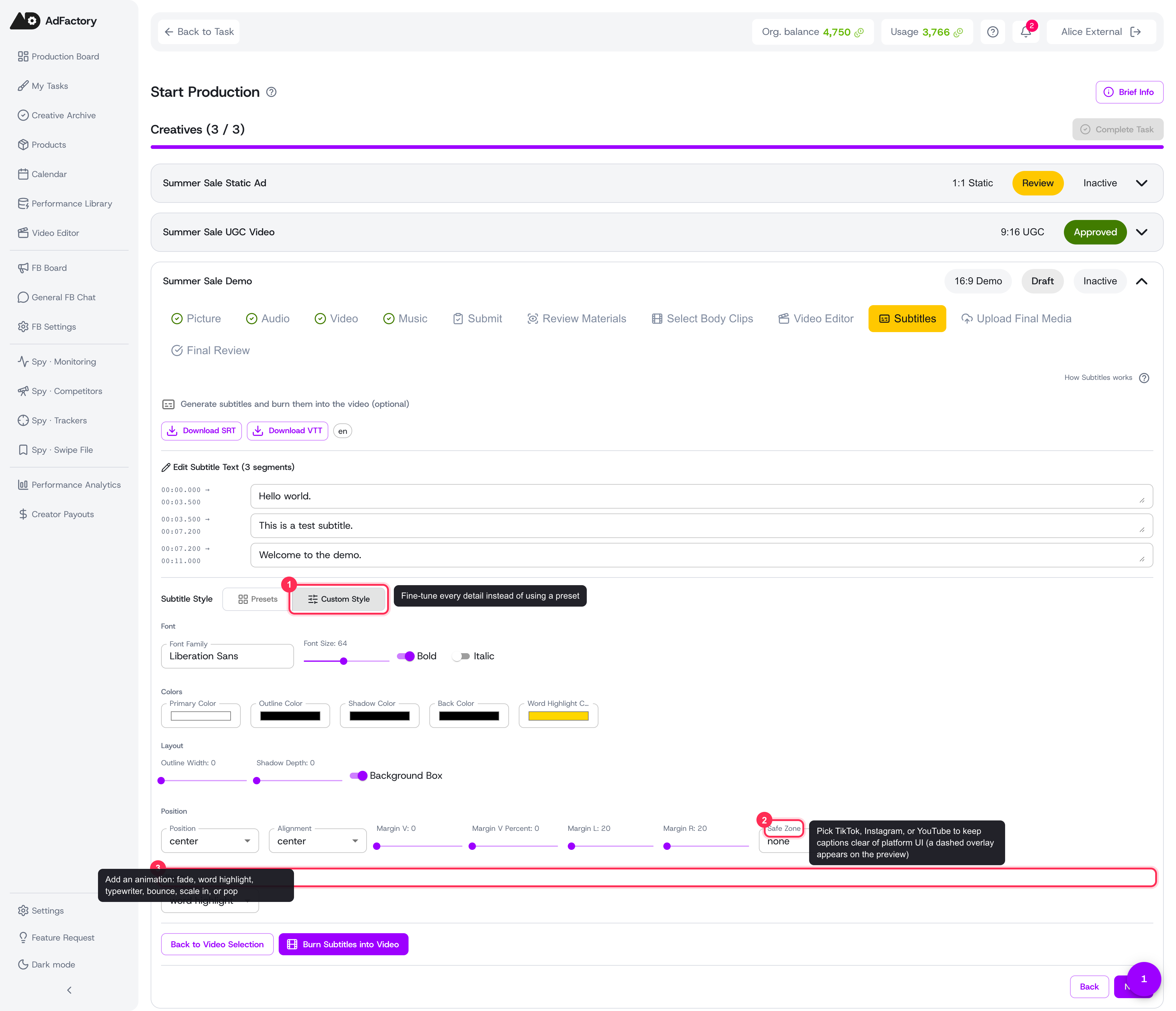 Custom Style groups every control: Font, Colors, Layout, Position (including Safe Zone), and Effects.
Safe zones
Vertical platforms cover parts of the screen with their own interface. Pick a safe zone for TikTok, Instagram, or YouTube and AdFactory shows a dashed overlay on the preview, nudging your captions away from where buttons and handles sit so nothing gets hidden behind the app's UI.
Burning in
When the style looks right, click Burn Subtitles into Video. AdFactory renders a fresh video with the captions permanently applied and shows the result with a progress bar while it works.
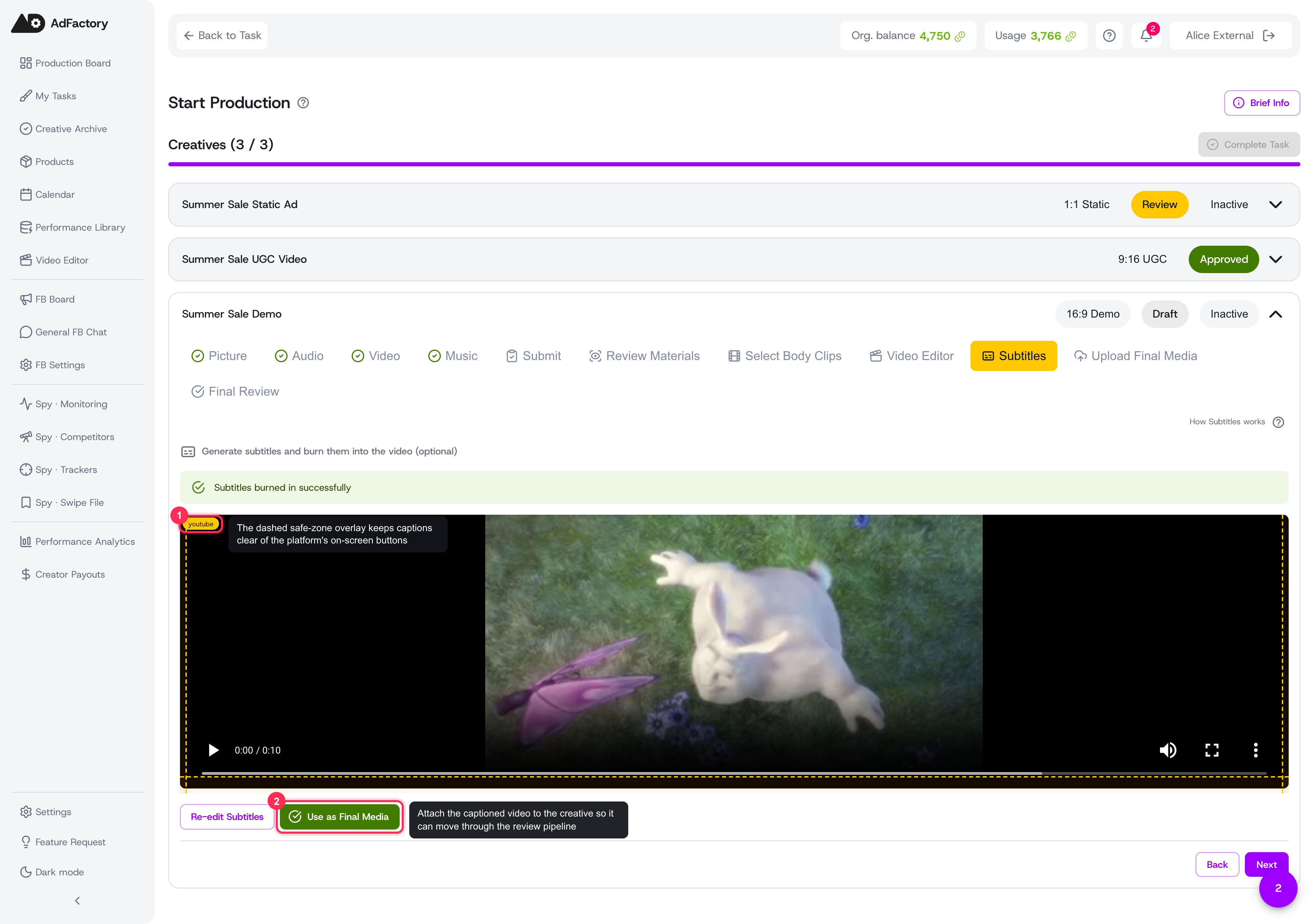 The burned-in result with a dashed safe-zone overlay; re-edit the captions or attach the video as final media.
From the result screen you can:
- Re-edit Subtitles to jump back to the transcript and style controls.
- Use as Final Media to attach the captioned video to your creative — this automatically sends it into the creative review pipeline's final review step, no separate submit needed.
Tips
- Use Word chunk level with a word-highlight animation for the punchy, modern caption look that performs well on short-form feeds.
- Match the safe zone to the channel you're publishing on so captions never collide with platform UI.
- Pair subtitles with lipsync and audio generation when you're building a fully voiced creative from scratch.