Uploading files
Upload media from your device or import from Google Drive using a fast presigned upload flow.
Uploading is how your own media gets into a creative. Whether it's footage shot for a campaign, a product photo, or a voiceover, AdFactory takes the file straight from your device or your Google Drive and adds it to the creative as a material.
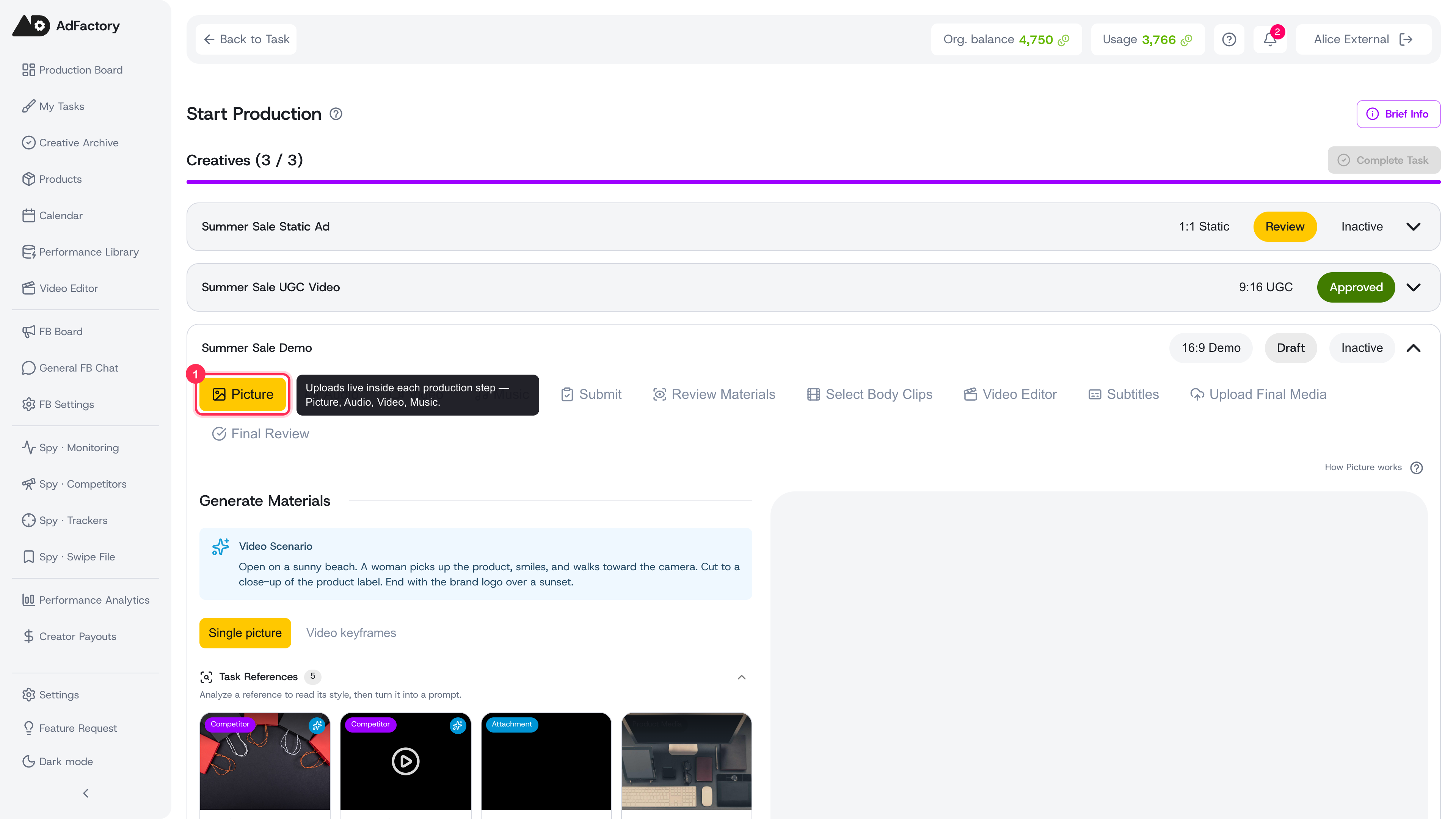 The creative editor: uploads live inside each production step, alongside AI generation
Two ways to add files
- Upload from your device — drag files onto the upload area, or click it to open your file picker.
- Import from Google Drive — pull media you already keep in Drive without downloading it first. See the Google Drive integration for setup.
Every file you add lands in the creative's materials list, where you can sort it into source or final and preview it inline.
Uploading from your device
- Open the creative and find the upload area in its materials section.
- Drag one or more files onto it, or click to browse.
- Watch the progress bar — you'll see which file is uploading and the overall percentage.
 The upload area in the creative editor: drop files here or click to browse
A few things worth knowing:
- Multiple files at once. Select or drop a batch and AdFactory uploads them one after another. If a single file fails, the rest still go through.
- Supported types. Video, images, audio, and text or document files are all accepted. Most common formats work out of the box.
- Large files are handled for you. Big videos upload in chunks in the background, with automatic retries if a chunk drops — so a flaky connection won't sink the whole upload.
- No size gymnastics. Uploads go directly to fast storage, so there's no small CDN limit to work around.
Importing from Google Drive
If your team stores raw footage and brand assets in Google Drive, you can bring them in without a download-and-re-upload round trip. Connect your account once, then pick the files you want and AdFactory imports them as materials on the creative. Full setup and permissions are covered in the Google Drive integration guide.
After the upload
Once a file is in, it behaves like any other material:
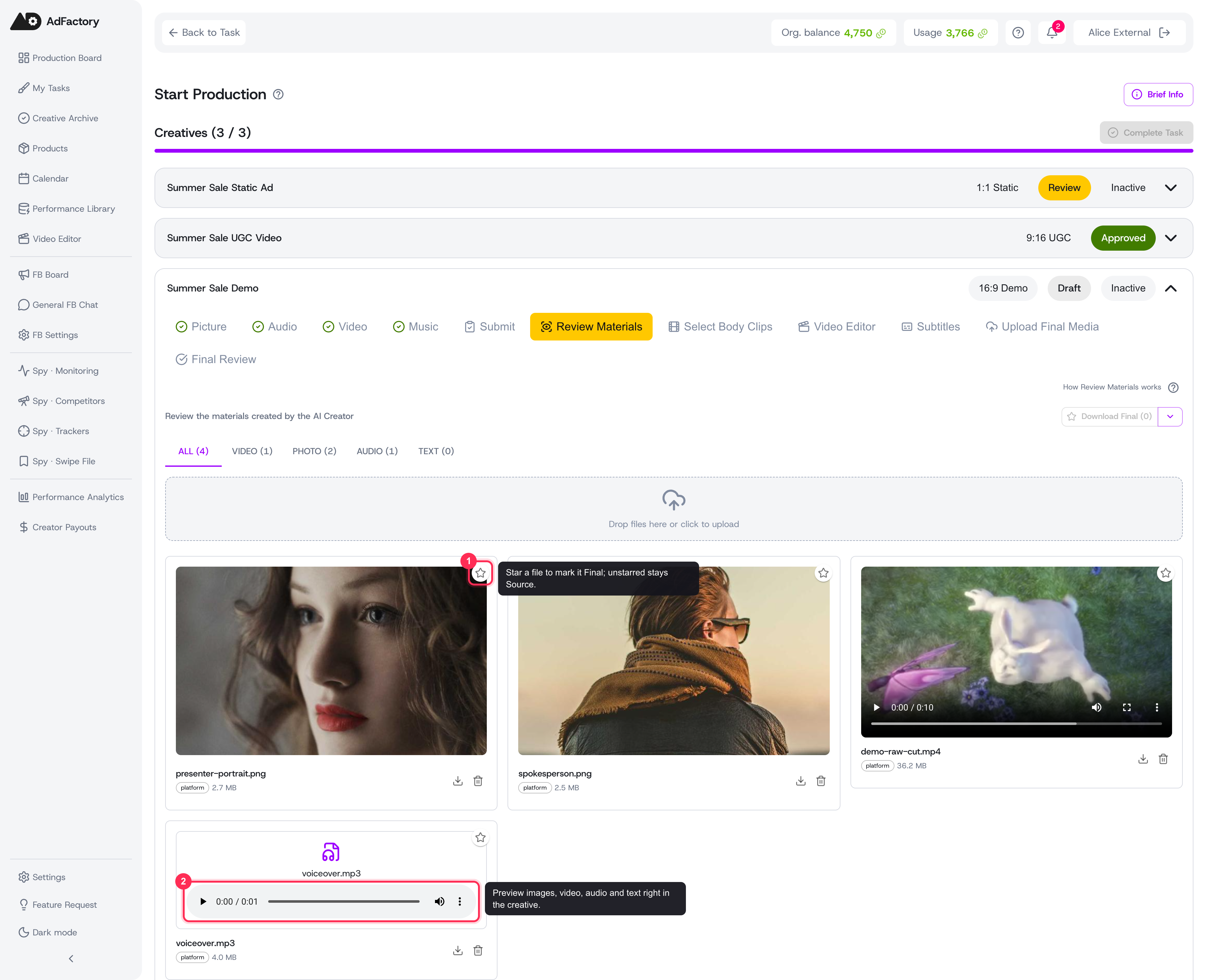 Uploaded and generated files sit together as materials — star one to mark it final, and preview it inline
- Mark it as source (raw input) or final (a finished deliverable).
- Preview images, video, audio, and text right in the creative.
- Use it alongside media you generate with AI — uploaded and generated files live side by side.
Tips
- Upload source footage early so your team and the AI tools have something to work with from the start.
- Give files clear names before uploading; the original filename carries through to the material.
- For creatives that start from a competitor reference, attach those when you create the task from Spy and add your own raw assets here.