Lipsync
Sync a talking face to any audio track to create natural-looking spokesperson and UGC-style creatives.
Lipsync turns a face and an audio track into a natural-looking talking video. It's the fastest way to produce spokesperson and UGC-style creatives without filming a person — pair a face with a voiceover and AdFactory generates a clip where the mouth moves in sync with the sound.
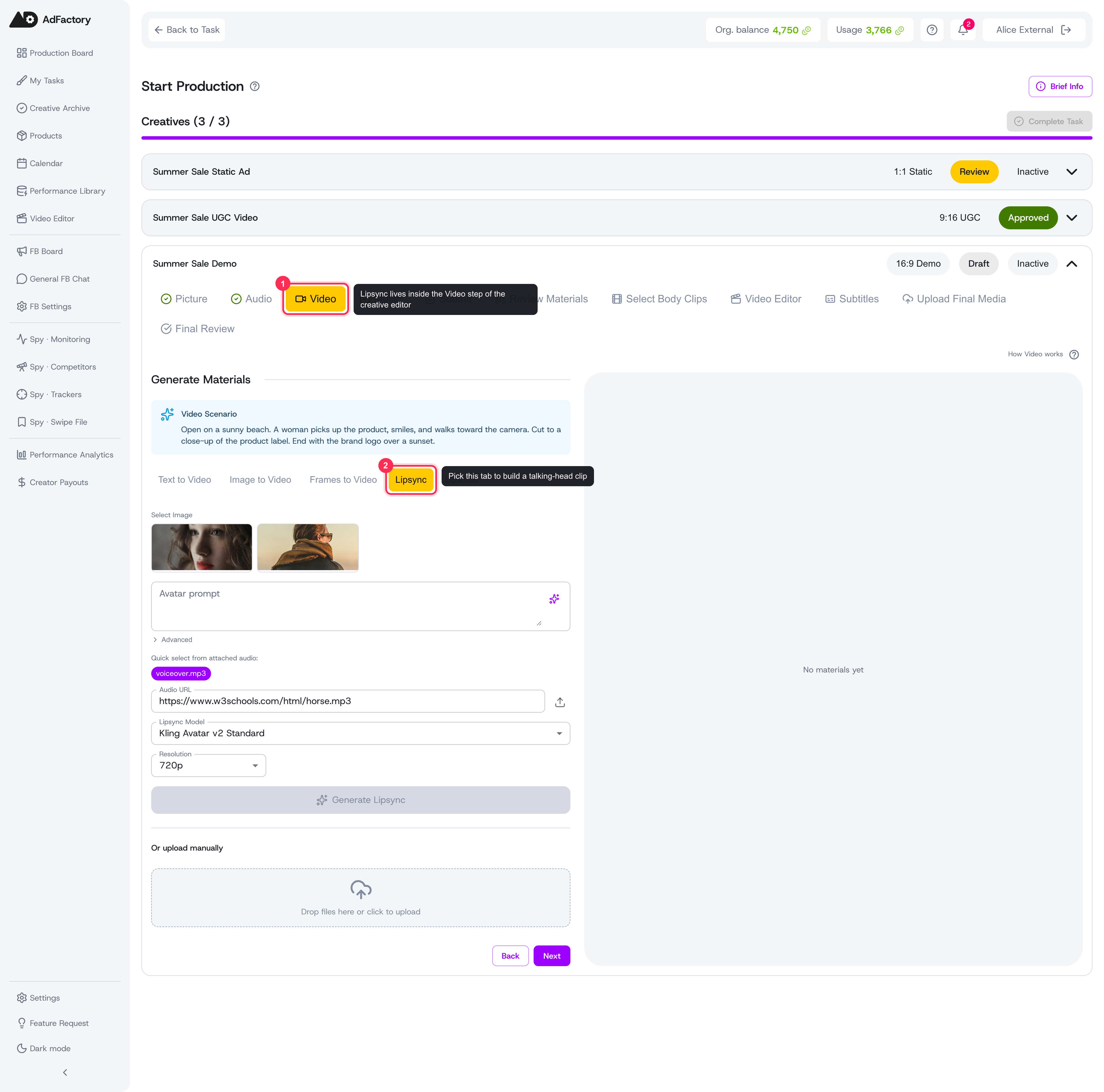 The Lipsync tab on the Video step of the creative editor, with a source face, audio, model and resolution ready to generate
When to use lipsync
Reach for lipsync when you want a talking presenter in your ad:
- Spokesperson explainers and testimonials
- UGC-style "person talking to camera" hooks
- Avatar narration over a script or generated voiceover
It's one of the AI generation tools available inside every creative, alongside image and video generation.
What you need
Lipsync combines two inputs that already live in your creative as materials:
- A source face — either an image or a short video of a face. Generate a face with image generation, produce a clip in video generation, or upload your own.
- An audio track — a voiceover, narration, or music. Create one with audio generation or upload it.
Some models also ask for a short description of the avatar or person, which helps shape the motion and expression.
How to generate a lipsync clip
- Open a creative, go to the video step, and choose the Lipsync tab.
- Select your image from the photos attached to the creative.
- Optionally click Validate Face to confirm the source works. AdFactory reports how many faces it finds and the image quality, then gives a recommendation — fix the source first if it flags issues.
- Pick your audio. Quick-select from the audio already attached to the creative, paste an audio link, or upload a file with the upload button.
- Where the model uses it, add an avatar prompt describing the desired motion or setting (for example, "studio interview, warm lighting").
- Choose a model. The models offered depend on whether your source is an image or a video.
- If the model supports it, pick a resolution (for example, 720p or 480p).
- Click Generate Lipsync and let the job run.
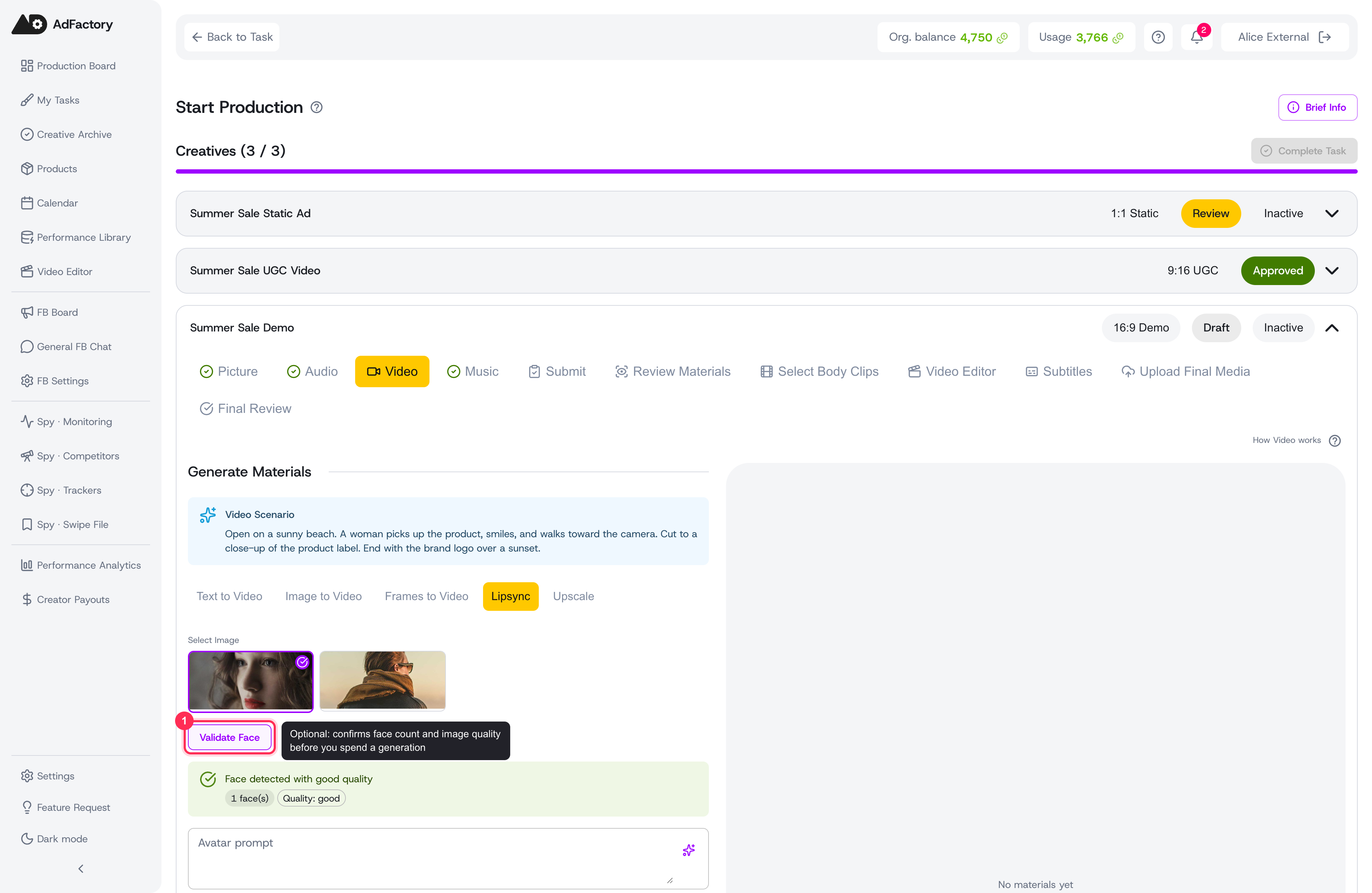 Pick a source face from the creative's photos, then optionally click Validate Face to check the source
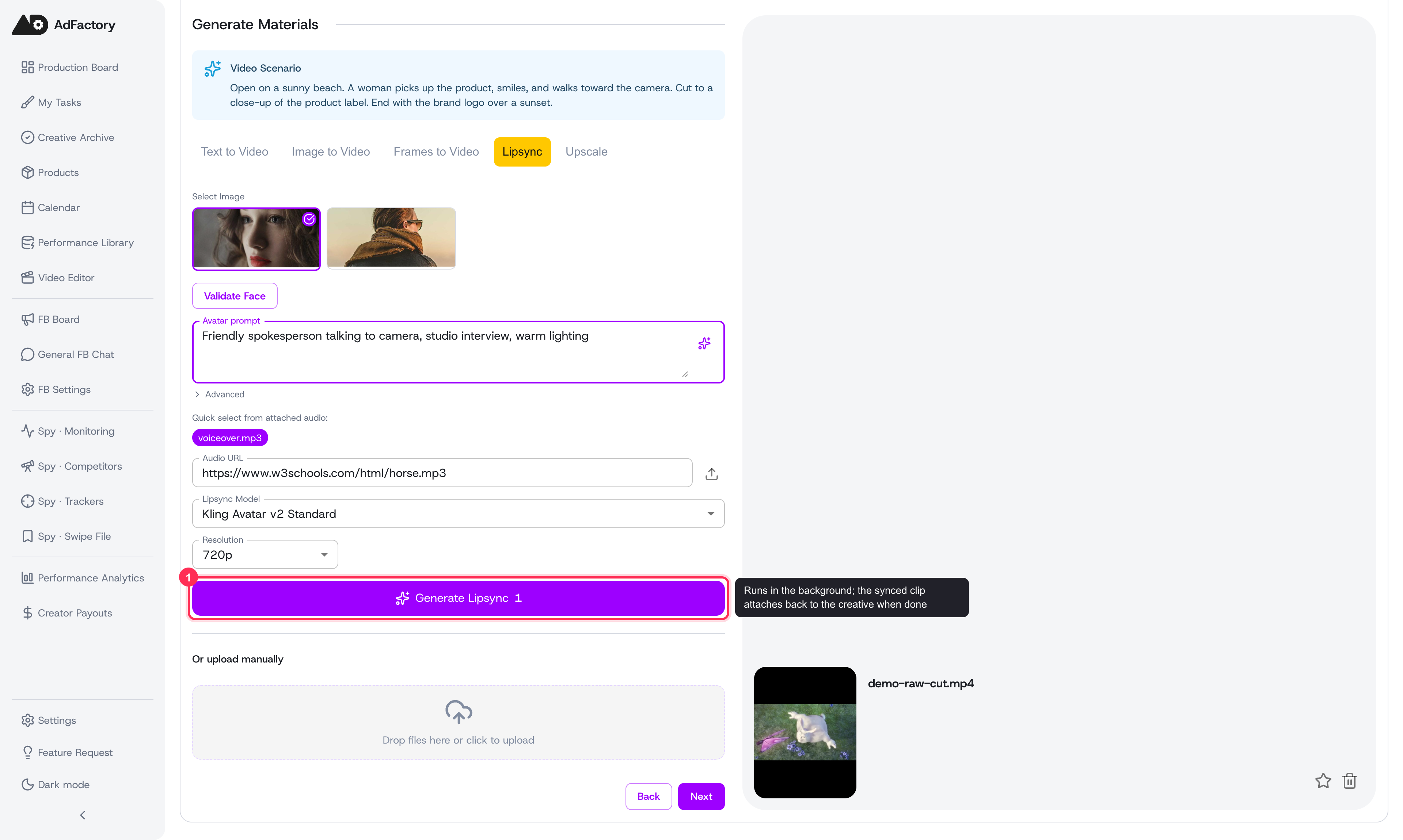 Choose your audio, add an avatar prompt, pick a model and resolution, then click Generate Lipsync
Generation runs in the background. When the job finishes, the result — a video with the face's mouth synced to your audio — is attached back to your creative automatically, ready to review and continue building.
Tips for better results
- Use a sharp, well-lit, front-facing face. The face validator helps you catch bad inputs before you spend a generation.
- Match the audio to the look you want. Clean, clear narration produces cleaner mouth movement.
- Keep clips focused. Shorter, punchy voiceovers read better as ad hooks.
- A higher resolution looks crisper but takes longer; drop to a lower resolution for quick drafts.
- Add subtitles afterward to keep the message clear when sound is off.
The natural chain
Lipsync is the payoff at the end of a short production chain:
- Generate a face with image generation.
- Record or generate a voiceover with audio generation.
- Bring them together in the Lipsync tab to get a finished talking clip.