Credits, top-ups, and payments
Understand monthly vs purchased credits, top up your wallet, set up auto-recharge, and access invoices and payment methods.
Open in appCredits are the single currency that powers everything you do in AdFactory — AI generation, upscaling, and competitor research all draw from the same balance. This guide explains how credits work, how to top up, and where to find your invoices and payment methods.
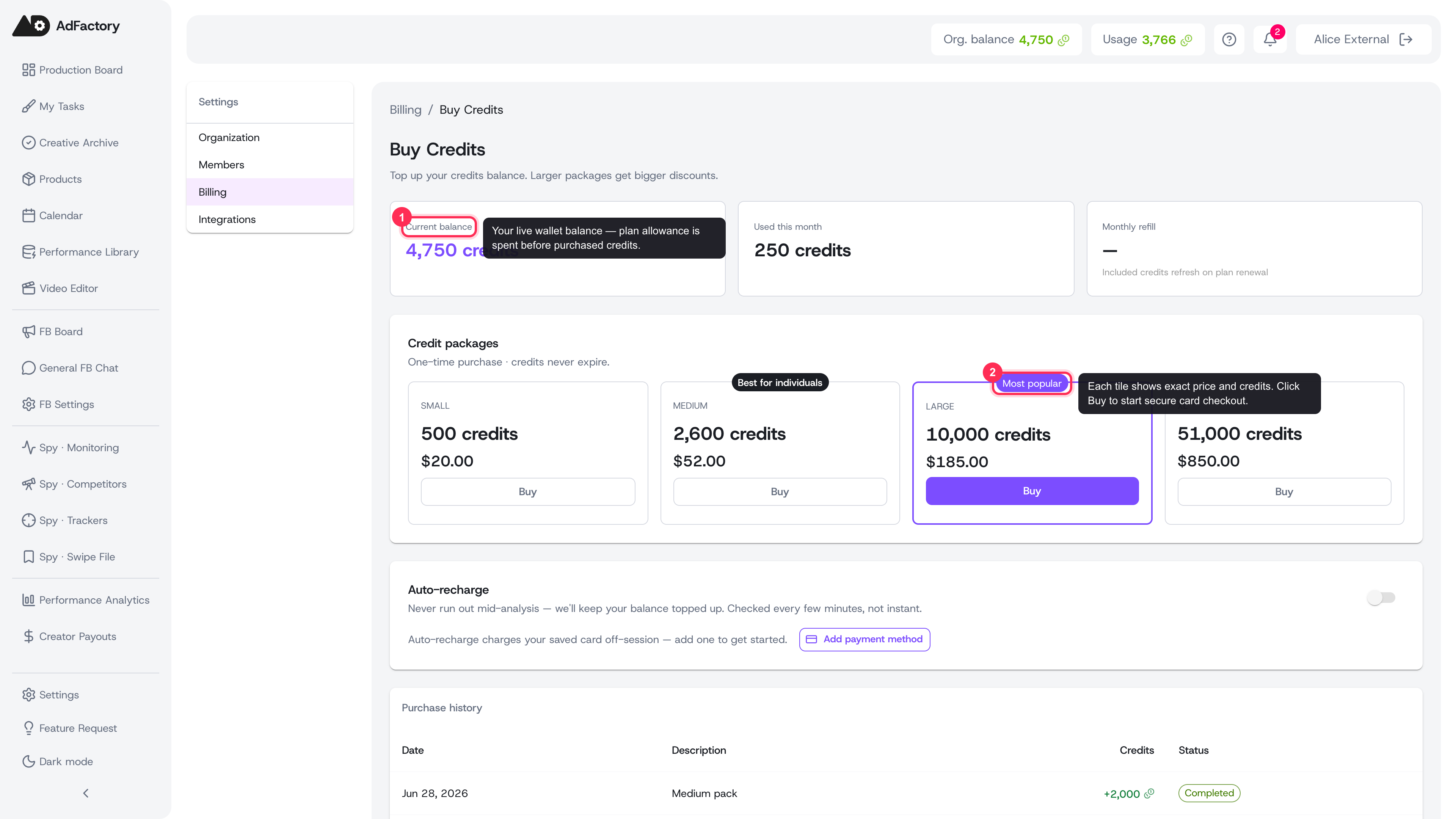 Buy Credits page showing the current balance card and the credit-package tiles, with the Most popular package highlighted
How credits work
Credits are AdFactory's product unit. One balance covers the AI agents, every model, and the platform itself — so you never juggle separate provider tokens. Anything that costs money to run, like generating images, video, or running the Spy Agent, draws credits from your wallet.
Your wallet has two pots, and they're spent in a specific order:
- Monthly allowance — credits included with your plan. They refresh on each billing cycle, burn first, and do not roll over to the next month.
- Purchased credits — credits you buy as top-ups. They never expire and are spent only after the monthly allowance runs out.
This means your included allowance is always used before you dip into anything you paid for separately.
Topping up your wallet
When you need more credits, open Settings → Billing and add to your balance:
- Pick a top-up package, or enter a custom amount.
- Each tile shows exactly what you'll pay and how many credits you'll receive.
- Complete checkout securely with your card.
Credits are added as soon as your payment is confirmed, ready to spend immediately.
Auto-recharge
To avoid running dry mid-project, turn on auto-recharge:
- Save a card, then set a threshold (the balance that triggers a refill) and choose the package to buy automatically.
- When your balance drops below the threshold, AdFactory tops up for you.
- If a charge is ever declined, auto-recharge disables itself so you're never stuck in a loop — just update your card and switch it back on.
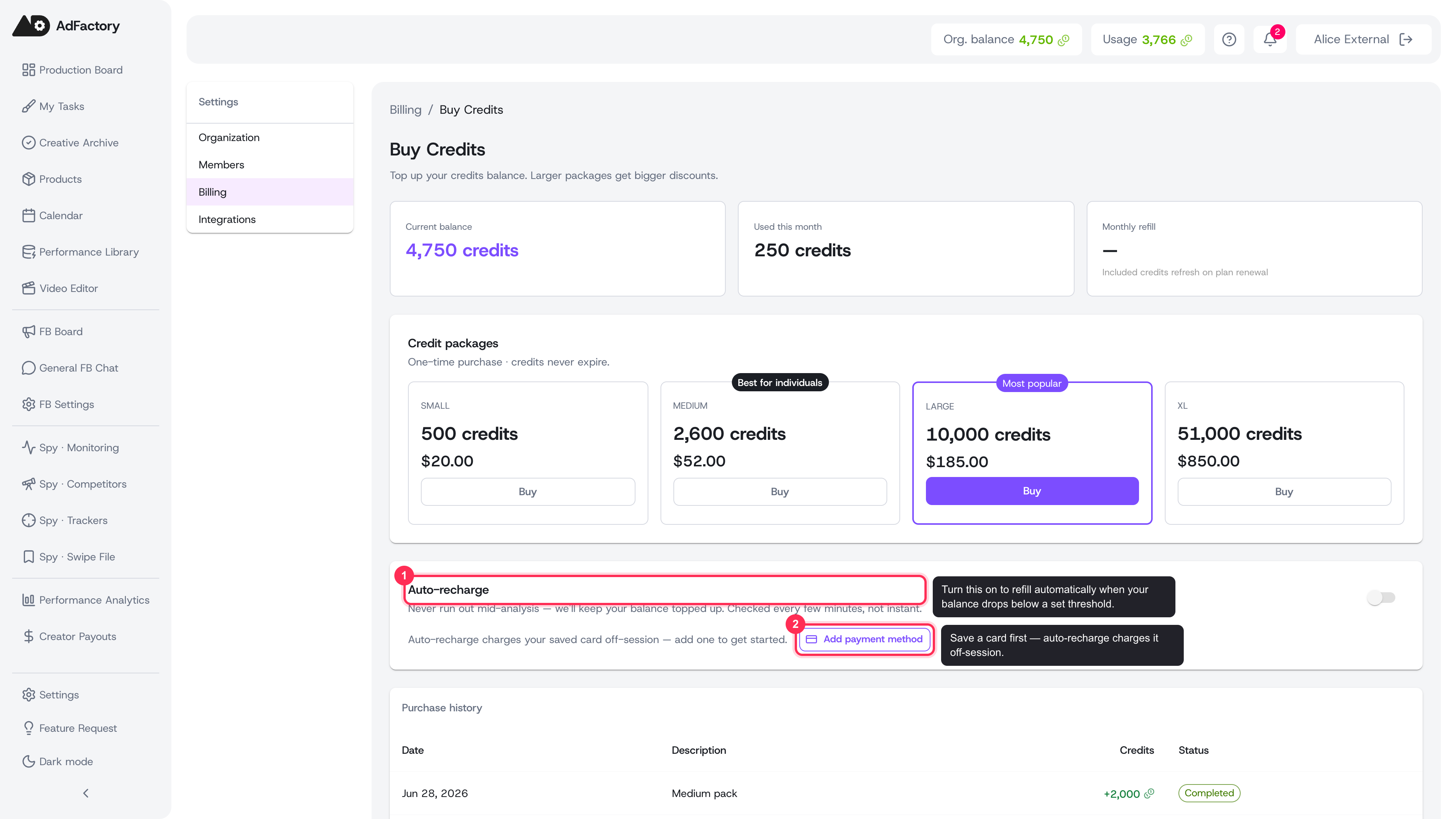 The Auto-recharge block on the Billing page, with the toggle and Add payment method button
Invoices and payment methods
Your subscription invoices and saved cards are managed through a secure billing portal, reachable from Settings → Billing:
- Invoices — view and download PDF receipts for every charge.
- Payment methods — see your default card and update or replace it.
If a top-up was charged but unused and is still within the eligible window, you'll see a one-click refund option for that purchase.
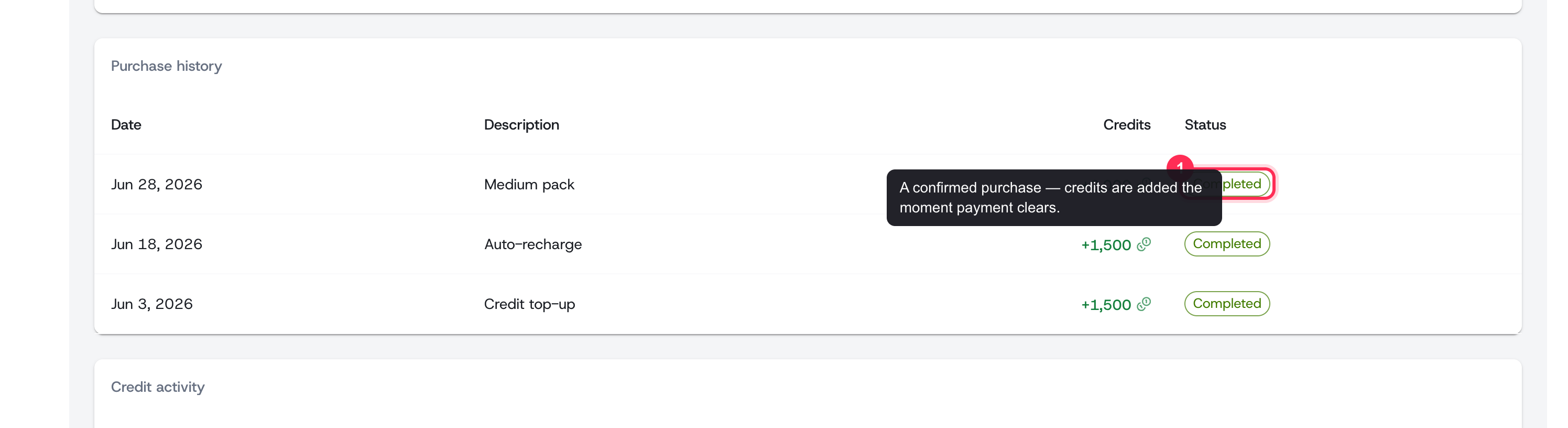 Purchase history table listing each top-up with its date, description, credits, and Completed status
Running low or out of credits
If your balance can't cover an action, that action is paused until you top up — but the rest of the platform stays available. When you're consistently hitting your monthly allowance, it may be time to move to a larger plan. See billing and plans to compare what each plan includes, and review AI generation overview to understand what consumes credits.
Tips
- Watch the credit meter in Settings → Billing to track usage against your monthly allowance.
- Turn on auto-recharge before a big production push so generation never stalls.
- Only organization owners and admins can buy credits or change billing — see members and roles.