Variations and batch generation
Produce up to four outputs from a single prompt, review them in a grid, and copy the best into your creative.
Variations let you produce several outputs from a single prompt in one run, then compare them side by side and keep the best. It's the fastest way to explore options without re-typing your prompt over and over.
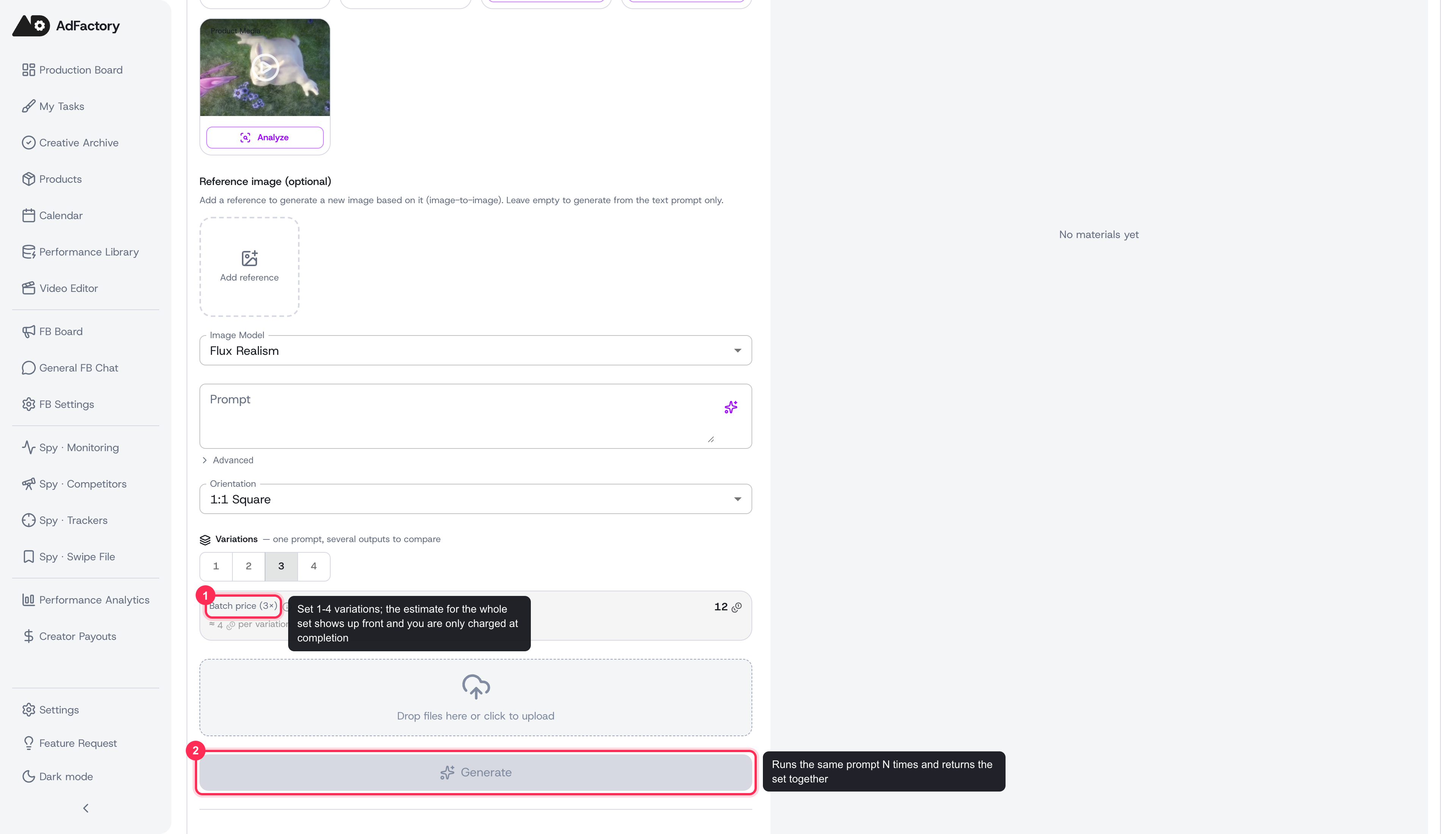 Setting the number of variations and reviewing the total batch cost before generating
What variations are
When you generate visuals inside a creative, you can ask for more than one result at once. AdFactory runs the same prompt several times and returns a set of outputs you review together in a grid — so you can pick a winner instead of generating, judging, and regenerating one at a time.
Variations are available across the visual AI generation tools, including image generation, video generation, and lipsync. A single run can return up to four variations when the model you've chosen supports it.
Choosing how many to generate
In the generation form, set how many variations you want — anywhere from one up to four:
- One produces a single output (the default).
- Two to four runs a batch and returns that many results to compare.
The maximum depends on the model you've selected. If a particular model can't run a batch, AdFactory falls back to a single output so your run still completes.
Each variation costs credits, and an estimate appears before you generate so you can see the total for the whole set up front. You're only charged at completion, and a variation that fails isn't billed. See credits, top-ups, and payments for how charges work.
Reviewing the grid
While a run is in progress you'll see a progress bar. Once it finishes, the results appear as a grid of tiles right inside the creative:
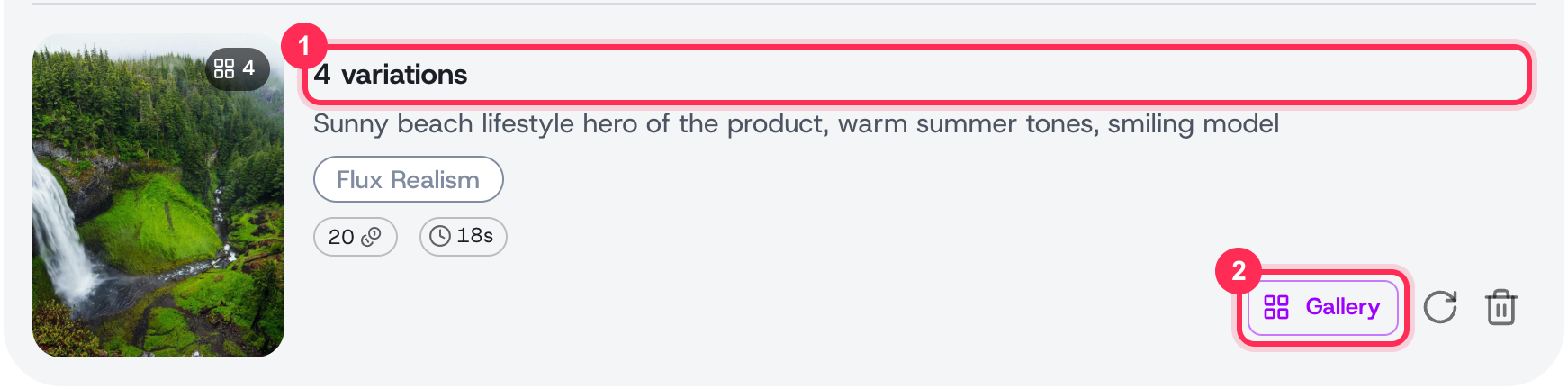 A finished batch shows a "4 variations" card with the shared prompt, model, and cost — open the gallery to compare every output side by side
- A status chip shows how many variations were delivered, and flags any that failed alongside the count.
- Each tile is one output. You can preview it, see its individual cost, and spot any tile that didn't complete.
- For a batch, choose Open gallery to step through every result full screen and compare them closely.
- If part of a batch fails, the successful tiles still arrive, so a single hiccup never loses the whole run. If a run fails outright, use the regenerate action to try again.
Keeping the ones you want
Every successful output is automatically added to the creative you're working in, so nothing is lost. By default a new output is treated as a source material; star it to mark it as the final version once you've settled on a winner.
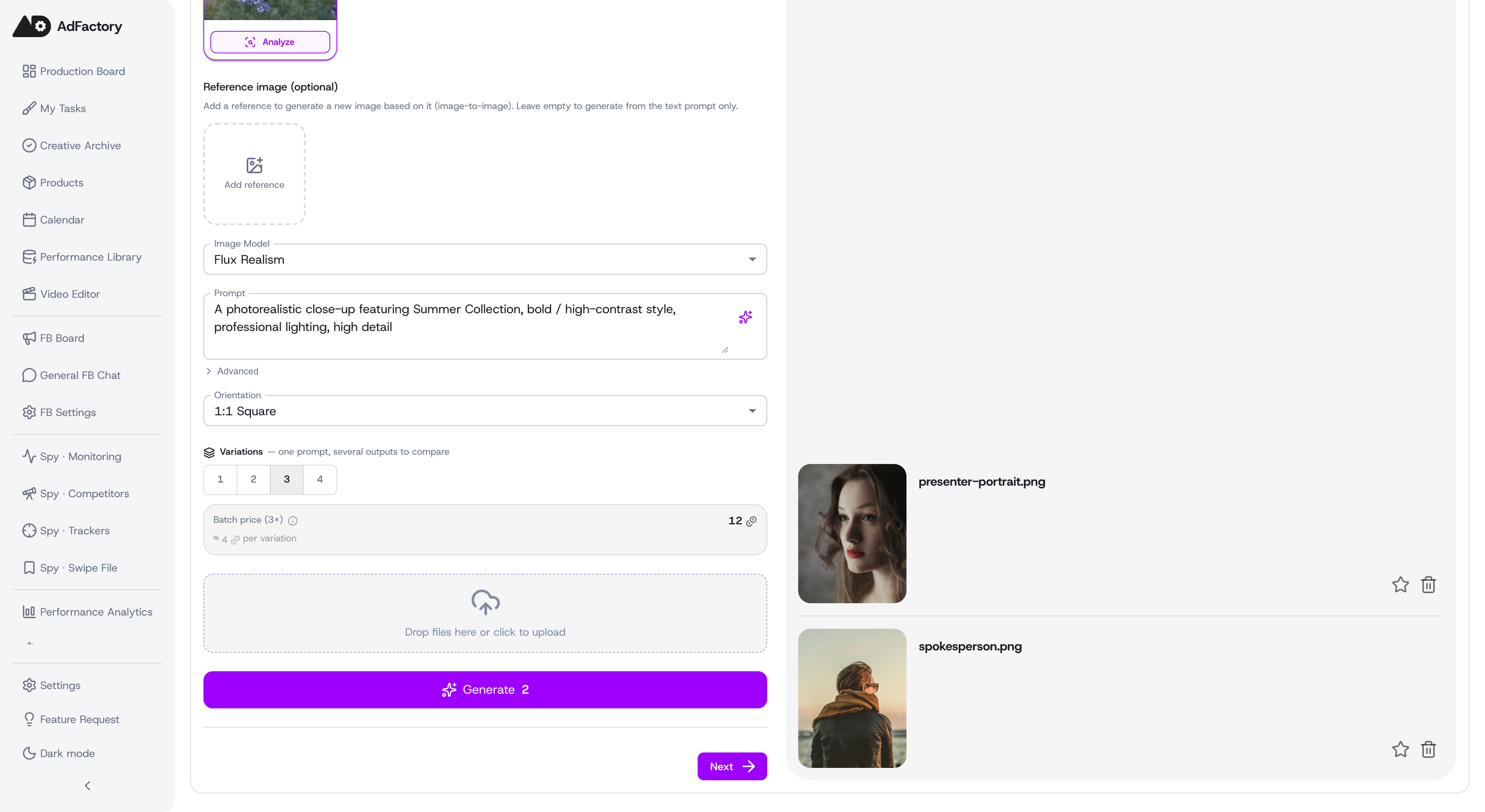 Each variation is added to the creative automatically, ready to star as the final pick or delete
You can also send a chosen output to another creative in the same task. From a tile, open the Send to another creative action and then:
- Choose Copy (keep the variation here and add it to the target) or Move (remove it from here and reassign it).
- Pick whether it lands As source or As final material.
- Select the target creative from the list of other creatives in the task.
Only other creatives in the same task appear in that list, so it's easy to spread strong options across the different formats in a task without regenerating.
Tips
- A sharper prompt yields more usable variations — see prompt optimization for help refining it.
- Start with two or three to explore an idea, then settle on one and iterate.
- Generating variations is part of building a creative — see creating a creative for the full flow.
- Variations live alongside everything else you produce and move toward approval through the creative review pipeline.