Notifications
Stay on top of task, creative, generation, and calendar events with in-app alerts, updated in real time.
Open in appNotifications keep you in the loop on everything that happens to your work in AdFactory — without you having to refresh the page or check each task by hand. Alerts arrive in real time, so you always know when something needs your attention.
The notification bell
A bell icon sits in the top bar on every page. A red badge on the bell shows your number of unread notifications (up to 99+). Click the bell to open the notifications panel, where you can:
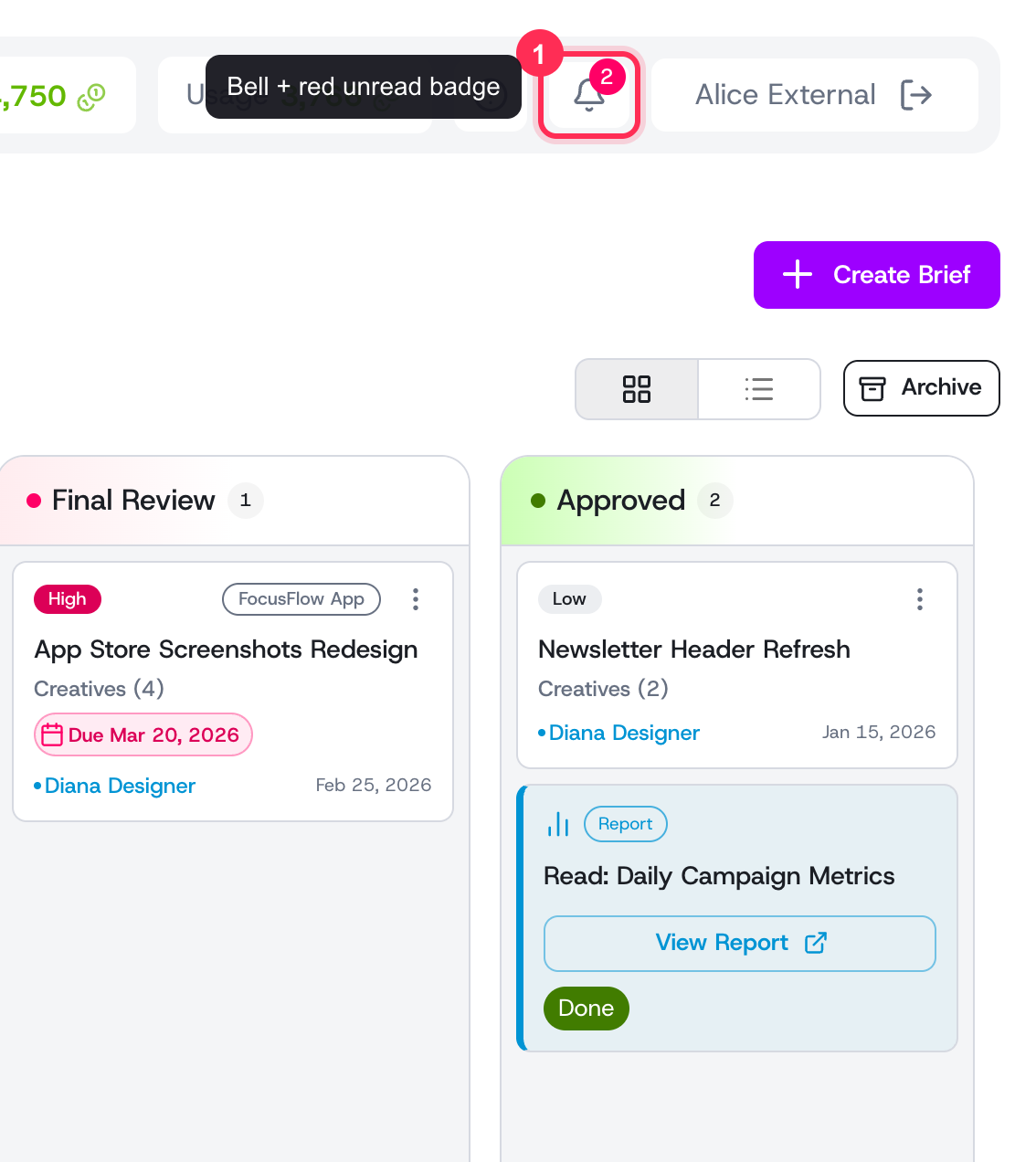 The notification bell sits in the top bar on every page; the red badge counts your unread alerts.
- Read recent alerts as a scrollable list, newest first.
- Open the related item — clicking a notification marks it read and takes you straight to the task, creative, or event it's about.
- Mark all as read in one click to clear the badge.
- Load more to page back through older notifications.
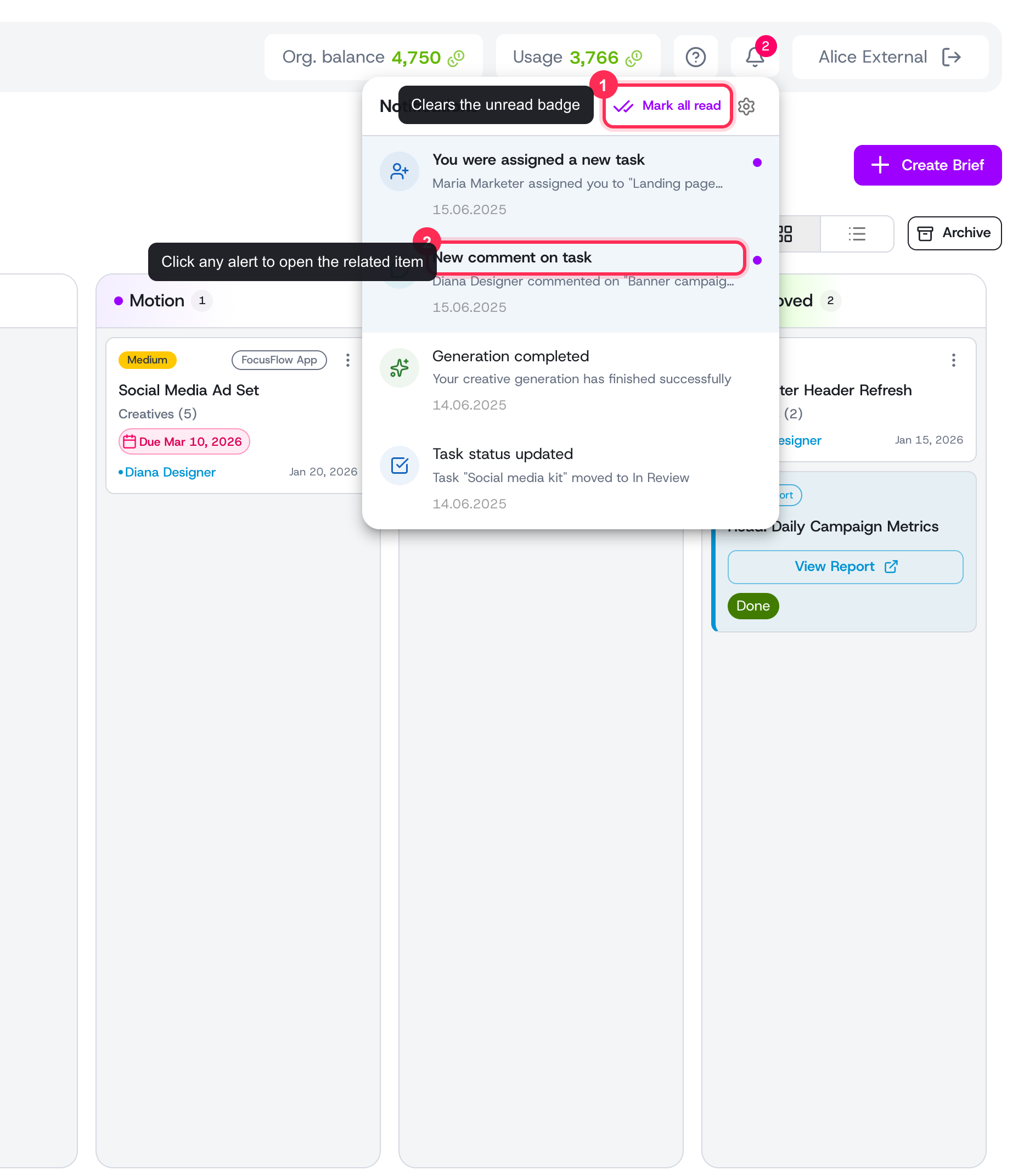 The panel lists recent alerts newest-first. Click one to open the related item, or use Mark all read to clear the badge.
What you get notified about
Notifications cover the moments that matter across your production workflow:
- Tasks — a task changes status, is assigned to you, or spins off a variation.
- Creatives — a creative changes status in the review pipeline, or one is assigned to you.
- Collaboration — someone adds a comment, opens a change request, or marks one resolved.
- AI generation — an AI generation job finishes or fails.
- Calendar — a marketing calendar event or its prep window is approaching or has started.
Each alert names who triggered it and links to the exact item, so you can act in a couple of clicks.
Choosing what reaches you
Open the panel and click the settings (gear) icon to manage your preferences:
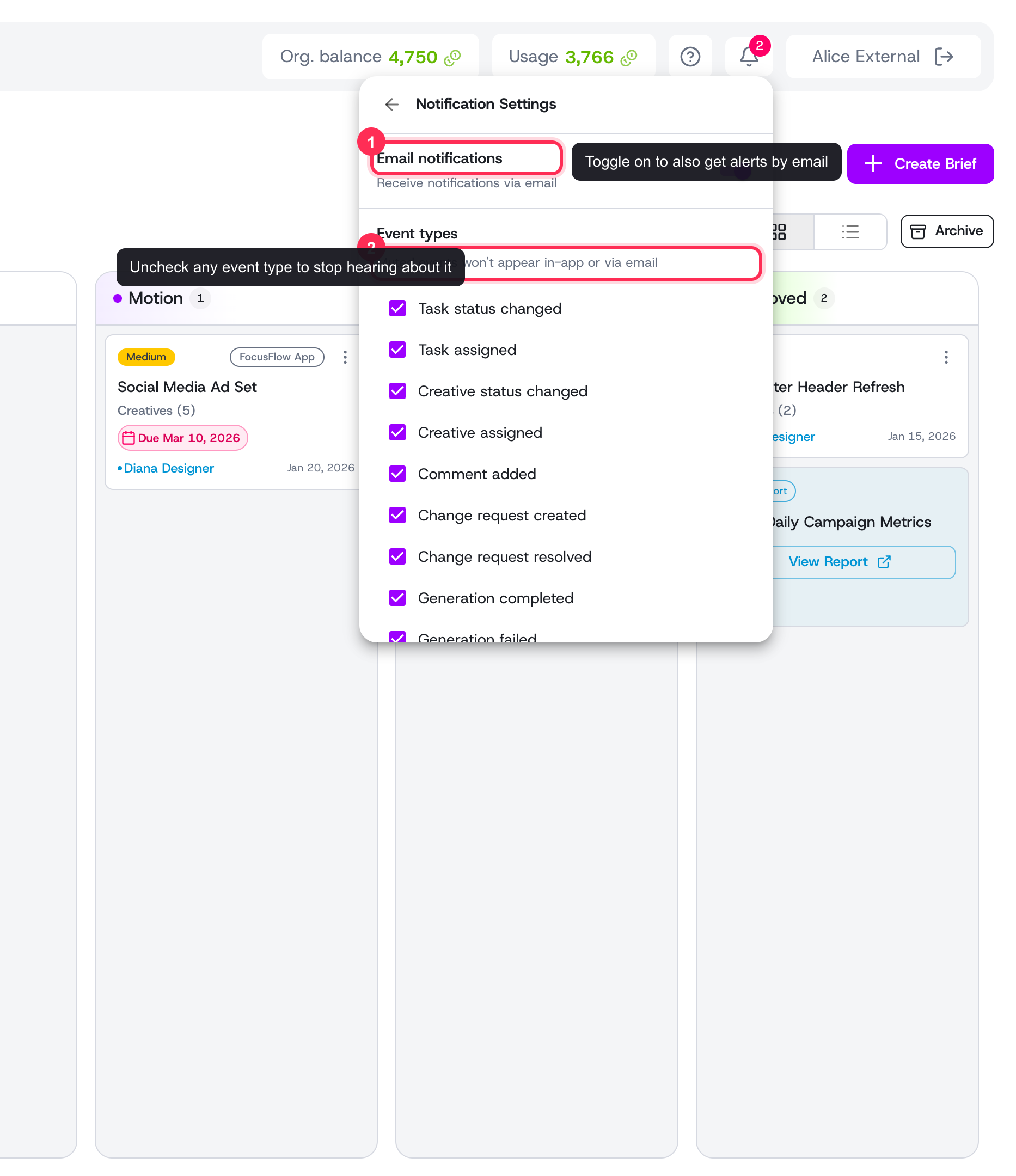 The gear opens your personal preferences: toggle email delivery and uncheck any event types you want to mute.
- Email notifications — toggle whether alerts also reach your inbox, on top of in-app delivery.
- Event types — uncheck any event you don't want to hear about. Muted events won't appear in-app or by email, so you can tune notifications down to just what's relevant to your role.
Preferences are personal to your account, so each teammate controls their own signal.
Tips
- Leave the task status and assignment alerts on — they're the heartbeat of the task board and tell you when it's your turn to act.
- If a busy task floods you, mute the noisier event types rather than ignoring the bell entirely.
- Turn on email notifications for the events you can't afford to miss when you're away from the app.
- Use the Mark all as read button at the end of the day to start each morning with a clean badge.