Comments and discussion
Discuss tasks in threaded comments so feedback and decisions stay attached to the work.
Comments let your team discuss a task right where the work lives. Instead of scattering feedback across chat and email, every question, decision, and note stays attached to the task — so anyone who opens it later sees the full conversation.
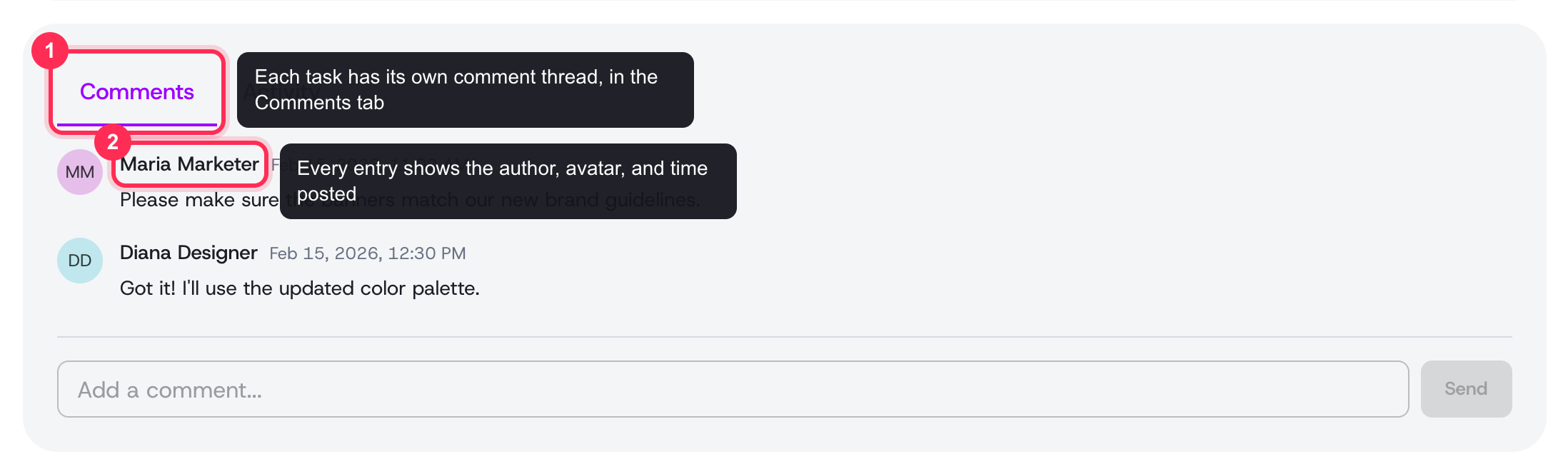 The Comments tab on a task keeps the whole discussion attached to the work, oldest to newest, with a box to add your own note
Where comments live
Each task on the task board has its own comment thread. Open a task and you'll find the discussion alongside its brief, team, and creatives. Comments belong to that one task, so the context never gets lost.
Reading a thread
The thread shows every comment in order, oldest to newest. Each entry includes:
- The author's name and avatar.
- The date and time it was posted.
- The comment text, with line breaks preserved.
If no one has commented yet, the thread simply shows that it's empty and ready for the first note.
Adding a comment
- Open the task you want to discuss.
- Type your message in the comment box at the bottom of the thread.
- Click Send — or press Cmd+Enter (Mac) / Ctrl+Enter (Windows) to post without leaving the keyboard.
 Write your comment in the box at the bottom of the thread — it supports multiple lines — then click Send or press Cmd/Ctrl+Enter
Your comment appears in the thread immediately, and your teammates see it the next time they open the task or refresh their view. Comments support multiple lines, so you can lay out longer notes clearly.
Posting comments is permission-based. If you don't see the comment box, your role may not include comment access — an organization admin can adjust this under members and roles.
When to use comments vs. change requests
Comments and change requests work together but serve different jobs:
- Comments are for open-ended discussion — asking questions, sharing context, aligning on direction, or recording a decision.
- Change requests are for structured, trackable revisions on a specific creative, so the team knows exactly what to fix during the review pipeline.
Use comments to talk things through, and a change request when you need a concrete, actionable edit.
Staying in the loop
You don't have to keep a task open to follow along. Relevant activity surfaces through notifications, so you can jump back into a thread when something needs your attention.
Tips
- Keep one task's discussion in its own thread — it keeps decisions findable later.
- Be specific: reference the creative, format, or hook you mean so teammates don't have to guess.
- Use comments to capture why a decision was made, not just what — future you will thank you.