Archiving and duplicating tasks
Archive tasks you no longer need on the board (and restore them later), or duplicate a task to reuse its setup.
Open in appArchiving keeps your task board focused on active work without losing anything, and duplicating lets you spin up a new task from an existing setup in seconds. Both actions live right on the task card, so you never have to leave the board.
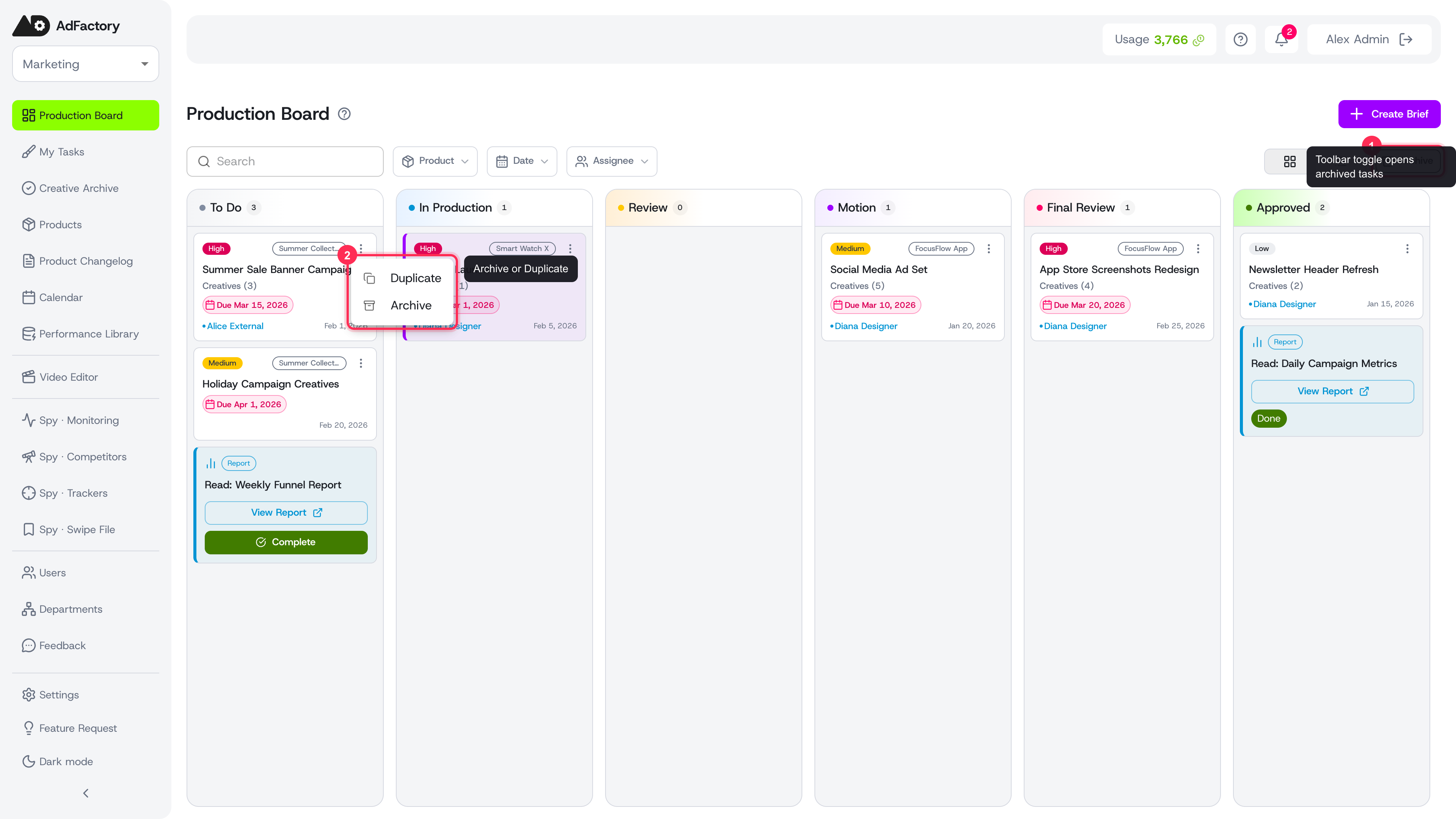 The task card ⋮ menu with Archive and Duplicate, plus the toolbar Archive toggle
Archiving a task
When a task is finished or no longer relevant, archive it instead of deleting it. Archiving removes the task from the board but preserves everything — its brief, creatives, comments, and original status — so the full history stays intact.
To archive a task:
- Open the ⋮ (more) menu on the task card, or use the action on the task detail page.
- Choose Archive.
The task drops off the main board immediately. Its status is preserved exactly as it was, so a restored task returns to the same stage of the production flow.
Viewing and restoring archived tasks
The board has an Archive toggle that switches to a list of everything you've archived. Each row shows the task number, title, product, status, and the date it was archived.
From the archive you can:
- Restore a task to bring it back onto the board at its original status.
- Duplicate a task to reuse its setup without un-archiving the original.
The same product, title, status, and date filters from the board toolbar apply in the archive view, so you can narrow a long list quickly.
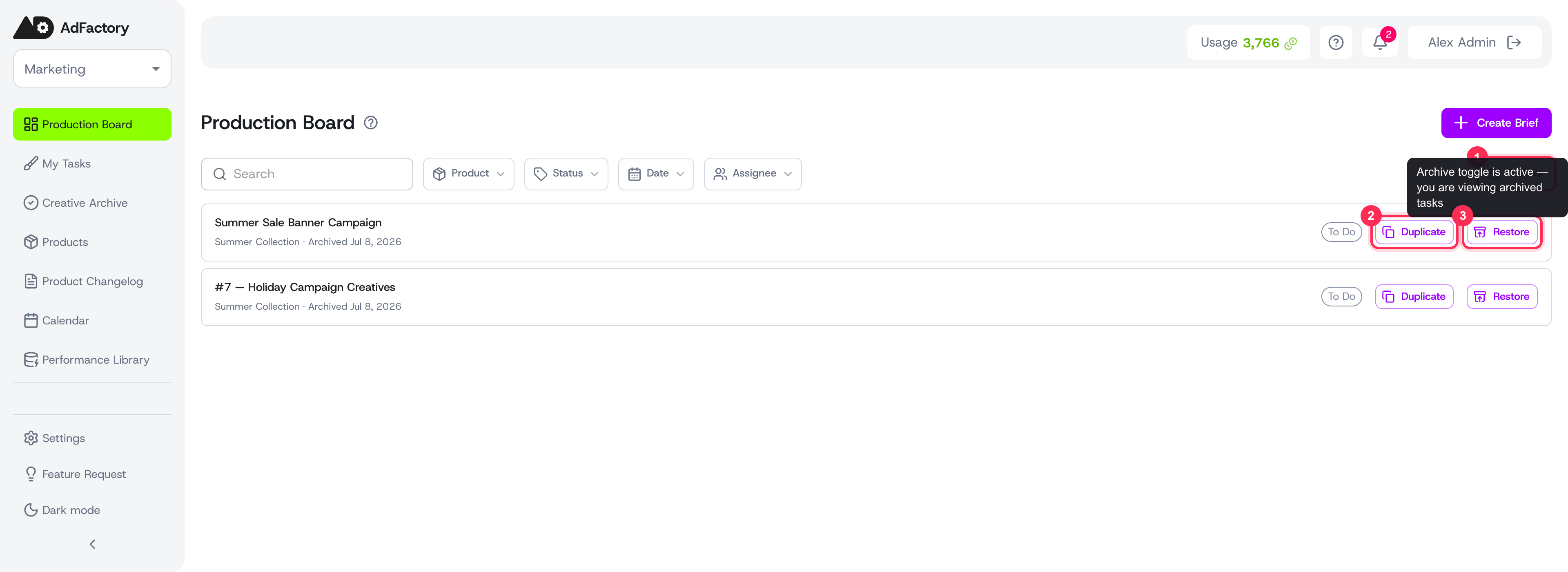 The Archive view listing archived tasks, each with Duplicate and Restore actions
Duplicating a task
Duplicating creates a brand-new task that copies the parts you choose from an existing one — perfect for running the next batch of a winning concept or starting from a proven brief.
To duplicate a task:
- Open the ⋮ menu on the card (on the board or in the archive) and choose Duplicate.
- Give the new task a title — it defaults to "Copy of …".
- Use the checkboxes to pick exactly what to copy, then confirm.
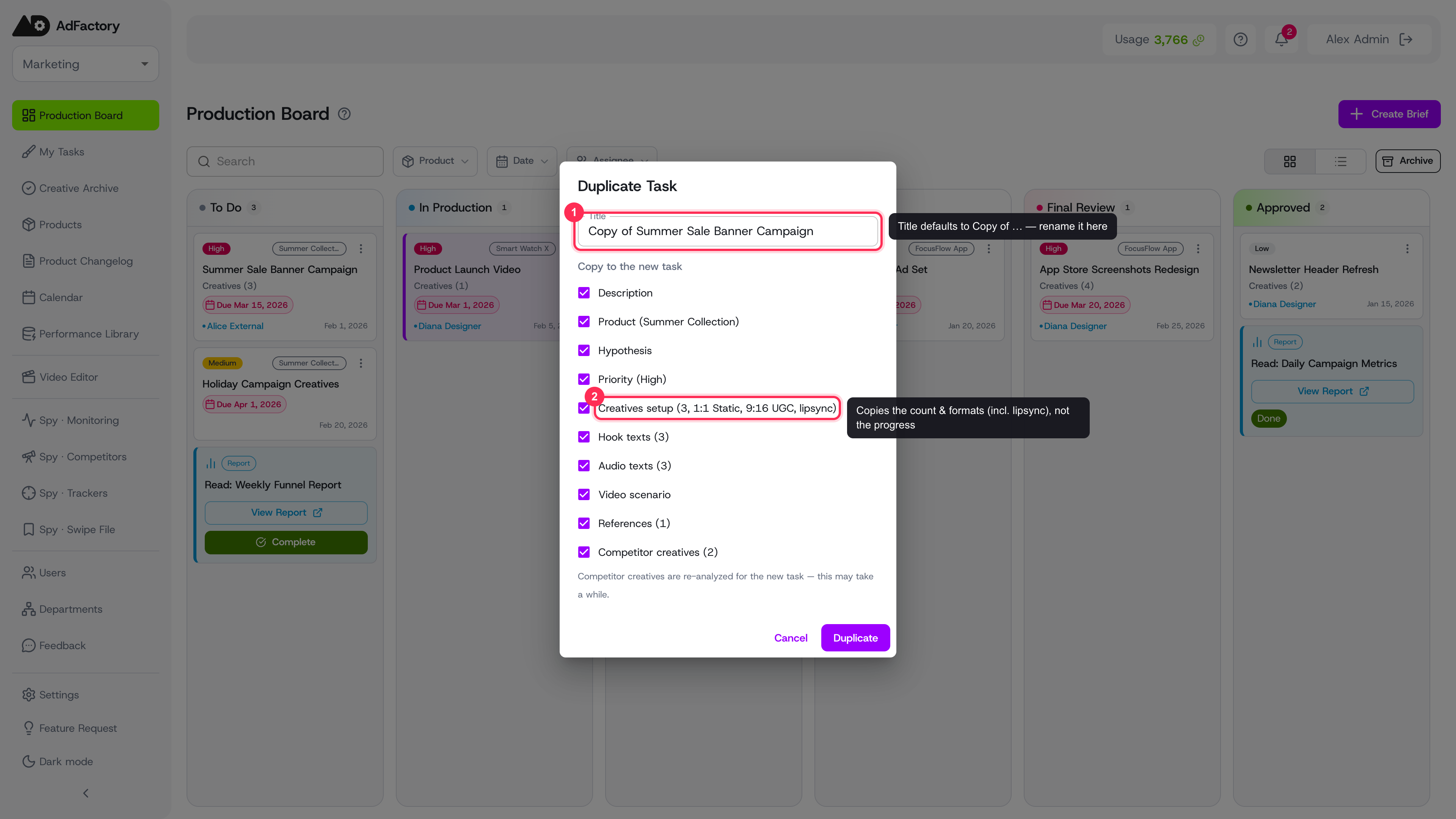 The Duplicate Task dialog with a Copy of … title and per-field copy checkboxes
You can copy any combination of:
- Description, product, hypothesis, and priority
- Creatives setup — the number of creatives and formats, including lipsync
- Hook texts, audio texts, and the video scenario
- References and competitor creatives carried over from the Spy Agent
By default every available field is selected; clear any you don't need. Note that competitor creatives are re-analyzed for the new task, which can take a moment.
When you confirm, AdFactory creates the new task and opens it so you can adjust the brief and assign your team. The new task starts fresh at the beginning of the flow — only the fields you chose are copied, not the creatives' progress or review history.
Tips
- Archive finished work rather than deleting it, so you can always restore it later.
- Duplicate a high-performing task to test variations while keeping the original record clean.
- For a new task without a template, see creating a task.