Marketing calendar
Plan seasons, events, and prep windows per product so creative production is ready ahead of every moment.
Open in appThe marketing calendar is where you map the seasons, holidays, and events that move your ad performance — and the prep windows your team needs to be ready for each one. By planning ahead, you make sure creative production starts in time for every peak moment instead of scrambling at the last minute.
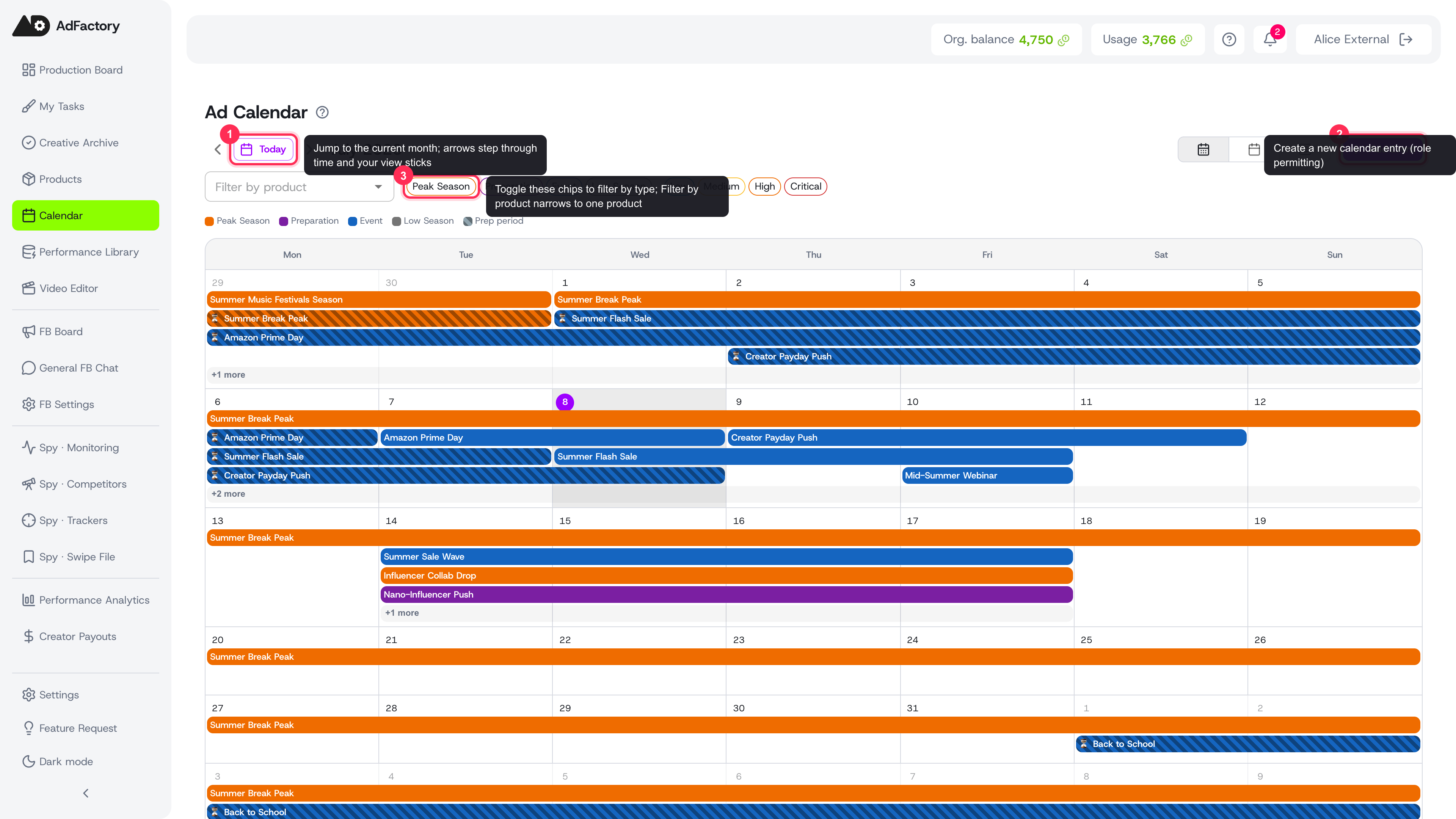 The Ad Calendar in Month view: use Today and the arrows to navigate, the type chips to filter, and Add Event to create an entry
What a calendar event captures
Each event is more than a date on a grid. It ties a moment to your products and tells your team how to prepare:
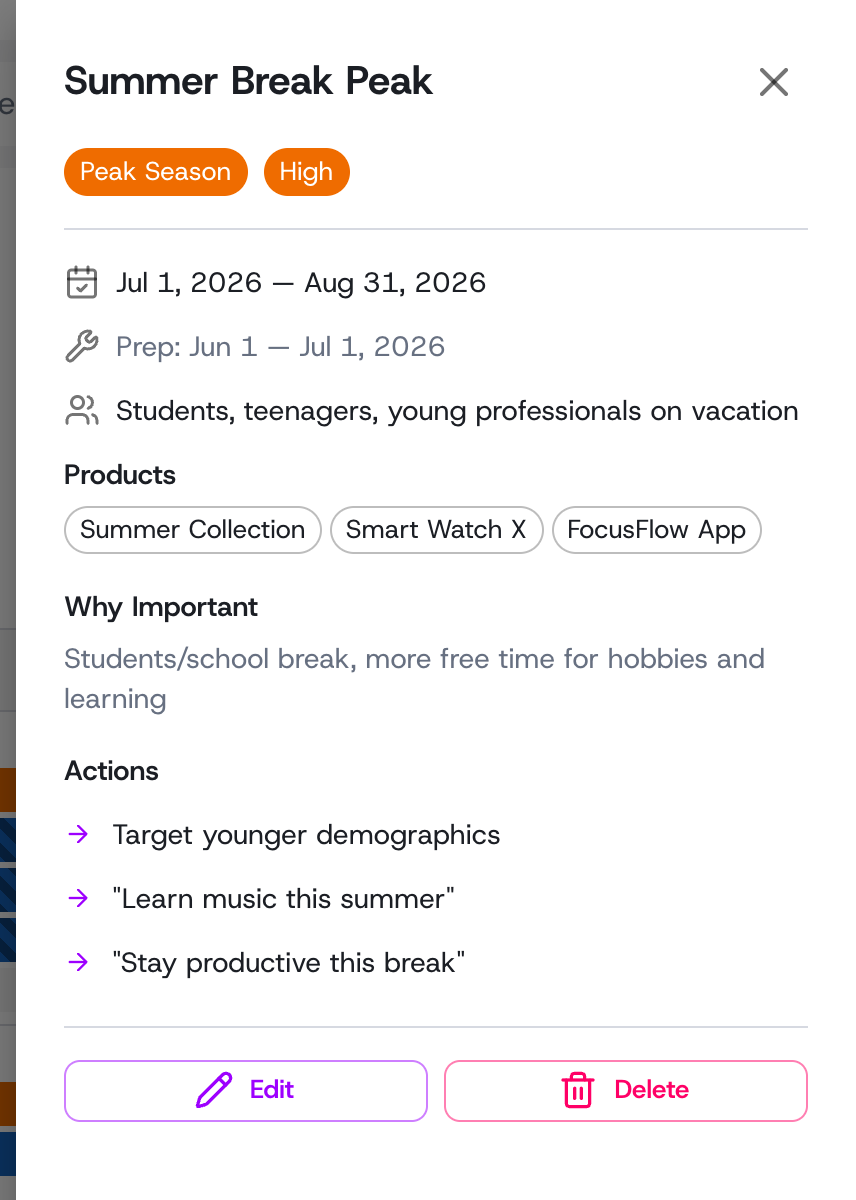 An event's detail panel with its dates, type and importance, prep window, audience, products, and the actions to produce
- Dates — when the event itself runs (start and end).
- Type — Peak Season, Preparation, Event, or Low Season, each color-coded so patterns stand out at a glance.
- Importance level — Low, Medium, High, or Critical, so you can see where to focus first.
- Prep window — the lead time before the event when creatives should be produced and ready to launch.
- Target audience and why it matters — context that sharpens your briefs.
- Actions — the concrete creatives or angles to produce for the moment.
- Critical note — an optional flag for must-not-miss details.
Choosing a view
A toolbar at the top lets you navigate dates and switch how you look at the year:
- Month — a familiar grid for a close-up on what's coming next. Events show as solid color-coded bars, while prep windows appear as striped "hazard" bars in the same color, so a moment and its lead time never blur together. When a week holds more than can fit, a +N more button opens a list of the rest — no need to leave the month to see them.
- Year — the whole year at once, ideal for spotting seasonal patterns.
- Timeline — a horizontal span across several months, great for seeing how prep windows overlap.
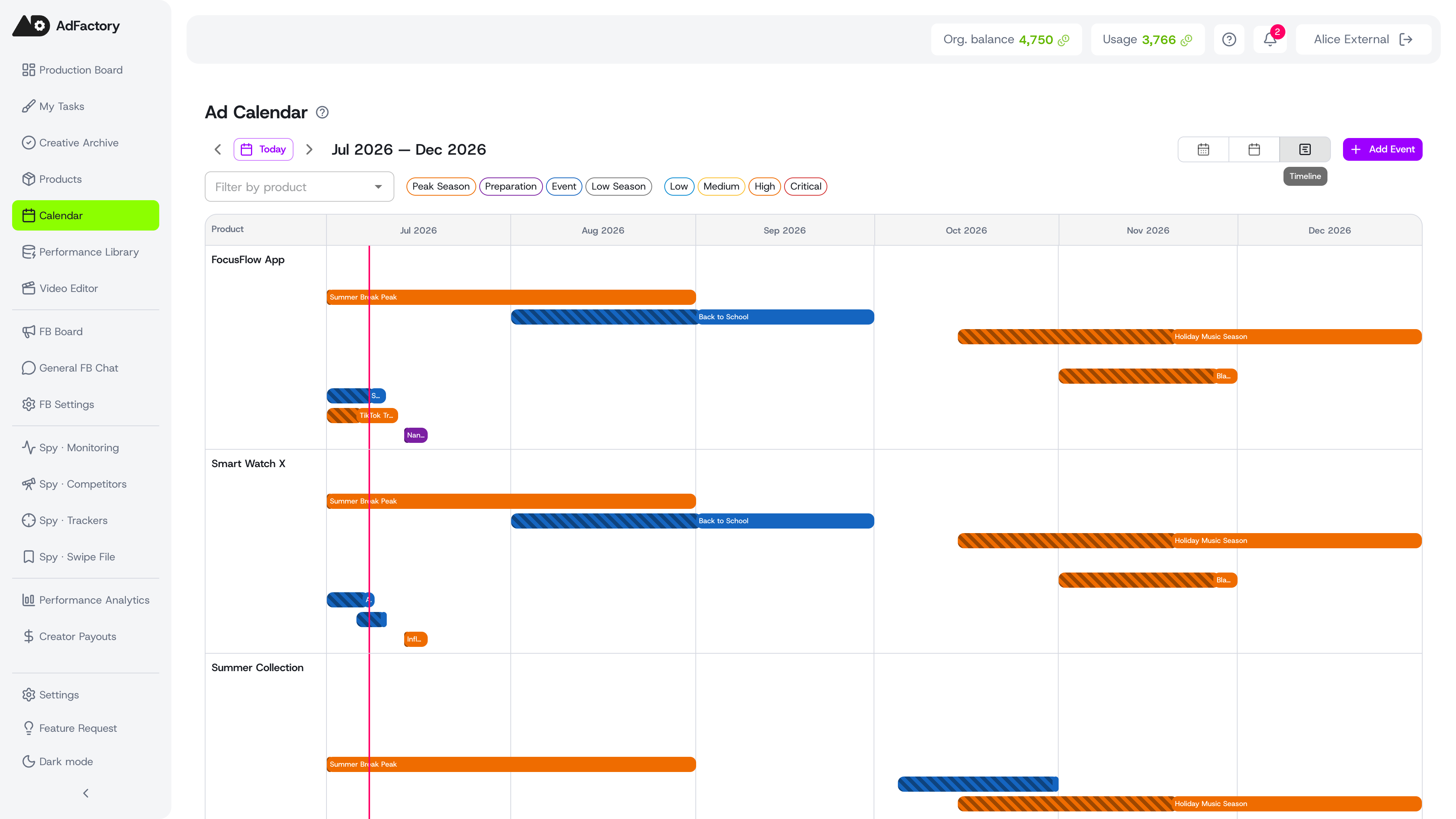 Timeline view lays events out per product across several months, so overlapping prep windows are easy to spot
Use the Today button and the arrows to move through time, and the view you pick stays put as you plan.
Filtering the calendar
When the calendar fills up, filters keep it focused. You can narrow by:
- Product — see only the events tied to a specific product.
- Type — toggle Peak Season, Preparation, Event, or Low Season chips.
- Importance — focus on High and Critical moments first.
Adding and editing events
If your role allows it, use Add Event to create a new entry. Fill in the name, dates, type, importance, prep window, target audience, the products it applies to, and the actions to produce.
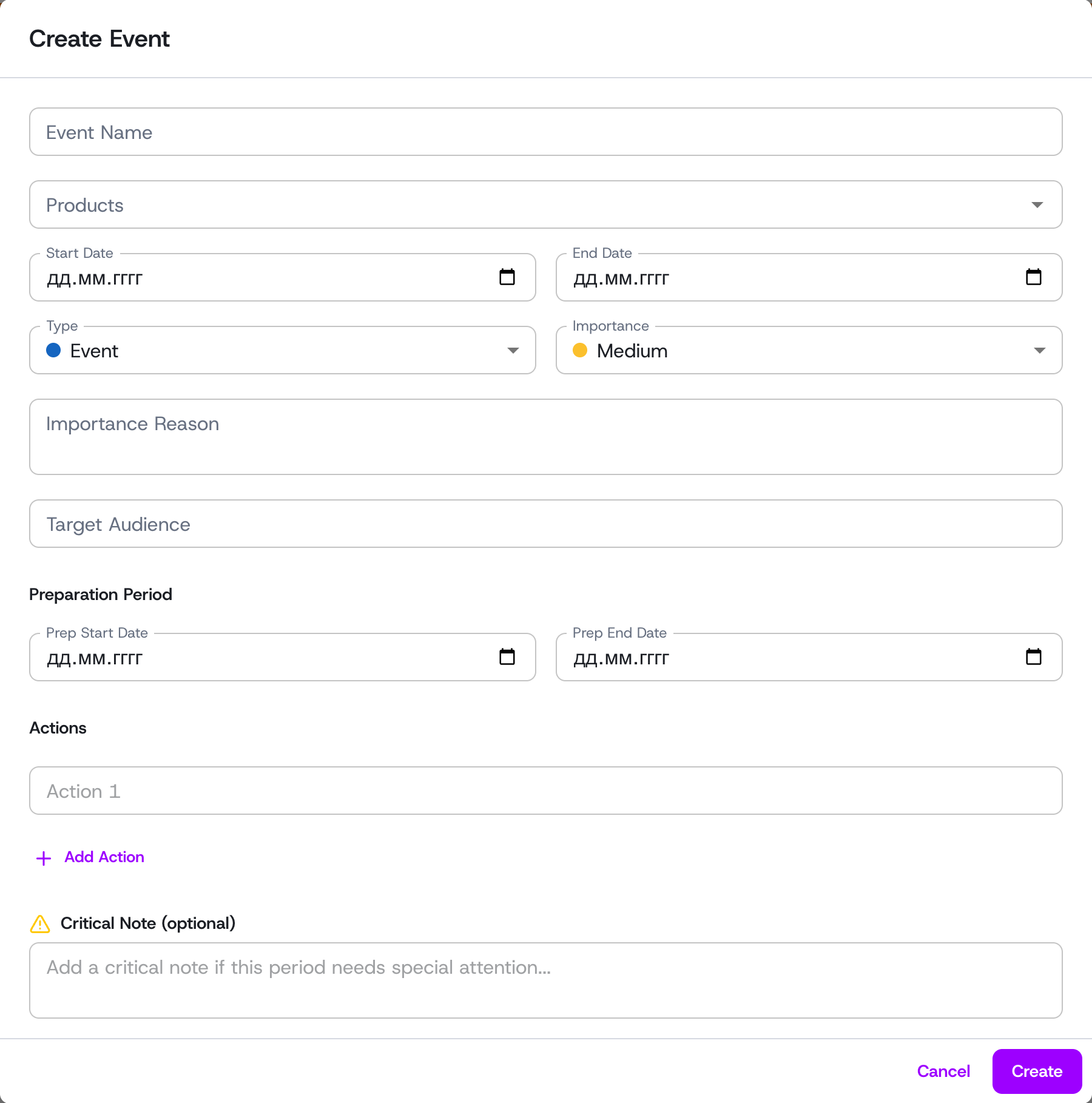 The Create Event form: name, products, dates, type, importance, prep period, actions, and an optional critical note Click any event to open its detail panel, where you can review every field and edit or delete it. What you can do here depends on your role and permissions.
Turn plans into production
The calendar is most powerful when it feeds your pipeline. When a prep window opens, head to the task board and create tasks for the creatives that event calls for — using the event's audience notes and actions as the foundation for a strong brief. That way, every peak moment is met with finished, on-target ads.