Google Drive integration
Connect Google Drive to import source files and export approved creatives, with conflict handling and sync controls.
Open in appConnect Google Drive to move files between AdFactory and your own Drive — import source media into a creative and send approved creatives out to a folder you control. AdFactory storage always stays the source of truth, so Drive issues never block your production work.
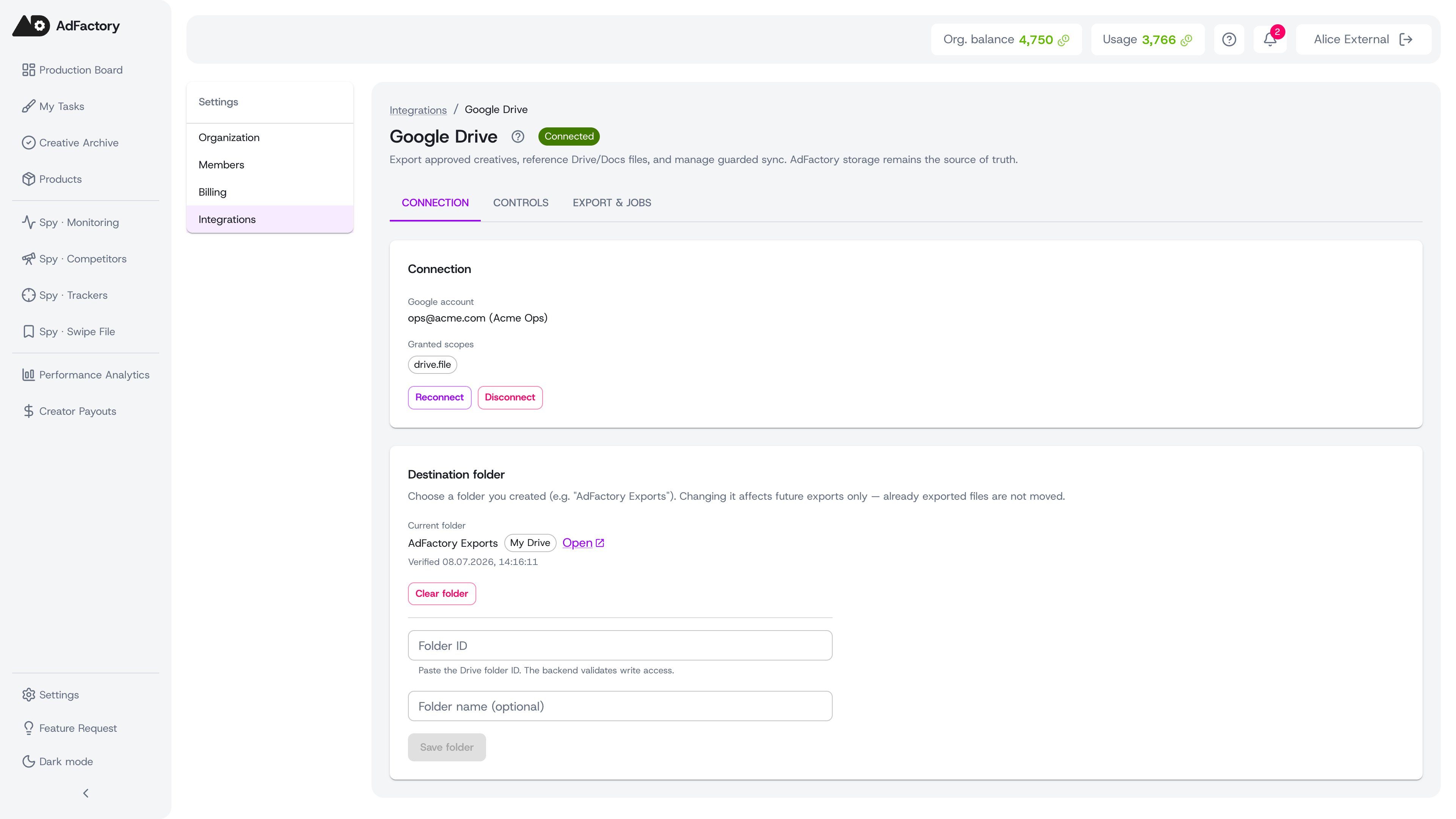 The Google Drive integration settings, showing connection status and export folder
What the integration does
Once connected, Google Drive gives your organization two things:
- Export approved creatives to a Drive folder you choose, manually or automatically the moment a creative is approved.
- Import source files from Drive when you build a creative, alongside regular device uploads.
The integration is set up by an organization owner or admin and applies to the whole workspace. You manage it from Settings → Integrations → Google Drive.
Connecting your account
- Open the Connection tab and click Connect Google Drive.
- A Google window opens — sign in and approve the requested access. The window closes itself when it's done.
- Back in AdFactory, you'll see the connected Google account and a Connected status chip.
If Google ever expires or revokes the connection, the status changes to Reconnect required — just click Reconnect to resume. You can Disconnect at any time without losing any creatives or already-exported files.
Choosing a destination folder
Exports need a folder to land in. In the Connection tab, paste the Folder ID of a Drive folder you created (for example, "AdFactory Exports") and save it. AdFactory verifies it has write access before using it.
- Until a destination folder is set, exports are blocked.
- Changing the folder affects future exports only — files already exported are never moved.
Exporting approved creatives
When a creative is approved, an Export to Drive button appears on it for owners and admins. Click it to send the creative to your destination folder; the button shows the export status and an Open link to the file in Drive once it's done.
In the Controls tab you can turn workflows on or off for the whole organization:
- Manual export — let people trigger exports of approved creatives themselves.
- Auto-export on approval — automatically export each creative as soon as it's approved.
The integration also has an organization-level switch to pause everything at once. Pausing doesn't disconnect your account or clear your folder. The Export & jobs tab shows the history and status of recent export jobs so you can confirm everything landed.
Importing files from Drive
When you produce a creative, you can pull source media straight from Drive instead of uploading from your device. Imported files join the creative's materials the same way any other source media does, ready to use in AI generation and the review pipeline.
Good to know
- Only organization owners and admins can connect Drive, set the folder, and change export controls. See members and roles.
- AdFactory remains the canonical store. If a file is renamed or moved in Drive, your creatives are unaffected.