Creative detail and AI analysis
Open a competitor creative to see details, an AI breakdown of why it works, and the full transcript.
Open any competitor ad from the ad library to study it up close. The creative detail view pairs the ad itself with an AI breakdown of why it works and, for video, a full timestamped transcript — so you can learn from a winning ad and turn it into your own brief in a couple of clicks.
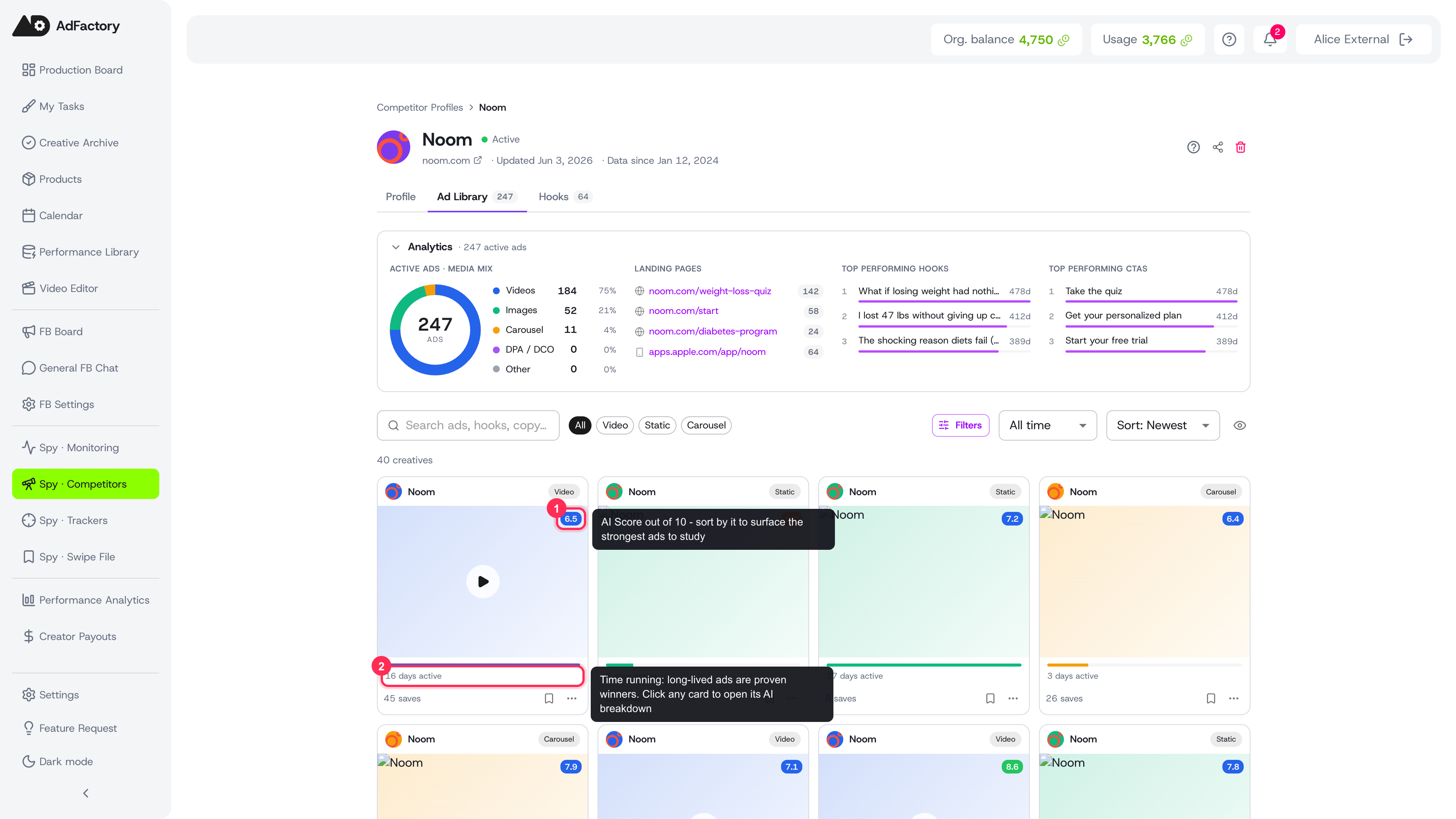 In a competitor's Ad Library, each card shows an AI Score and how long the ad has run — click any card to open its full AI analysis
Opening a creative
From a competitor's ad library, click any creative to open its detail view. The ad plays or previews on the left, and a panel on the right holds everything you need to analyze it.
Use Prev and Next at the top to move through the ad library without going back to the grid, and the header shows the creative's format and aspect ratio at a glance.
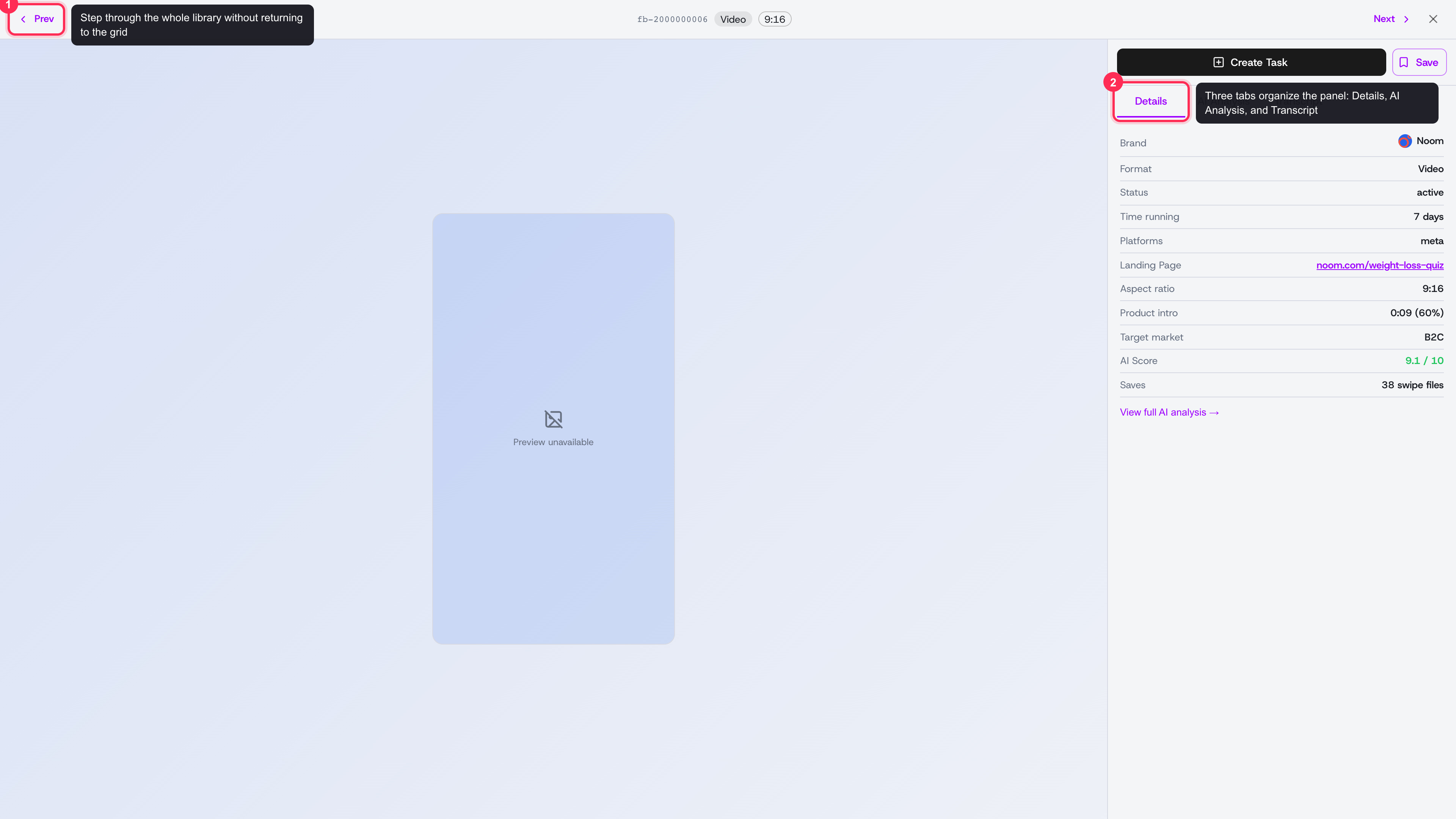 The creative detail view: the ad on the left, a three-tab analysis panel on the right, with Save and Create Task above
The three tabs
The right-hand panel is organized into three tabs.
Details
A quick fact sheet for the ad:
- Brand and target market of the competitor.
- Time running (days active) and status — strong signals of a proven, profitable ad.
- Format, aspect ratio, and platforms it runs on.
- Landing page link, so you can inspect the funnel it points to. See competitor landing pages.
- AI Score out of 10 and the number of swipe files the ad has been saved to.
AI Analysis
An AI breakdown of what makes the ad work, organized into focused cards:
- Hook (first 3s) and hook type — how it grabs attention. Compare across ads on the competitor hooks page.
- Pain points targeted and emotional triggers.
- Angle and CTA strategy.
- Why it works, a Steal this takeaway you can apply, and the ad's weakness.
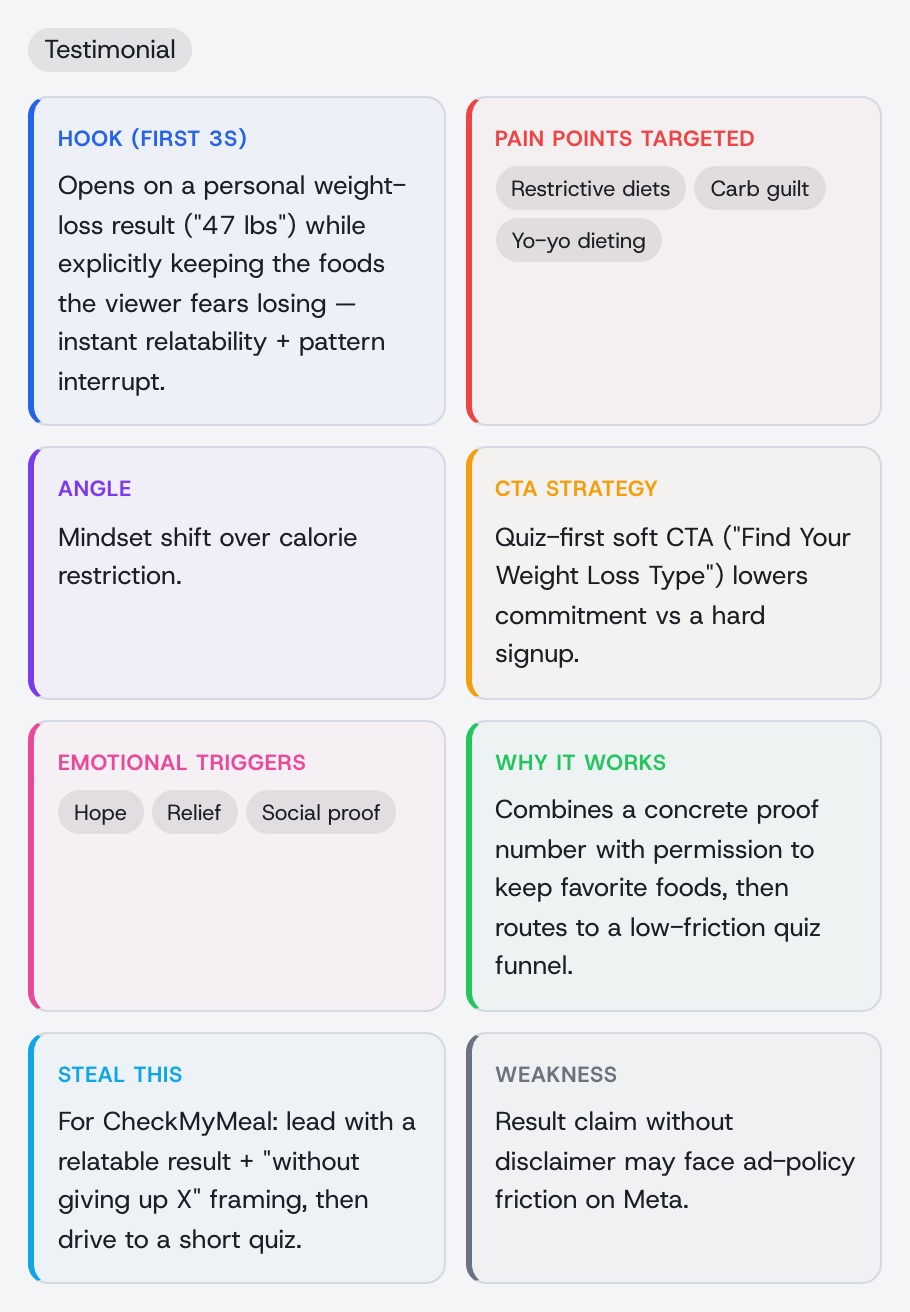 The AI Analysis tab breaks the ad into hook, pain points, angle, CTA strategy, and a Steal-this takeaway
Transcript
For video ads, a full transcript broken into timestamped segments you can scan or copy with one click. A Product intro marker shows exactly when (and how far into the ad) the product first appears. Image creatives have no transcript.
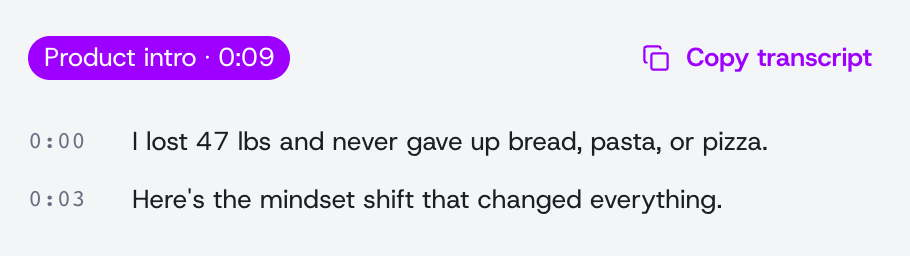 For video ads, the Transcript tab gives timestamped segments and a Product intro marker you can reuse in your own brief
From insight to action
Two buttons sit above the tabs so you can act on what you find:
- Save the creative to your swipe file to organize it into boards for later reference.
- Create Task to start a creative task with this ad attached as a reference and an AI-prefilled brief, so your team knows exactly what to model.
Tips
- Sort the ad library by AI Score or time running, then open the top performers to study why they win.
- Copy a strong transcript and reuse its structure when writing your own brief.