The ad library
Browse a competitor’s ads in a grid with an analytics block, then open any creative for details, AI analysis, and a transcript.
The ad library is where you see every creative a competitor is currently running, laid out in a visual grid with an analytics block at the top. It's the heart of the Spy Agent — the place to spot patterns, find proven ideas, and pull the winners into your own production.
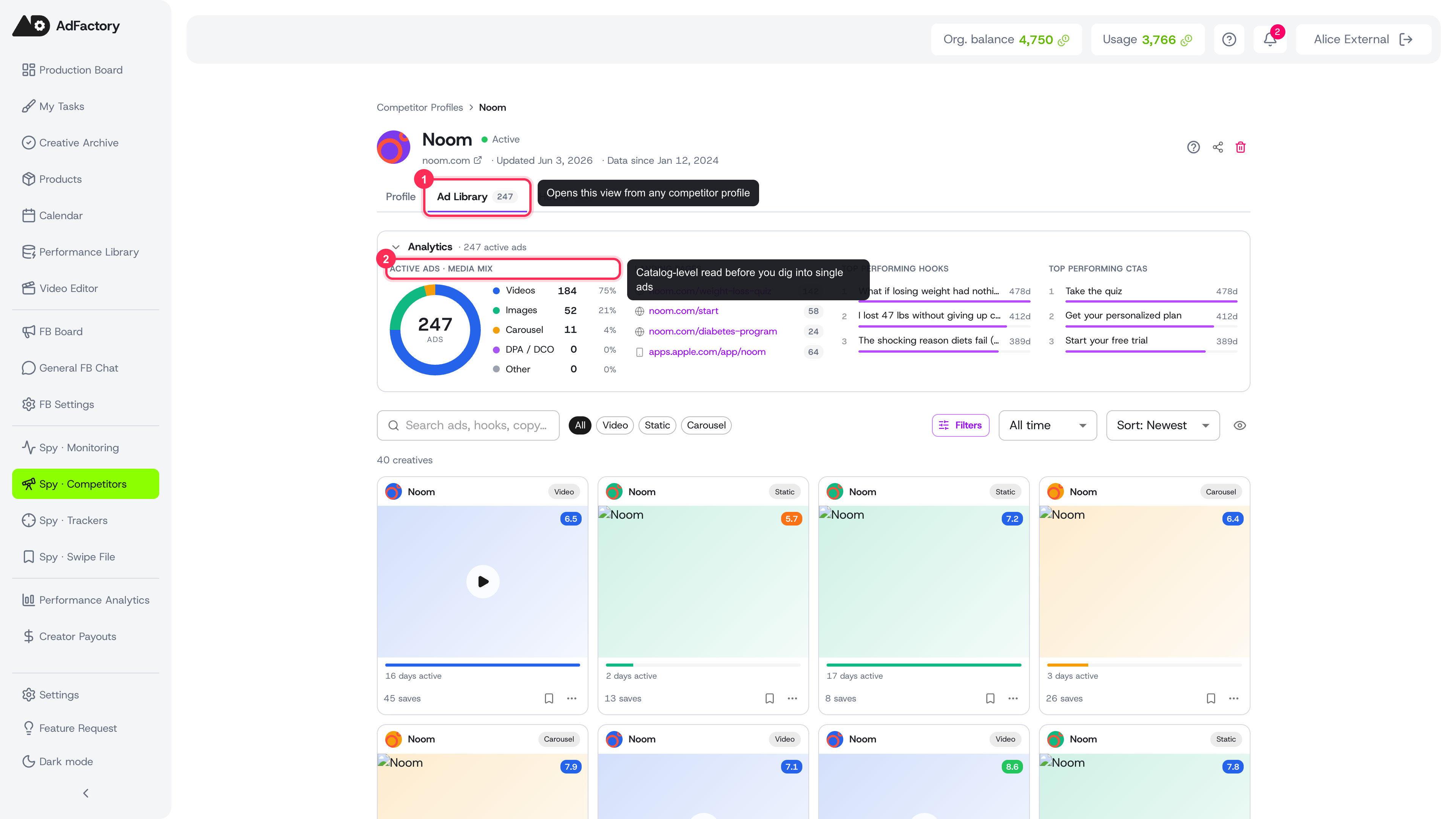 A competitor's ad library: analytics summary on top, filter toolbar, then the full grid of running creatives
Getting there
Open any competitor profile and go to its ad library. The page opens with a competitor header, an analytics summary, and the full grid of their ads. Scroll to load more — ads page in as you go, so large libraries stay fast.
The analytics block
A collapsible Analytics panel sits above the grid, giving you a quick read on the competitor's whole catalog before you dig into individual ads:
- Active Ads · Media Mix — a donut showing how their spend splits across video, static, carousel, and other formats.
- Landing Pages — the destinations their ads point to, ranked by how many ads send traffic there. Click through to open one.
- Top Performing Hooks — the opening lines running the longest, a strong signal they're working.
- Top Performing CTAs — the calls to action with the most staying power.
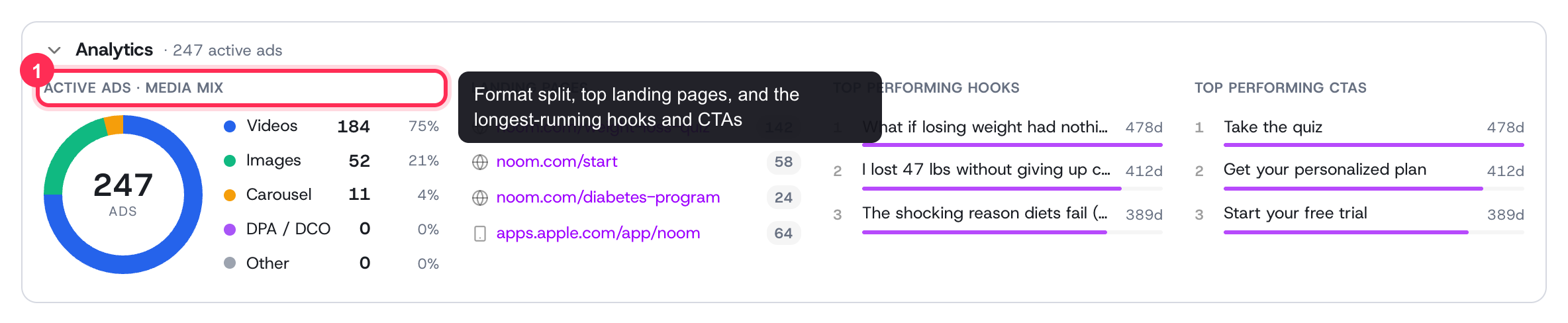 The Analytics panel: media mix, top landing pages, and the longest-running hooks and CTAs — your fastest read on a competitor's strategy
Long-running creatives are usually the most profitable, so longevity is one of the best proxies for what's converting.
Finding the right ads
The toolbar lets you cut the grid down to exactly what you want to study:
- Search by ad text, hook, or copy.
- Format chips — All, Video, Static, or Carousel.
- Filters — narrow by status (active, paused, inactive), minimum AI score, and minimum days active.
- Date range — last 7, 14, 30, or 90 days, or all time.
- Sort — Newest, Most active, Most saves, or Best score.
 The toolbar: search field, format chips, Filters, date range, and sort
You can also adjust the card display to show more or less detail per creative.
What you can do with an ad
Each card gives you three quick actions:
- Open it for the full creative detail and AI analysis, including a breakdown of why it works and a complete transcript.
- Save it to your swipe file, organized into boards for later reference.
- Create a task straight from the ad — this opens a task on your board with an AI-prefilled brief and the competitor creative attached as a reference.
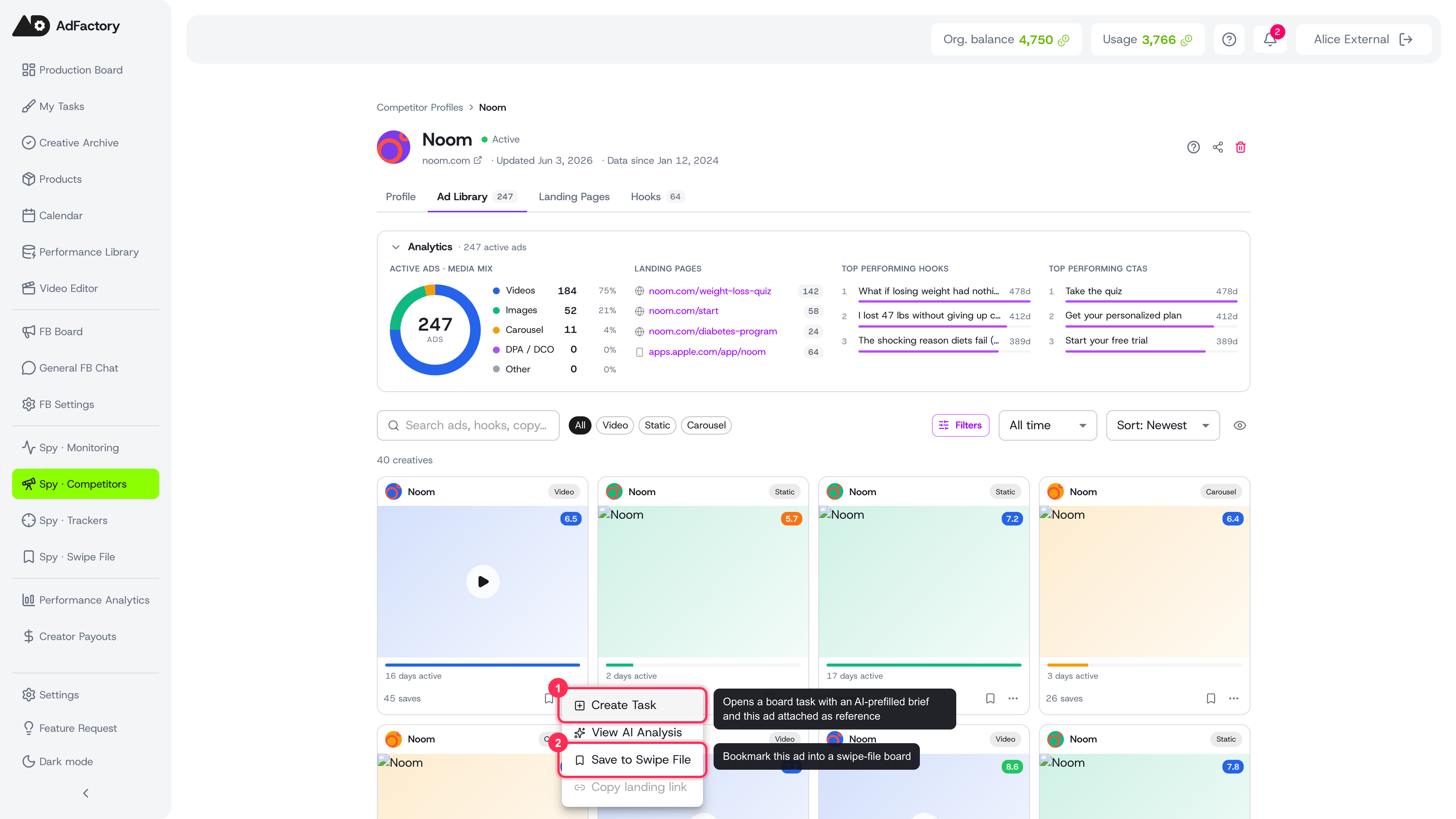 The card overflow menu: Create Task, View AI Analysis, and Save to Swipe File
Tips
- Sort by Most active to surface the proven workhorses, then save them to a swipe board.
- Use the media mix and landing pages to understand a competitor's overall strategy, not just one ad.
- When you find an angle worth copying, turn it into a creative task right away so the reference stays attached for your team.