Using body clips in a creative
On the Select Body Clips step, tag which clips a creative actually uses; suggestions come from the task, and the full library is available.
Body clips are the reusable footage that goes into a motion-designer creative. The Select Body Clips step lets you record exactly which clips a creative actually used, so your team can see what's working and reuse the best footage across campaigns.
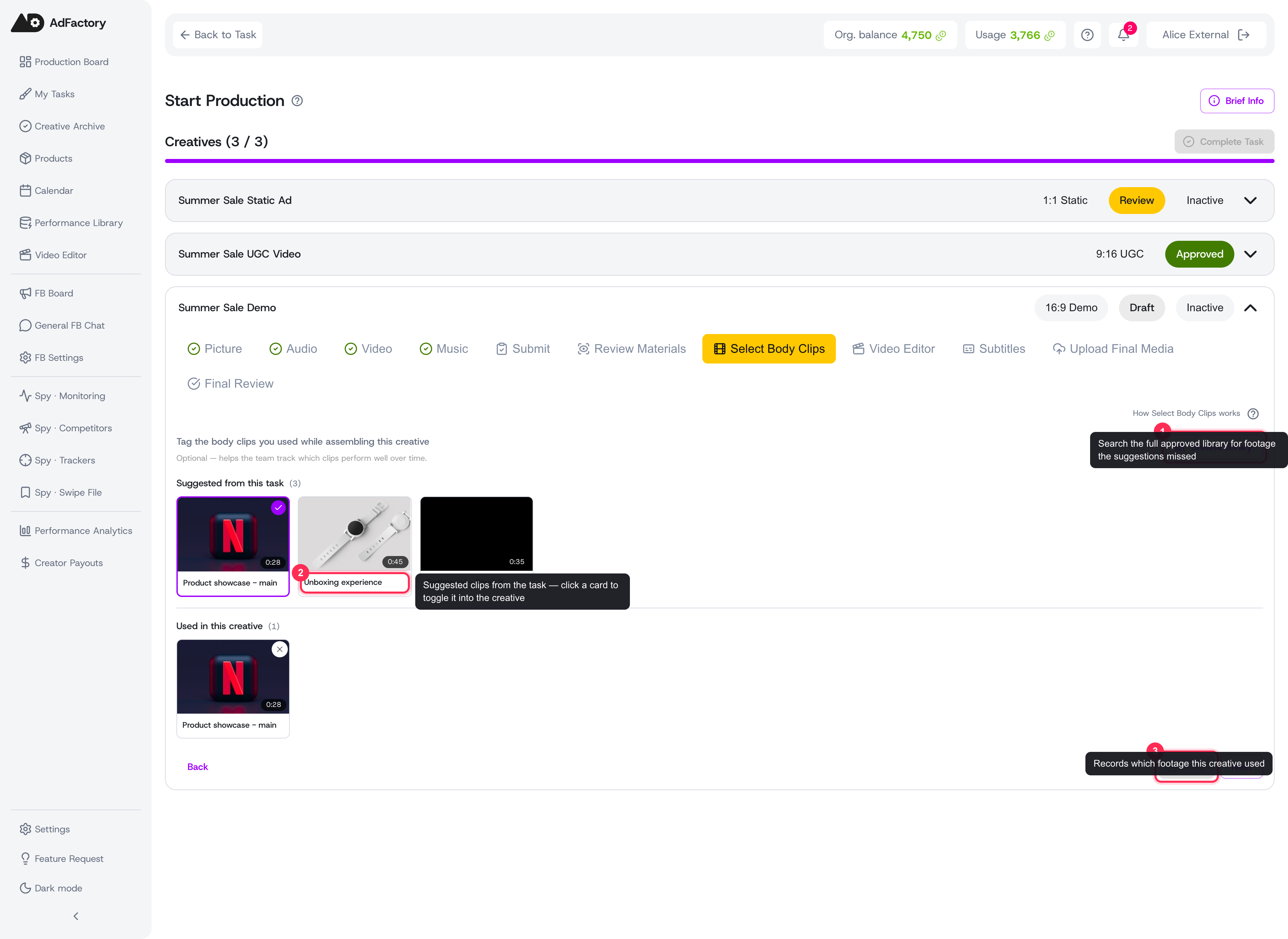 The Select Body Clips step: tap a suggested card, browse the library, then Save which footage this creative used
Where it lives
The Select Body Clips step appears in the creative workflow, between Review Materials and Subtitles. It's an optional step — you can save your selection or skip straight to the next step without choosing anything.
Selecting clips here connects a finished creative back to the body clips library, building an accurate picture of which footage ends up in real ads.
Tagging the clips a creative uses
The step is organized into three parts:
- Suggested clips — cards for the body clips the marketer attached to the task. These are recommendations to get you started; click a card to toggle it on or off.
- Browse library — opens the full body-clip picker so you can search the approved library by title, tag, or type and add anything beyond the suggestions.
- Selected clips — the running list of everything you've chosen, each with a remove button so you can fine-tune before saving.
When you're done, Save records your selection. Saving the same set again changes nothing, so it's safe to revisit and re-save at any time.
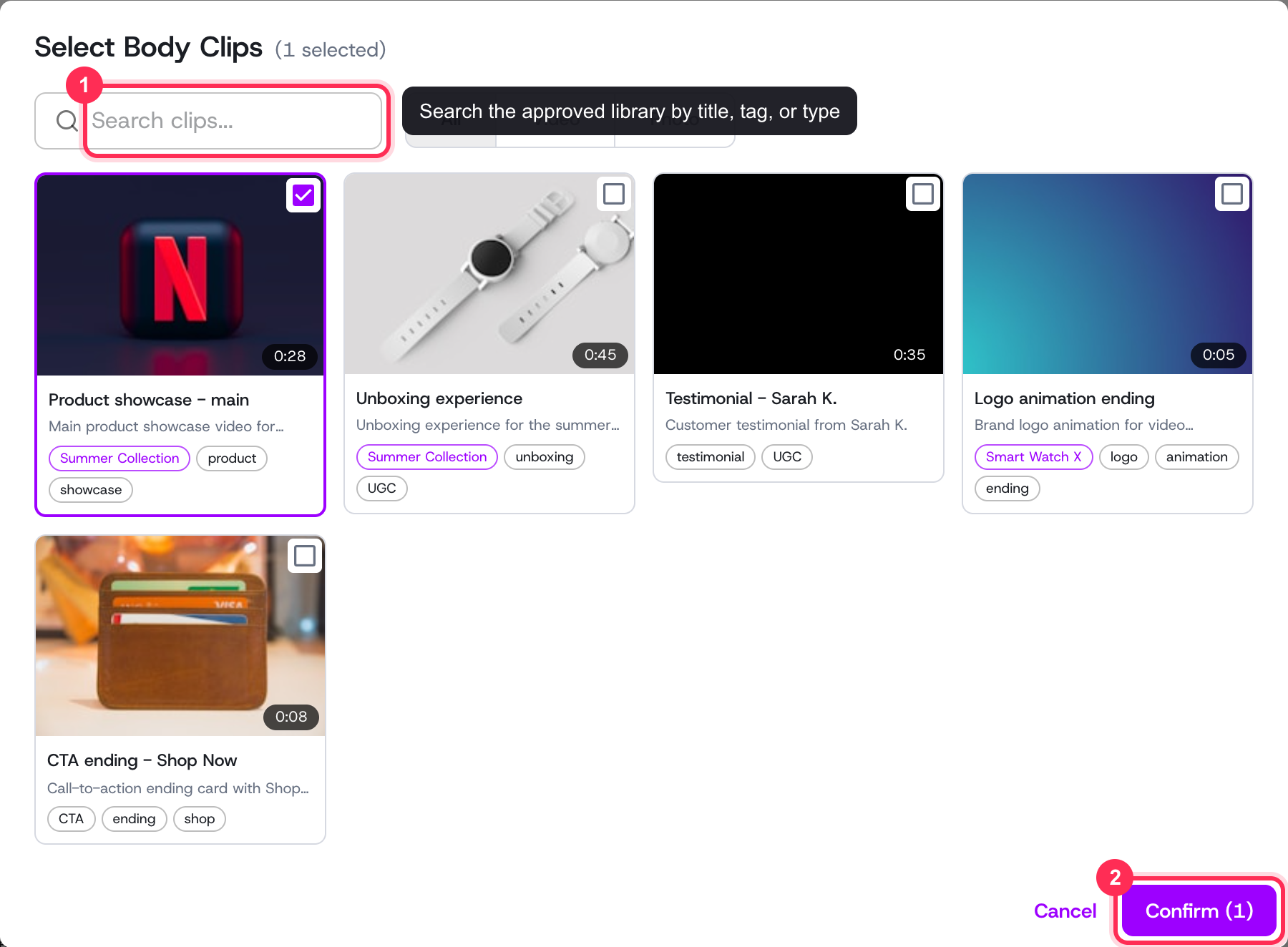 Browse library searches the full approved body-clip library and adds anything the suggestions missed
Who can edit
Only the creative's reviewer (the motion designer assigned to the task) can change the body-clip selection. Marketers and creators see the same step in read-only mode, so everyone has visibility into what was used without the risk of accidental edits. For more on who can do what, see user roles and permissions.
Once a creative reaches a final state — approved or rejected — the selection is locked and can no longer be changed.
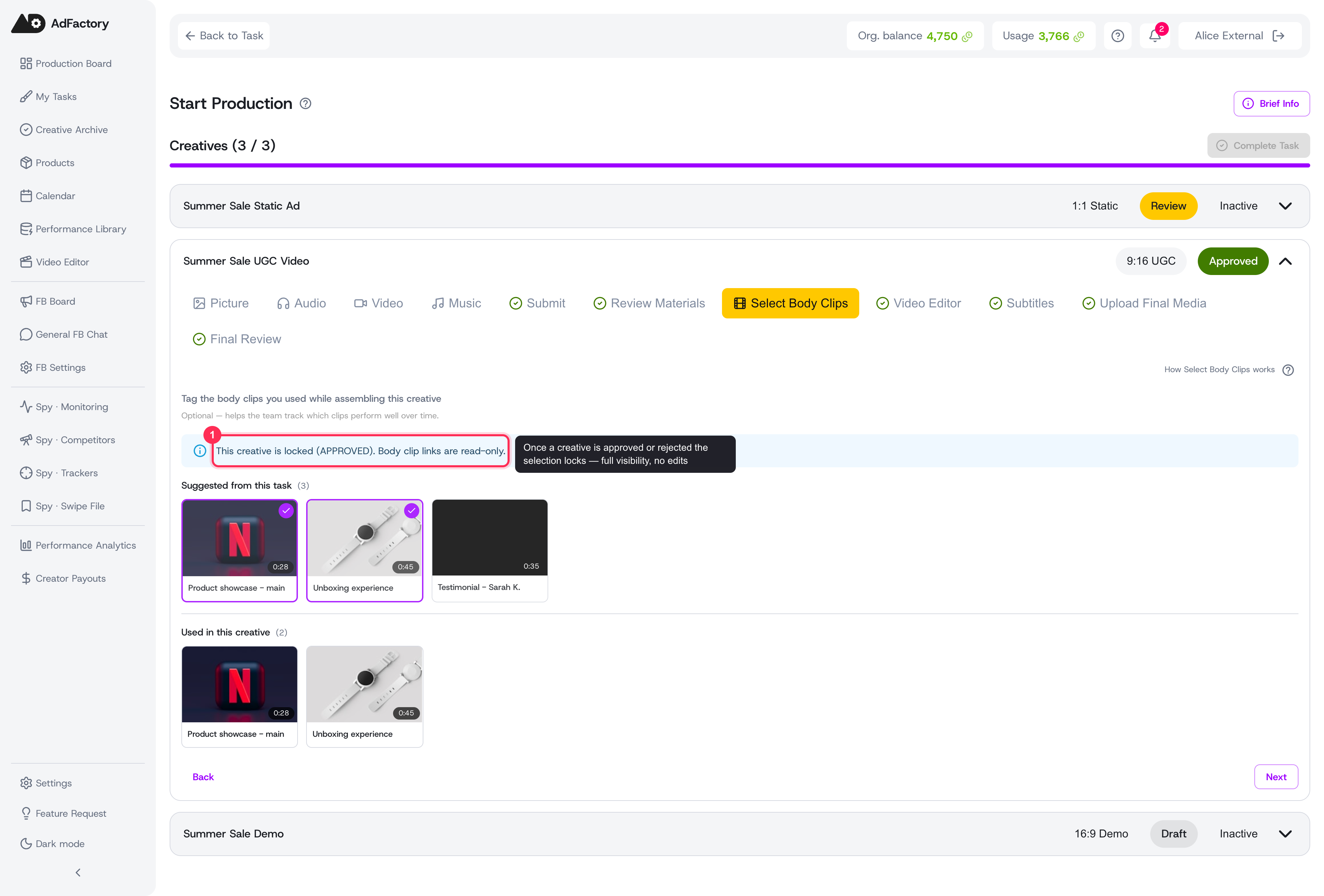 On an approved creative the step is read-only: everyone sees the footage used, but no one can change it
Why it matters
Tagging clips keeps a clear link between creatives and footage:
- Each clip in the library shows a usage badge and a Used in N creatives list, so you can spot evergreen footage that's worth reusing.
- Because used clips are tracked, the library protects them — a clip that's in use can't be accidentally deleted.
Tips
- You don't have to use the suggestions. They're a shortcut, not a requirement — browse the library whenever a different clip fits better.
- Tag clips before submitting the creative for final review, while the work is still fresh.
- If you didn't use any library footage, it's fine to skip the step entirely.